
This add-on enables a dashboard widget that allows Learners to self-report credentials and corresponding expiration dates for compliance. Admins can create a license form that users fill out and also establish a cadence of reminder notifications. Notifications are sent through email and through in-app notifications.
Admin
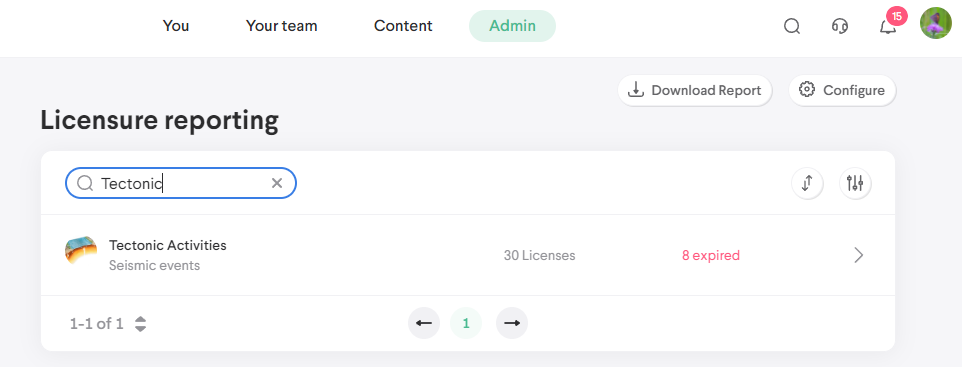
The Licensure add-on tab displays a list of all Learners in the tenant, how many licenses they have, and information about their expired or expiring licenses.
Configuration
Select the Configure button to create the license form and establish reminder settings. Currently, only one form can be configured per tenant.
Reporting form
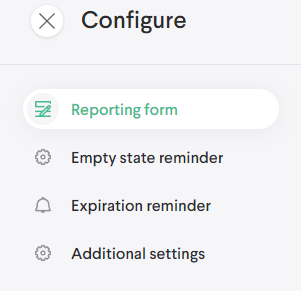
This tab lets you create the form users will fill out when they create their license. It leverages the authored content builder and you can use a variety of field types to create the form. For additional details on the authored content builder see Admin - Authored Content
Empty state reminder
You can adjust settings for the system to send out notifications to users who haven't yet created any licenses. Notifications can be sent to Learners only, Coaches and Learners, or primary Coaches only.
Expiration reminder
You can also create reminders for users who have licenses. You can set the reminders for any time before or after a user's license expires, and any number of reminders can be created. The recipients can be configured for each reminder. Notifications can be sent to Learners only, Coaches and Learners, or primary Coaches only.
Additional settings
In this tab, you can set the name for the kind of license that will appear in notifications.
Primary Coaches
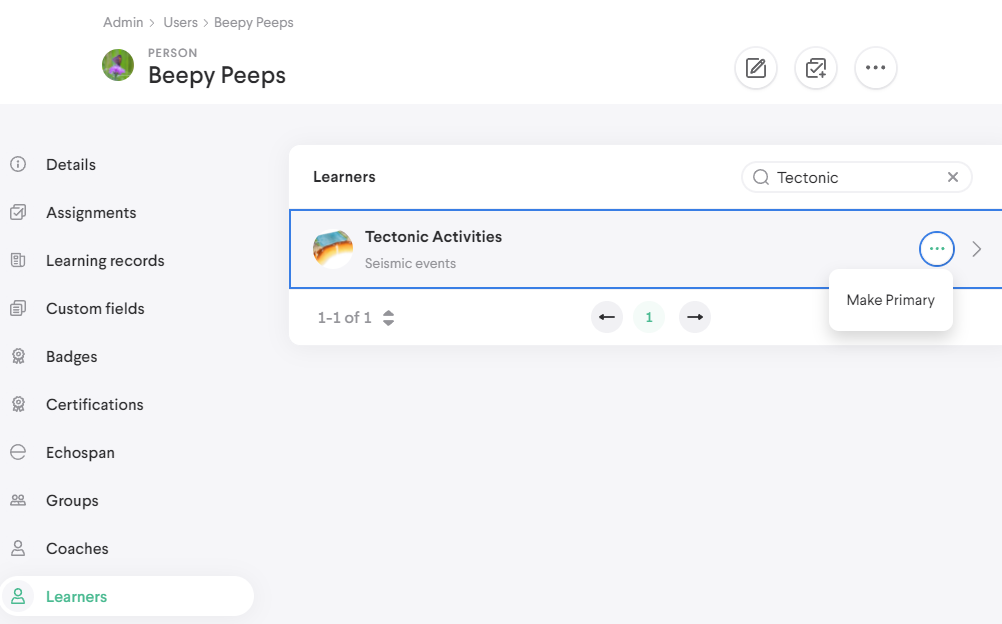
Primary Coach is an association you can create between a Coach and a selection of their Learners. This association can be used to target notifications more accurately. To create an association, navigate to the People table and select a user. Then navigate to the Learners tab and hover over a row in the table. Next select the more button  and select the "Make Primary" option.
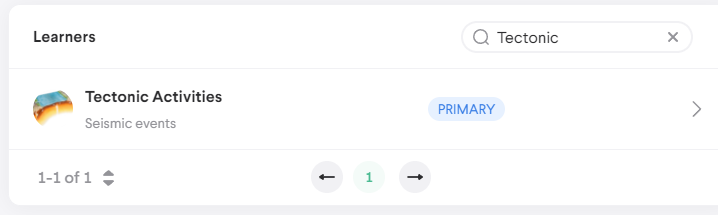
After selection, a tag will appear in the table row, showing that the primary association has been established. The user you're in the detail of will now be a primary Coach of that Learner and will receive notifications for primary Coaches depending on the configuration of the Licensure add-on.
Renewal and licenses over time
Once users have created licenses in the tenant, you'll be able see each license in detail from the Admin Licensure table. Select the Licensure admin tab and then select a user to display a detail of, showing a list of their licenses. Expiration dates and statuses are visible below license titles.
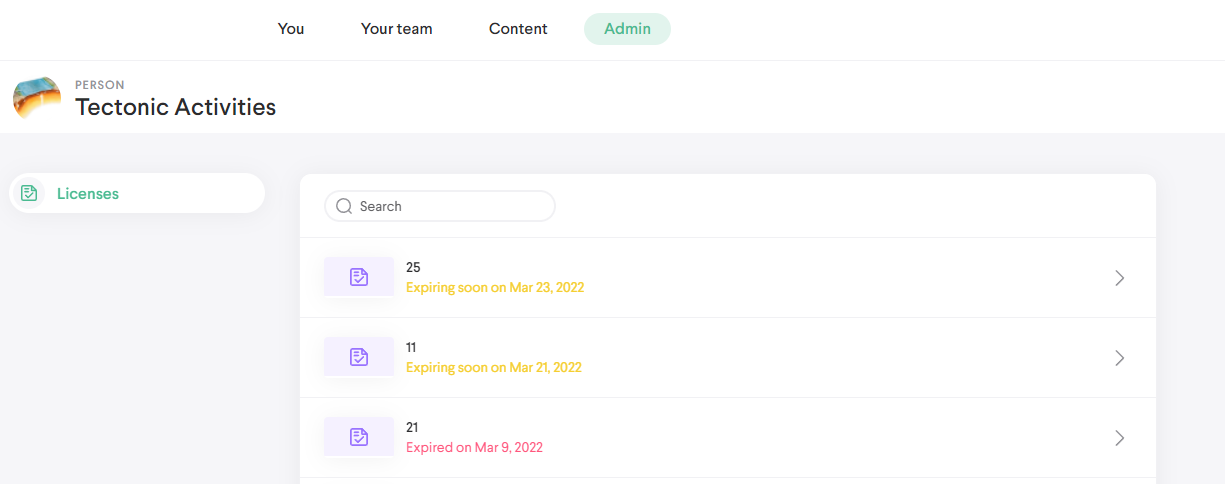
Selecting a license will let you view the contents of the license along with its history. When a license expires, it'll show the expired status on the Learner and Admin sides of the app. Users will have an option to renew a license when the license is set to expire soon (within one month of expiration) or after it expires.
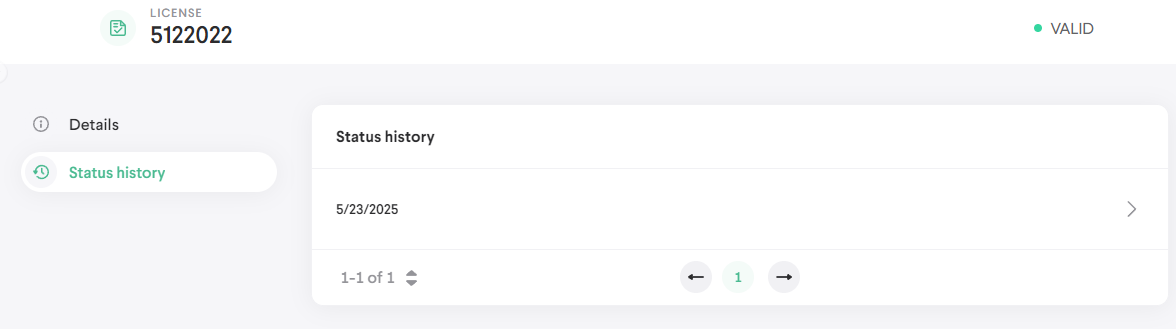
Renewing a license as a user consists of filling out the license form and setting a new expiration date. Each renewal instance is recorded in the Status history tab of a license detail. This table is arranged based on the expiration date. Each entry captures the license form and the information that was entered on it at the time of renewal. To view the information, select an entry from the list.
Comments
0 comments
Please sign in to leave a comment.