
- When creating Content Items, you have the option to add multiple different language versions as part of a single Content Item. For example, you can create a Document that’s in English and also add Italian- and Spanish-language versions of the Document. Learners can view the multiple language options and complete the Content Item in their preferred language. (Learners can set their preferred content language in their profile and will be able to complete Content Items in languages that match their profile settings.)
How to create a multi-language Content Item
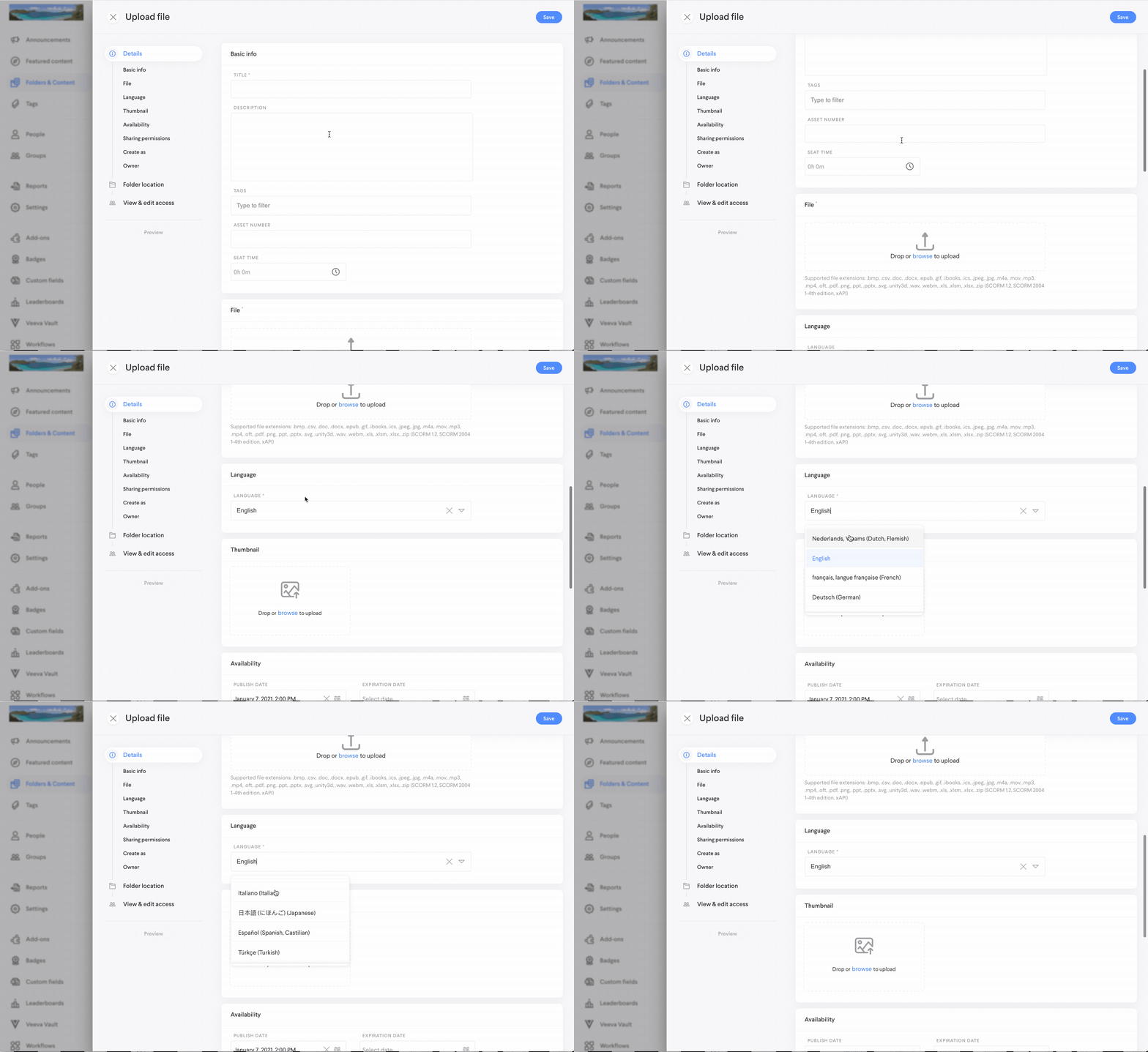
In the creation form, scroll to the Language section and select the primary language for the main file. If you don’t select a different option, the primary language will default to English.
Note: You can create multiple language variants for individual Content Items but not for Learning Paths or Lessons.
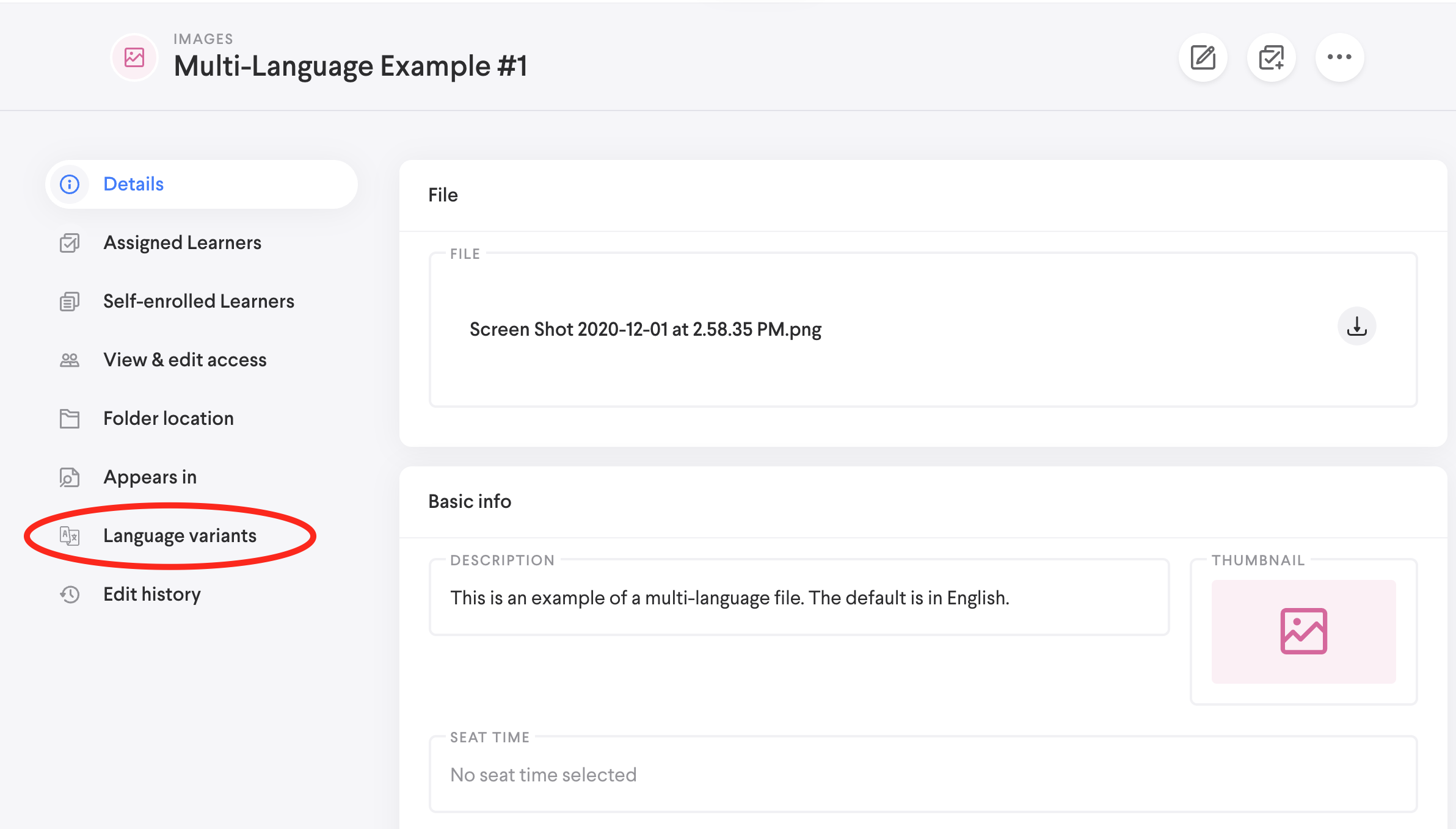
After creating the main file, you’ll be able to access the Language variants tab in the Content detail view. (You won’t be able to access this tab before you save the main file of the Content Item.)
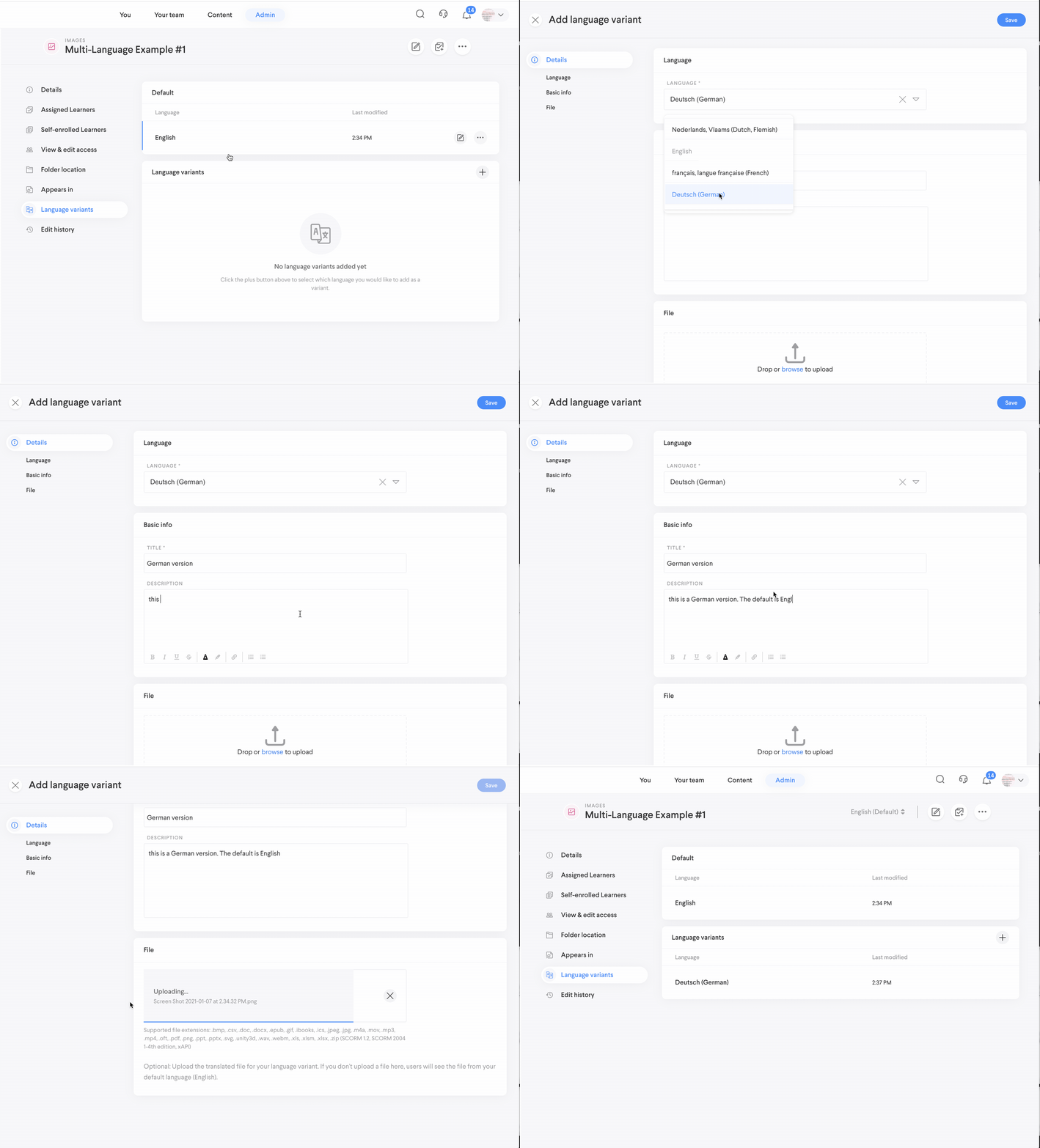
Within the Language variants tab, you can add one or more language variants of the Content Item. These variants aren’t new Content Items — they’re versions associated with the main file. You can make as many variants of the Content Item as there are languages available!
Identify the language, title, description, and file for the language variant and then select Save.
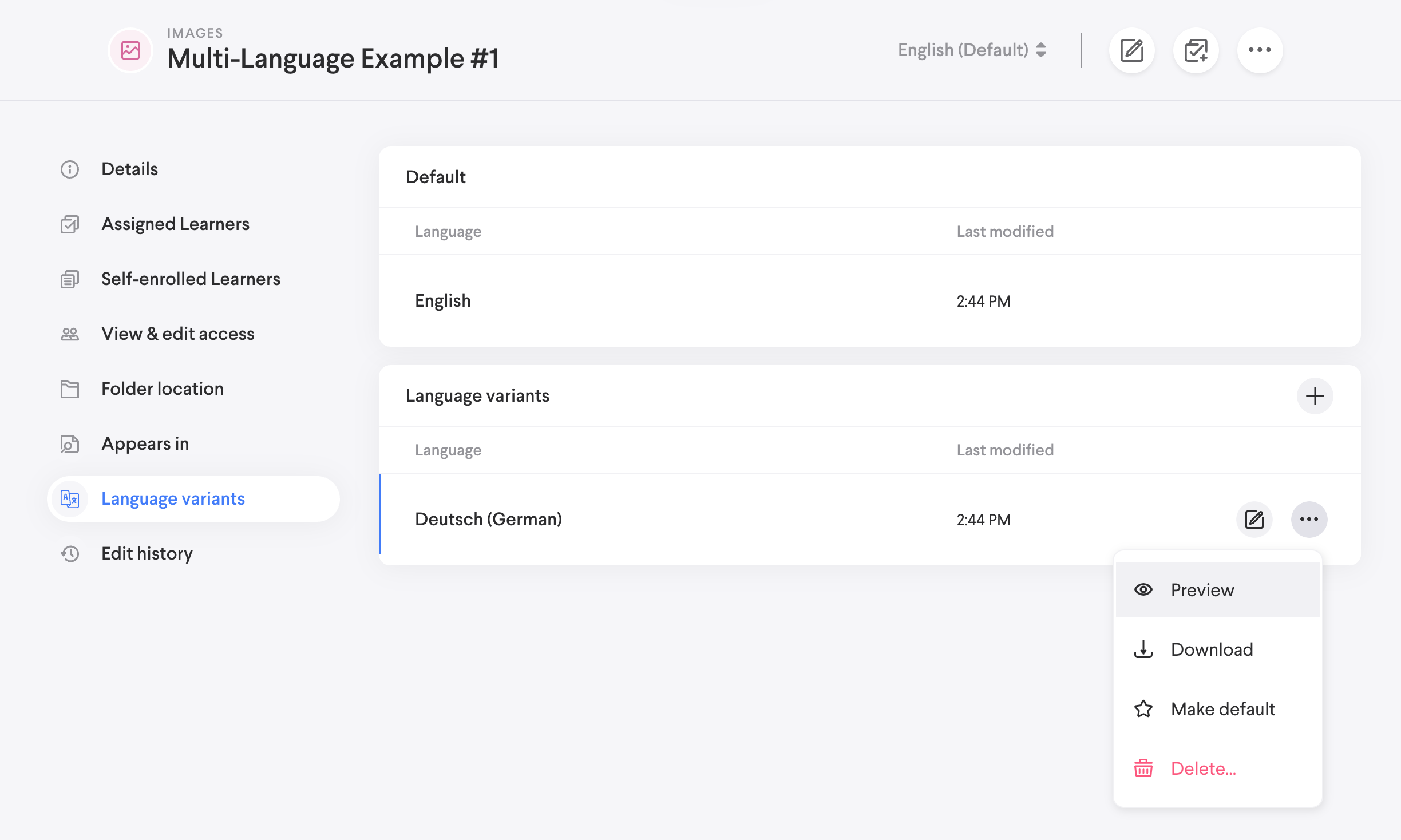
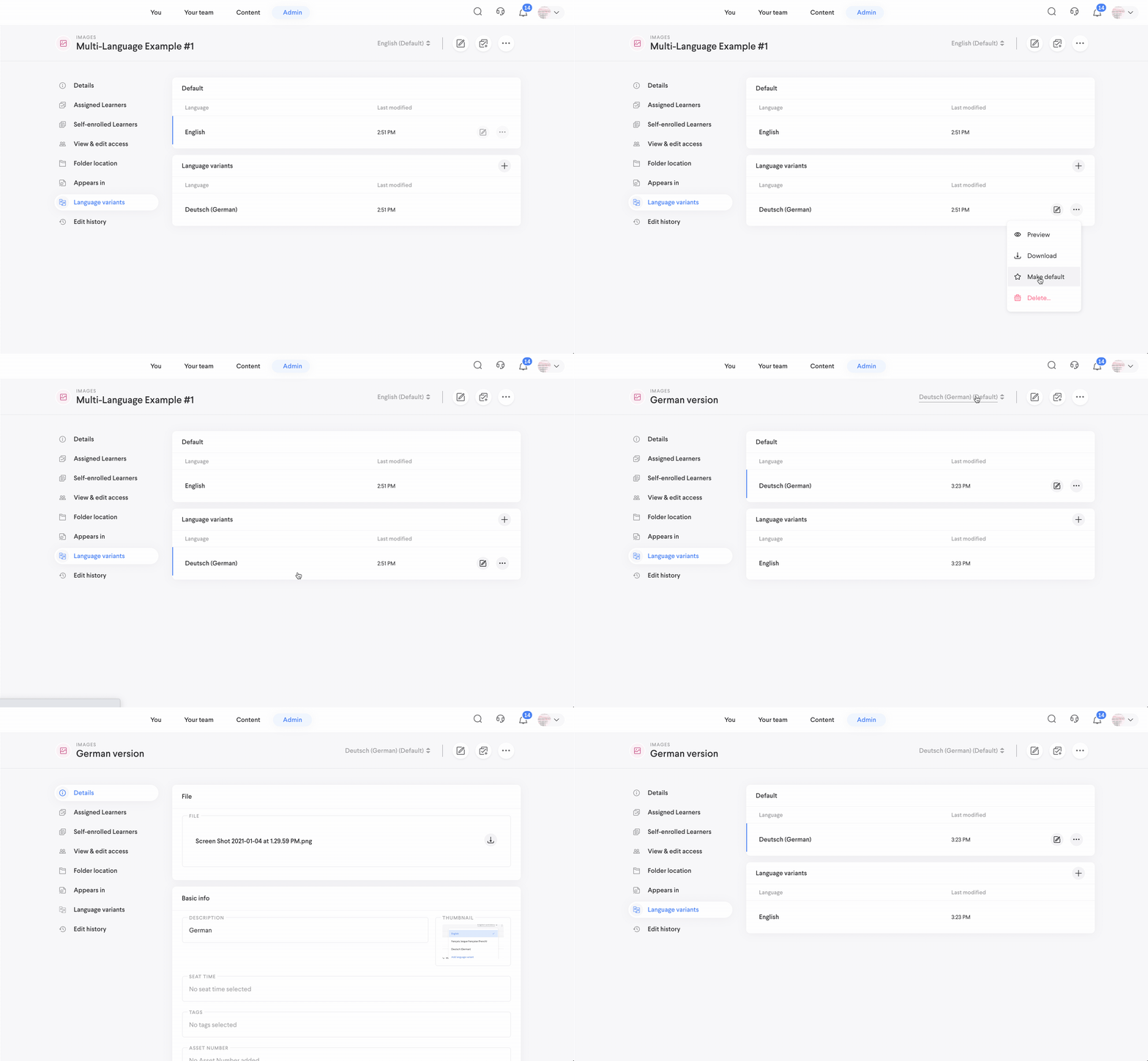
After adding a language variant, you can select the + icon to add another variant. Or you can select the . . . icon to preview the variant, download it, make it the primary language, or delete it.
How to change the primary language
If you want to change the primary language of a Content Item, select the . . . icon and then select Make default. The page will refresh and your selection will now be the primary language.
How to delete a language variant
When deleting a language variant of a Content Item, it’s important not to delete the main file. Select the . . . icon in the lower-right corner of the Language variants table and then select Delete. (Make sure you don’t select the . . . icon at the very top of the Content detail view. Selecting Delete from that menu will delete the main file and all of its language variants.)
Comments
0 comments
Please sign in to leave a comment.