
Learners can view the multiple language options and complete the Content Item in their preferred language. (Learners can set their preferred content language in their profile and will be able to complete Content Items in languages that match their profile settings.)
How to set preferred languages in your profile
Select View Profile and then select the Language tab.
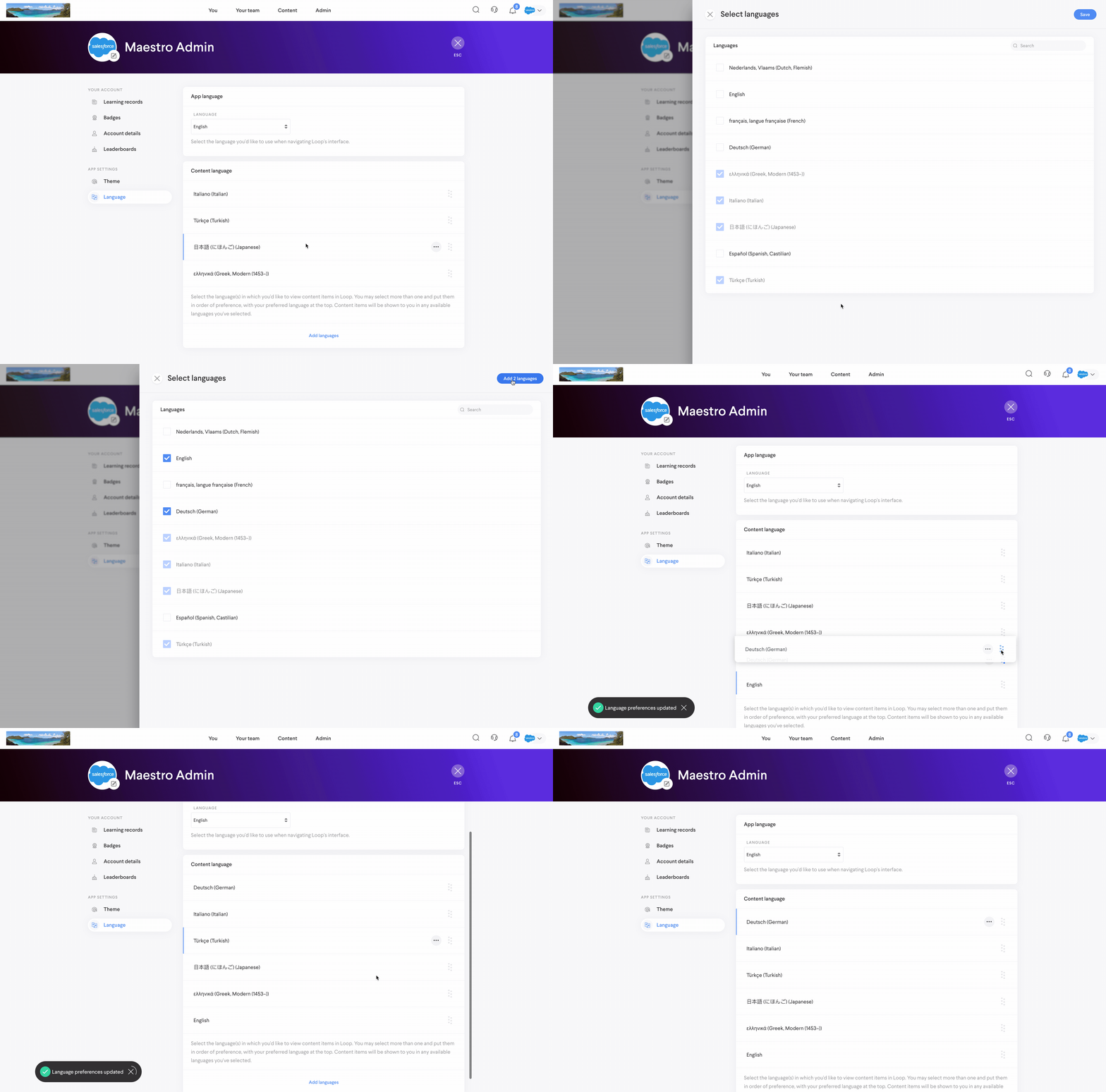
Within the Language tab, you can identify your preferred languages and determine which is your primary language and which are your secondary languages. You’ll complete Content Items in your preferred language(s) based on this priority.
For example, a Learner’s primary language is German and their secondary language is English. If a Content Item is created with English as the primary language and it also has a German version, this Learner will complete the German version of the Content Item as their default. If a Content Item is created with English as the primary language and it doesn’t have a German version, this Learner will complete the English version.
How to change the Content language
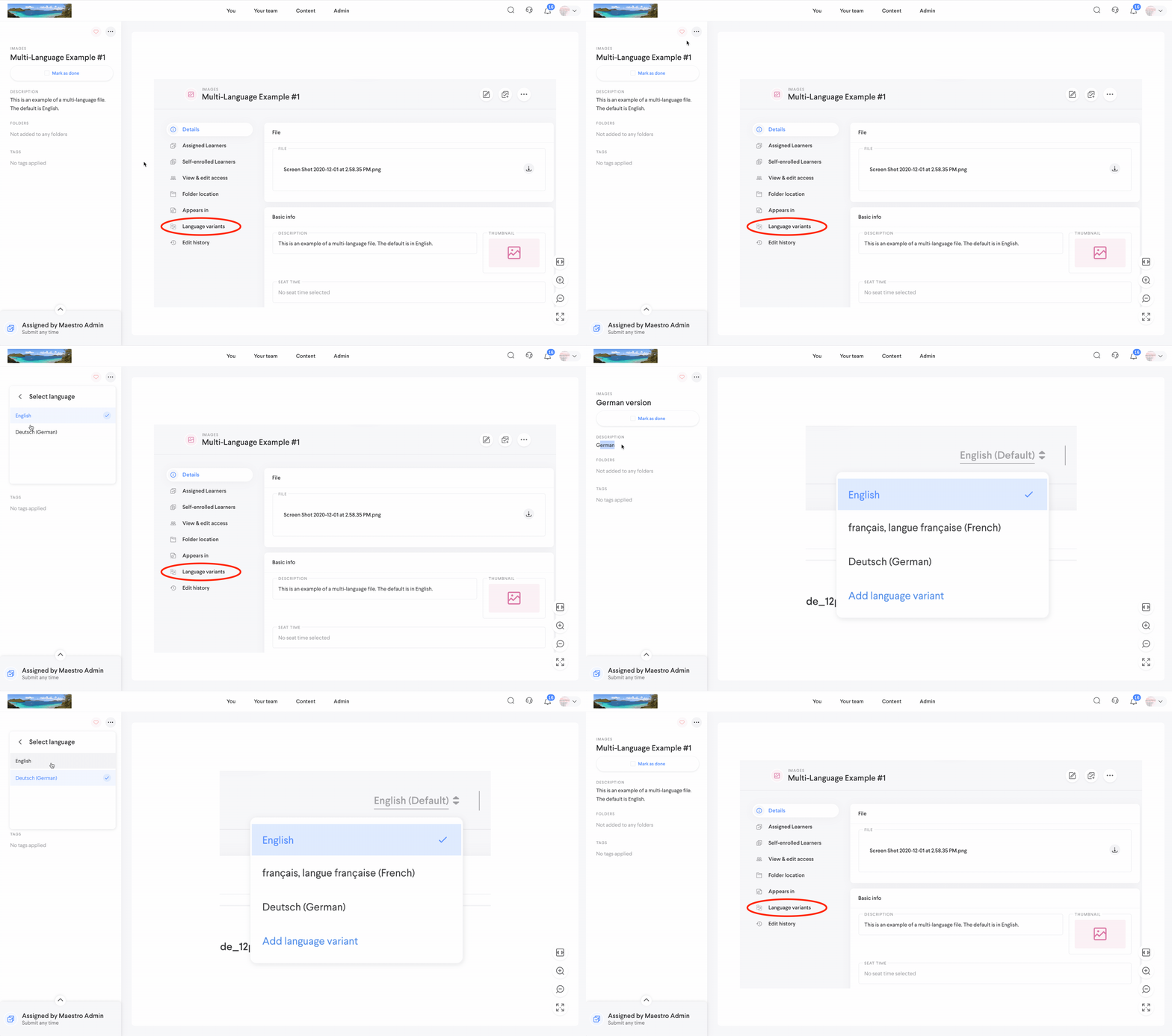
When completing a Content Item that has multiple language versions, you can change which language version you’re viewing.
Within the Content Item, select the . . . icon in the left sidebar and select the language version you’d like to view. No matter which language you're viewing the content in, your progress will be retained.
Filtering Content Items by language
In the Contents tab, you have the option to filter the Content Items available to you based on languages.
Comments
0 comments
Please sign in to leave a comment.