
There's no better way to practice than to record yourself and review. Scenarios allow you to record a live session of yourself responding to a scenario so that your Coach can provide feedback. You can still complete scenarios even without a mic or camera using the upload video option described further down.

Scenario content type icon
You may see scenarios within assignments or as you browse through your Content tab.
Creating a Scenario Response
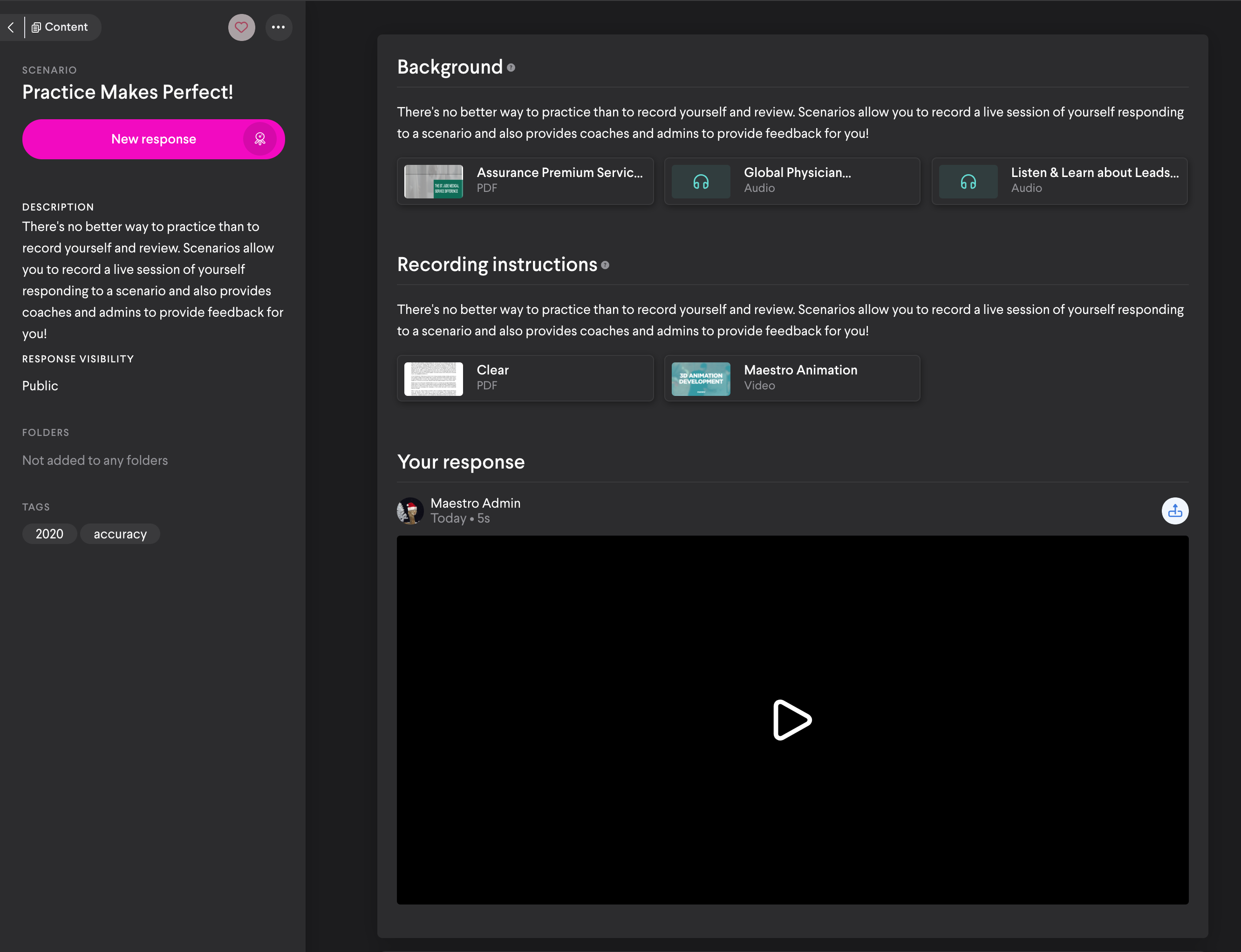
Upon opening the scenario, you'll see something like the screen below.
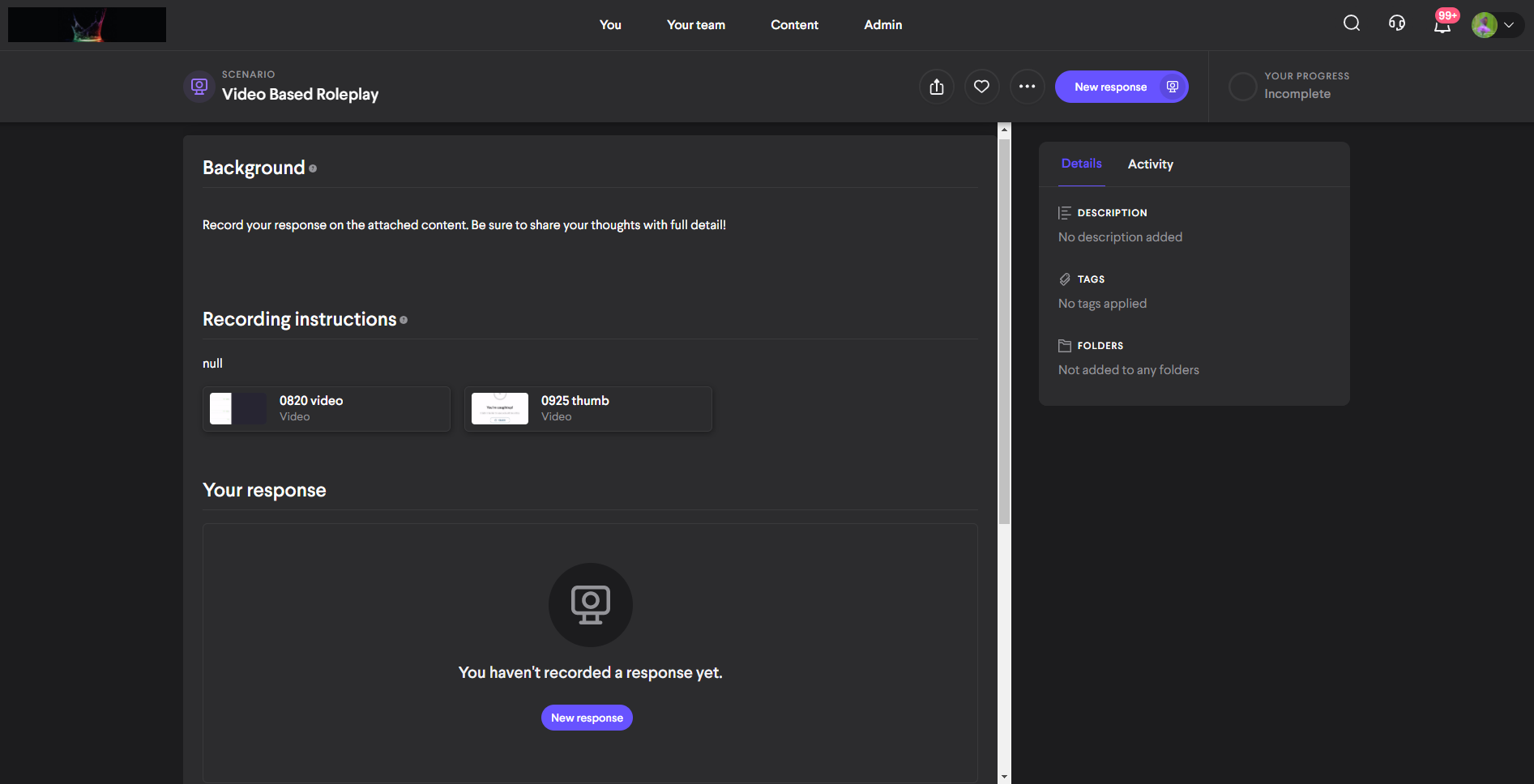
- To create a recording, select New Response.
- You'll see something like this:
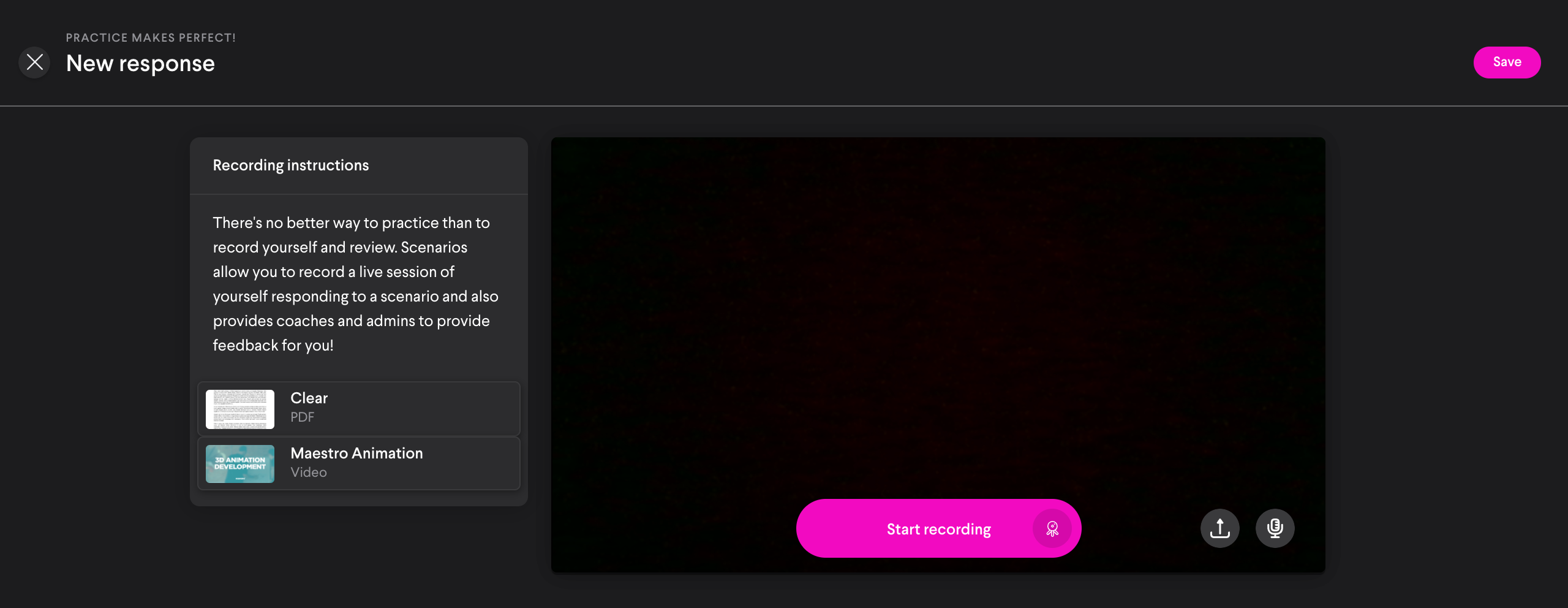
Note: If you are having camera or microphone issues, please see the bottom of this article for more
- Notice that you'll now only have access to Recording Instructions content. This is what will be available to you while recording (no peeking at other content items!). You can view these during or prior to recording.
- If you'd prefer to upload a response that you've recorded on a different device, you can select the Upload action (next to the microphone). From here, you'll select your file for upload and then you can review it before completion.
- To start, select Start recording.
- While recording, you'll see the video duration in the Stop recording button.
- If Recording Instructions are available, you can open the item.
- You'll have the ability to interact with both PDFs and Videos during the recording.
- To close recording instructions, select the X above the item.
- It will look something like this:
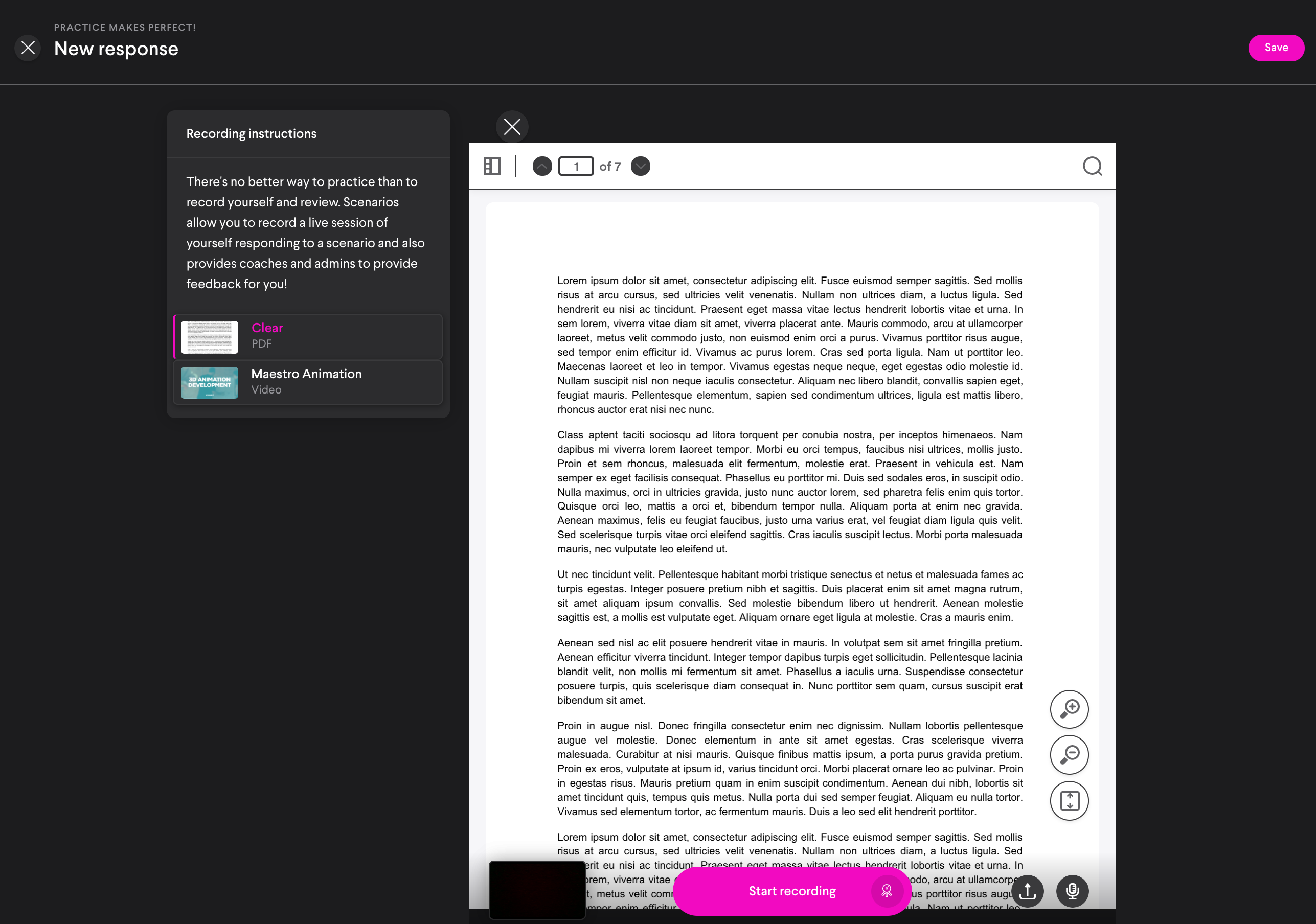
- To stop the recording, select the Stop Recording button.
- After stopping the recording, you'll be able to review your video and see how you did.
- If you want to try again you can select Discard in the upper right corner.
- Warning: if you choose to discard, the recording will be deleted and cannot be retrieved!
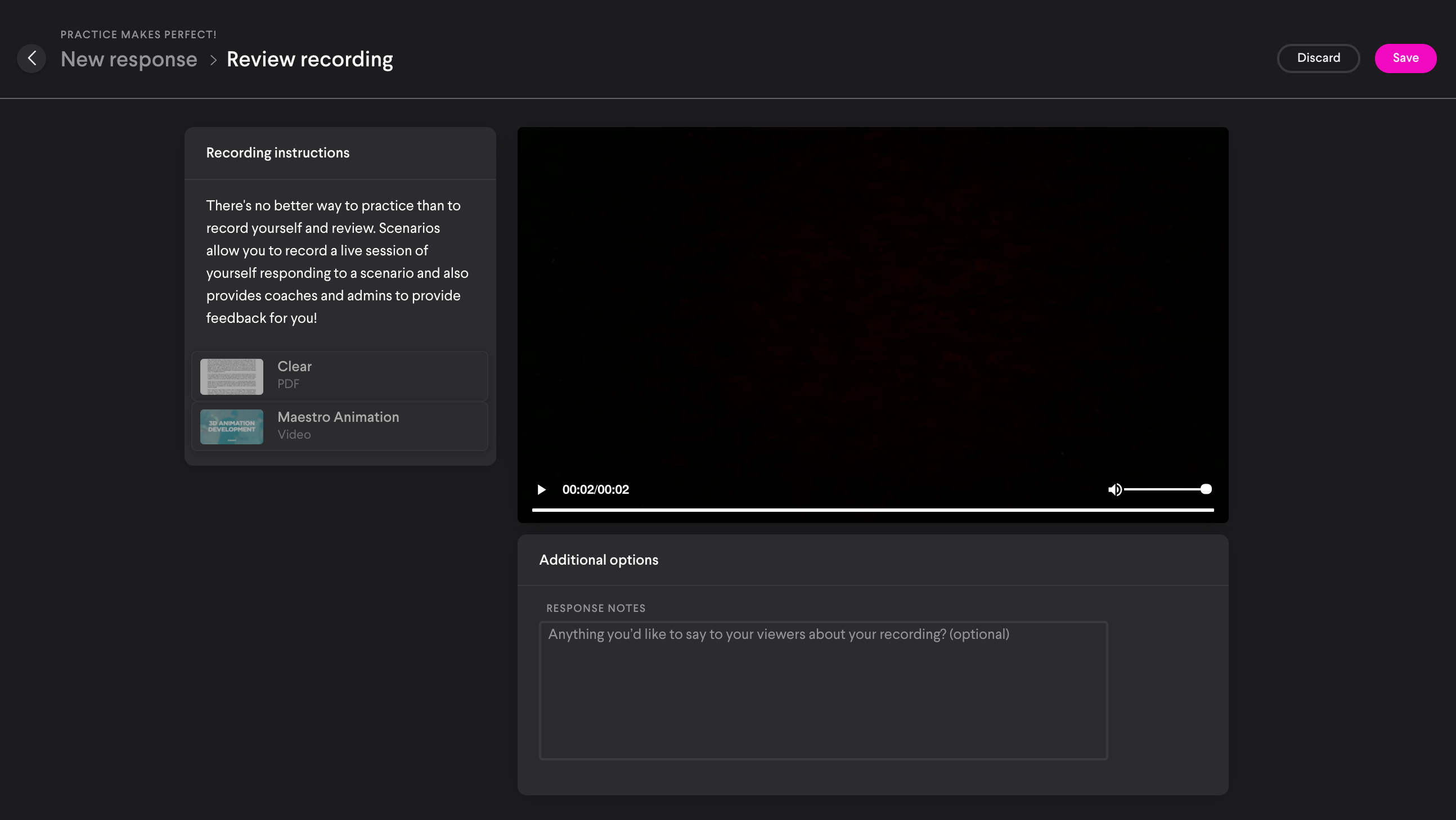
- To complete, select Save in the upper right corner. Well done!
- You'll be taken back to the scenario detail page where your recording is displayed.
Sharing Your Response
- If you'd like to share your response with others, you can select the Share icon:

- This will only be available if the scenario settings permit it.
Troubleshooting
If you are having issues with your webcam or microphone, please use the links for troubleshooting. It is possible your browser is blocking access to these.
Comments
0 comments
Please sign in to leave a comment.