
You can share content with people both inside and outside of your organization. The ability to share content depends on the type of Content Item and whether or not an Admin has made it shareable.
To share content
While you're in the media viewer, select the button in the upper portion of the details section on the left. If the content is shareable, you'll see this share button:

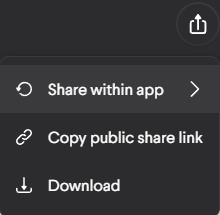
Once you've selected it, you'll see these share options:
Internal Sharing
You can share Media, Websites, Interactives, and Courses within Loop. You can also share some non-Content Items, such as Scenario Responses, if an Admin has enabled sharing in the scenario settings, and folders. Assigned scenarios aren't shareable.
When sharing internally, you can only share with other people within your group. To share internally, select Share within app in the share menu. This will take you to the person selection screen, where you can select who you wish to share with. If someone shares content with you, you'll get a notification. Select the link in that notification to view the content.
If the Sharing message add-on is enabled, you can also add an optional custom message for recipients. The message will appear as part of the sharing notification in their notification tray and will get added to the sharing email that gets sent.
External sharing
External sharing lets you share content with people outside of your organization, including those without a Loop account. Media, Websites, Interactives, and Courses can all be shared externally.
To share externally, select Copy public share link from the share menu to copy the link to your system's clipboard. Anyone with that link will be able to access the content.
Note: There are a few features that are unavailable for content that's shared externally. Any sort of content completion feature will be disabled for public links.
Comments
0 comments
Please sign in to leave a comment.