
When you select the People tab, you'll see the people table. The people table shows all people that your account shares groups with. The table is sortable and searchable by criteria including Admin role, group, and activation status.
To create a person
People Admins, Group Admins, and Super Admins have the ability to create people. Here's how:
- Select the + button from the table to produce the person creation form.
- Fill out the required fields.
- Set the user's role. Only Super Admins can give users Super Admin permissions. People Admins and Group Admins can give any type of Admin permission except Super.
Viewing person details
Selecting a person from the table will produce the detailed view of that person's profile. This view contains the following sub-sections:
- Details: Displays the existing general information about the user including basic information, admin permissions, groups, and custom fields
- Course Results: Displays the cumulative course results and scoring for that person
- Assigned content: This shows the enrollments of content that has been assigned to the person by Admins or Coaches. Selecting a row in the table will take you to the detail view of the enrollment. This view provides statistics about that person’s progress on each of their enrollments
- Self-enrolled content: Shows the items that the person has enrolled themselves in on their own. All of the content here are items that the person has access to or had has access to in the past
- Learning records: Shows all completed content across assigned and self enrolled content items
- Groups: Displays all groups the user is a part of
- Edit history: All admin edits for a user are shown here
- Coaches: Lists the Coaches coaching the selected person
- Learners: Lists the Learners under the selected person
Additional tabs can be shown depending on what add-ons are enabled in the tenant including
Custom fields: All user custom field values are shown here
Badges: Shows all earned and not yet earned badges
Certifications: Shows all certifications and the user's progress
Leaderboards: Shows all leaderboards and the user's progress
Echospan: Displays all Echospan projects for this user
To edit person details
People Admins, Group Admins, and Super Admins have the ability to edit the details of existing users. To do so, go the the user detail view and select the edit button.
It looks like this:

You'll then see the following options:
- Details: Here you can edit basic information about the user (including first & last name, email, external ID, title, and division), their avatar image, their Admin permissions, and their account configuration information including SSO, roster import override, and account status.
- Custom fields: If there are any active profile custom fields, you can fill them here.
- Groups: Here, you can set the person's groups.
- Coaches: This is where you set a person's Coaches. Anyone you set as a Coach here will see that person in their Learners view.
- Learners: This is where you set a person's Learners. Anyone you set as a Learner here will see this person in their Coaches view.
Active and inactive users
When users are created they start off as active by default. When a user no longer needs access to the application their account can be deactivated in the account configuration section in the Details tab when editing a user.
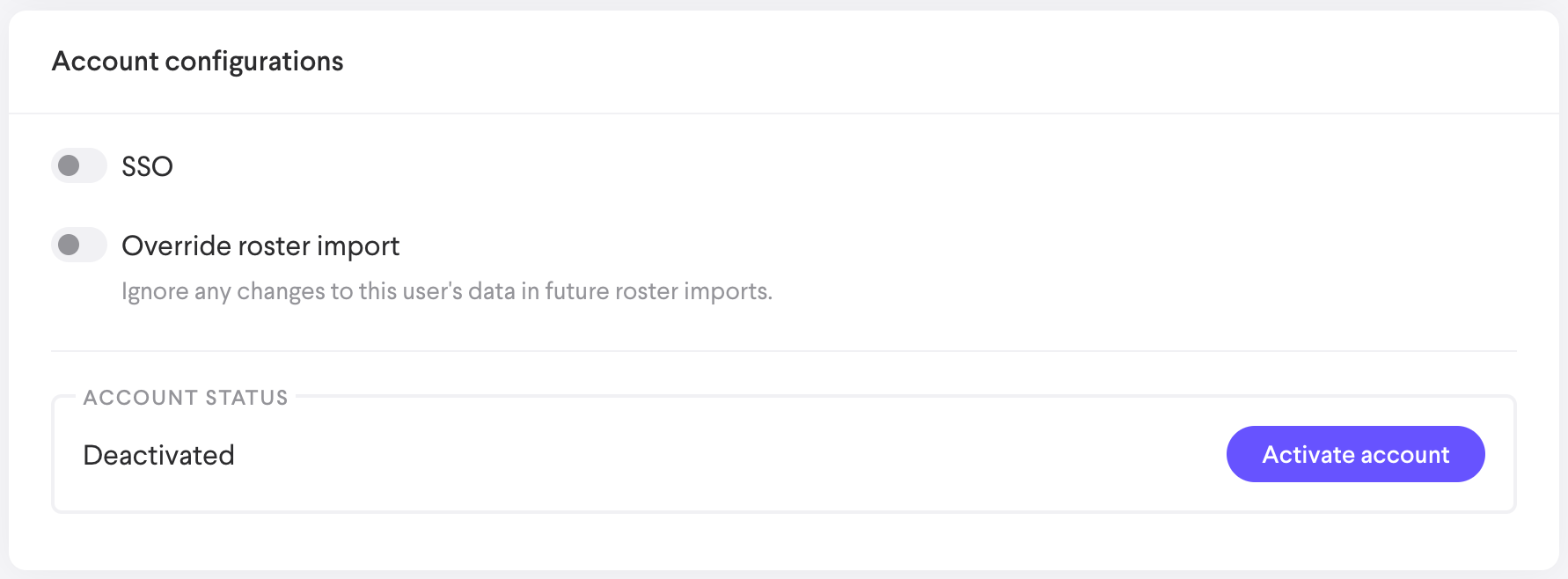
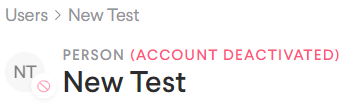
Deactivated accounts cannot log in even with valid credentials and will show the deactivated tag in the People table and in the user detail
Any deactivated account can be reactivated at any time from the same location when editing a user. The user can use the same credentials as they did before the deactivation. No adjustment or password reset is necessary.
Comments
0 comments
Please sign in to leave a comment.