
If you are a Super Admin, you have the ability to create custom fields that cater to the unique needs of your organization. These custom fields can be categorized as either People or Content fields, and any information entered into them will appear in the details tab of the person's or content's detail view. To view the custom fields, you must have People and/or Content admin access.
Note: Custom fields are only visible to admins. End users cannot see them.
How to create and edit custom fields
To create a custom field
Let's say your organization is a remote sales organization, and your Learners are remote sales reps. It's going to be helpful for People Admins to know where each Learner is located and what their sales territory is, so we'll add some custom fields to indicate that information.
- Make sure Custom Fields add-on is added to the app.
- Select Custom Fields from the left side panel
- Select the additive action button + in the top right area of the custom fields table.
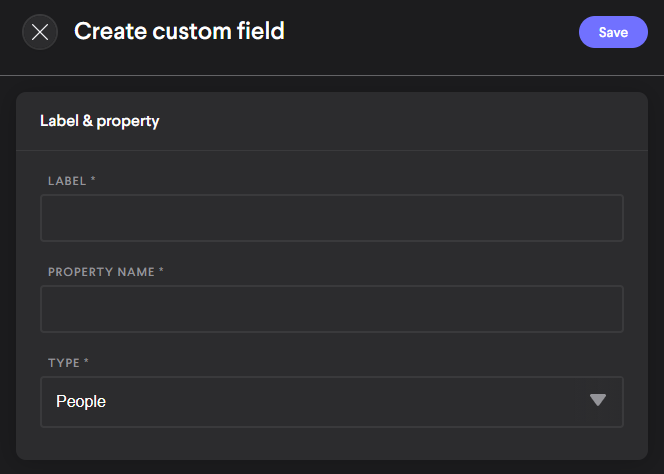
- A custom field contains three fields; Label, Property Name, and Type. All are required to complete the setup. The Label is the name that will appear to Admins when they set up and view the field in the applicable location. The Property Name sets the name of the field for reports and data reference. The Type determines if it will apply to content items or if it will apply to people. A filled custom field modal might look like this:
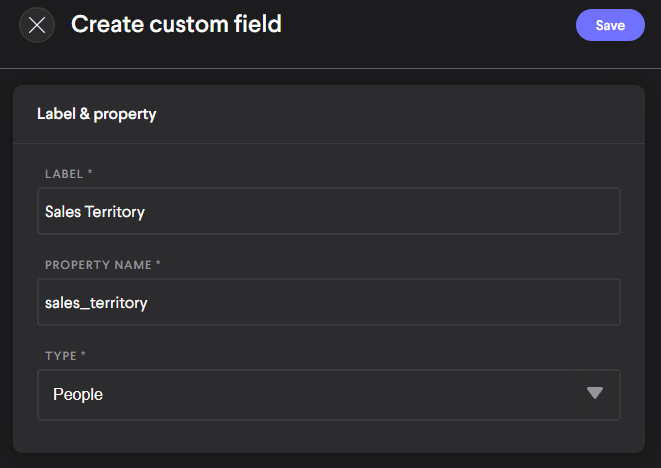
- Select the Save button when you're finished. Your custom field has been added!
To edit a custom field
- While viewing the Custom fields table, hover over the row containing the custom field you'd like to edit.
- Select the edit button in the row controls.
- Make whatever edits are needed to the Label and Property Name. It is important to note: You can't edit the custom field's Type after it has been created. You'll need to create a new custom field instead.
- Then select Save.
How to fill and view custom fields
To fill a user custom field
People Admins can fill previously-made profile custom fields when creating a person.
- While creating a person, select Custom fields from the menu on the left.
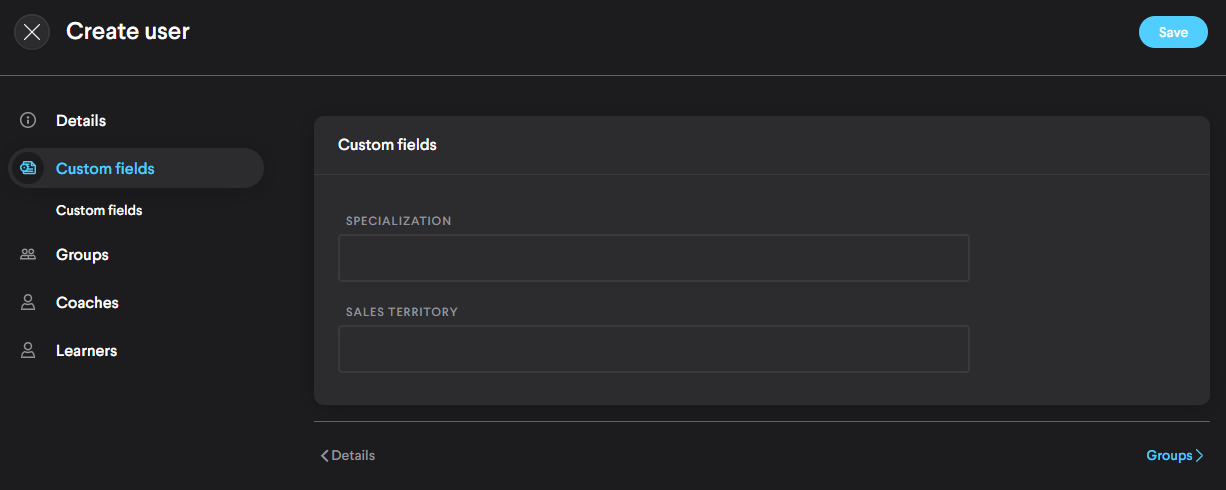
- Fill the relevant custom fields with the relevant information.
- Complete the process of creating the person.
To view profile custom fields in a person's details
To view profile custom fields, simply navigate to the person's detail page and select the Custom fields tab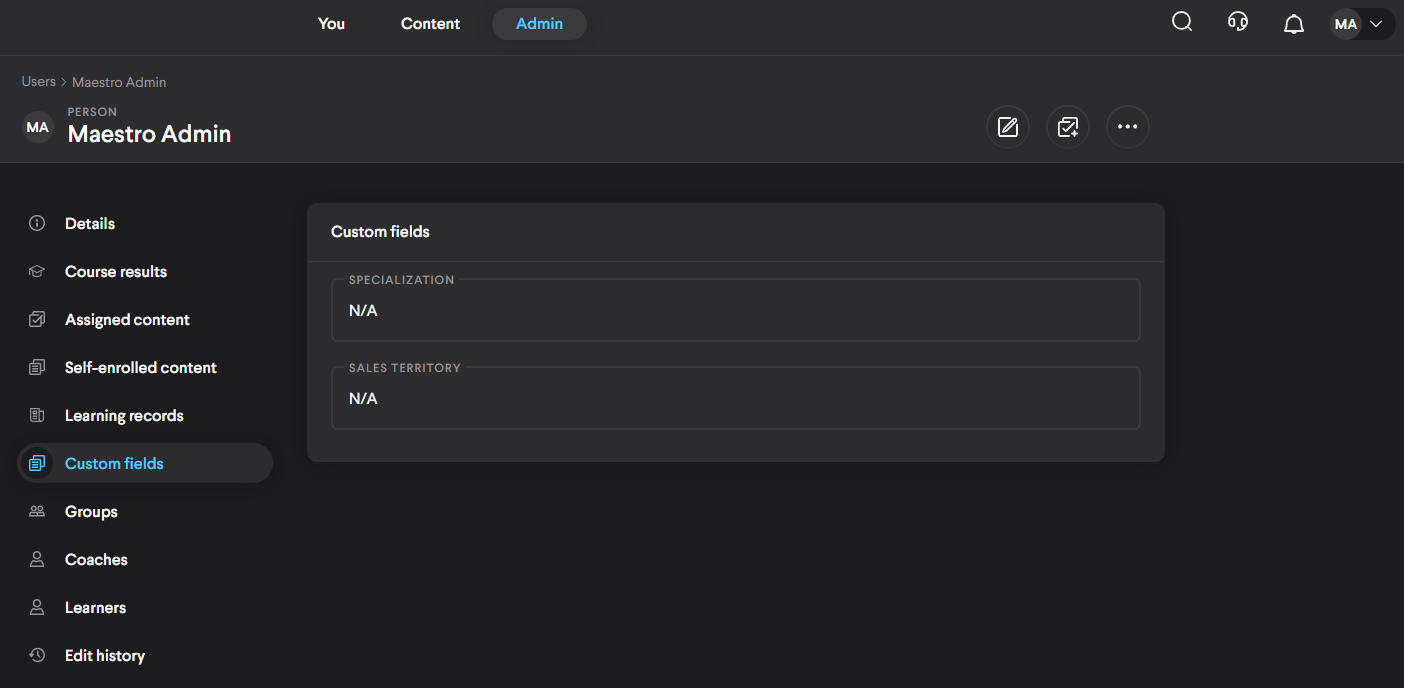
To fill a content custom field
Content Admins can fill the custom fields of a given content item
- While creating a content item, select Custom fields from the menu on the left.
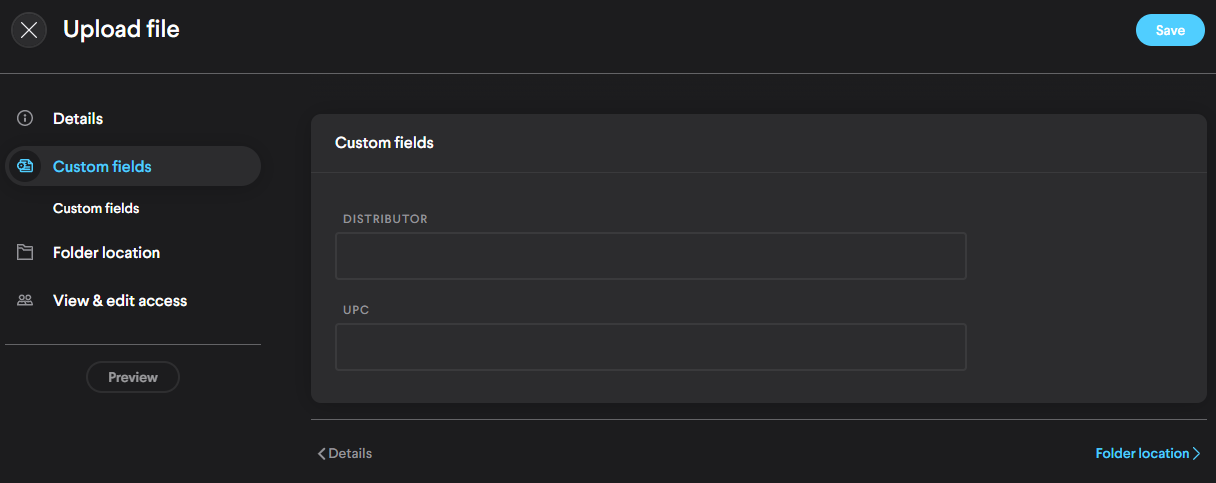
- Fill the relevant custom fields with the relevant information.
- Complete the content creation process
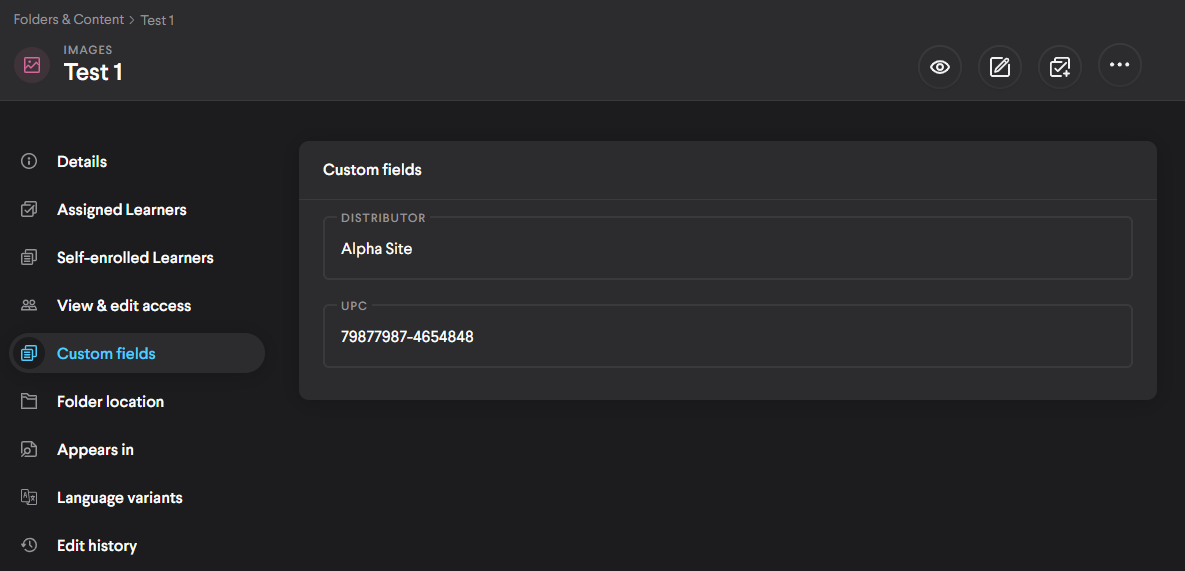
To view content custom field in a the content details
To view content custom fields, simply navigate to the content item's detail page and select the Custom fields tab.
A note on disabling the Custom field add-on
When you disable the custom field add-on from the add-on table existing custom fields and their values are not deleted, they are only hidden. If you reenable the add-on the fields will reappear in the custom field table and have the same values as they did before for users and content.
Comments
0 comments
Please sign in to leave a comment.