
Summary
The accreditations add on handles the digitized process of accreditation application, review, qualifications, maintenance, and terms for accreditation applicants. Accredited programs are created in the system and then program directors create program applications for those accreditations relating to a specific term. The stages of program application are managed through terms and a system of statuses.
Admin - Accreditation Management
Accreditation Creation
To create an accreditation, as a super admin navigate to the Accreditations tab. This will produce the accreditations table showing a list of all accreditations in the system. Select the add (+) button to open the creation form. Here you will construct the forms that the accreditation requires of applying programs. The form builder uses components from the authored content builder.
The creation form contains the following tabs
- Details
- Program application
- Resident application
- Resident Advisor application
- Supervising Diplomate application
In the Program application tab there are two form sections. One is the public form application and the private form application. The public form will appear on the AVCIM website and display information there. The private form and its results can only be seen from within Loop.
After you fill out and save the form it will be added to the admin accreditations table. Program directors can only create applications for that accreditation if the 'Allow application' permission toggle is enabled during creation. If it is disabled it won't show up in their available list of accreditations to choose from until it is enabled.
Admin Details
You can access the detail by selecting the accreditation from the admin accreditation table. The program detail contains the following tabs
- Details: Displays the program details for the base line (not term specific) accreditation
- Programs: Lists the programs which have applied to the accreditation for the selected term and displays an overview of each one including their statuses. Select a program to view its details. It will contain all information collected during the program application. The program status will be denoted in the top banner of this sub detail.
- Reviewers: Lists the accreditation reviewers for the selected term
- Resident groups: Lists the accreditation groups for the selected term
- Accreditation terms: Lists all accreditation terms
The Programs, Reviewers, and Resident groups tables will only show the values that relate to the term selected in the dropdown next to the accreditation title. Changing the term in the dropdown will update these fields. The Accreditation terms table and the Details tab does not change with the term selection up at the top.
Accreditation terms
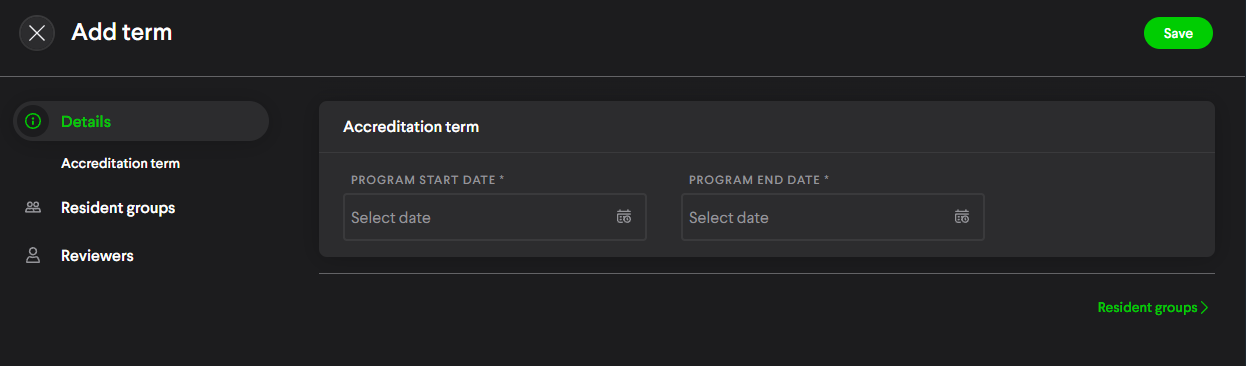
The 'Start Date' and 'End Date' fields you fill during accreditation creation establishes the first term of the accreditation. Terms allow for programs to be managed over time. Each accreditation can have any number of terms. When program directors create programs in the system the application is tied to a specific term. When a new term is added to the accreditation at a later time, program directors can create new applications to that new term using the same program.
Terms consist of a date range, Resident group table, and Reviewers table. New terms can be added or edited at any time. Any term can also be removed from an accreditation up until there is 1 term left on the accreditation. Accreditation terms can have any date range and their date ranges can be changed at any time.
You'll notice at the bottom of the Details tab of an accreditation detail the 'Active Term' and 'Renewal Term' fields. The possible values for these fields can be any term on the accreditation.
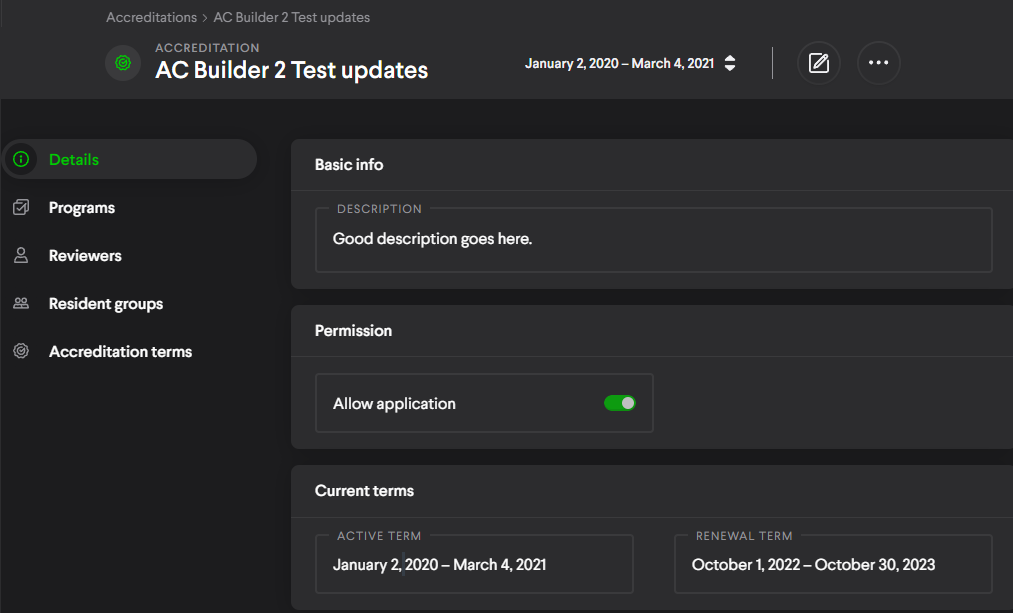
- Active Term: The term that program directors can apply to when creating a new program application
- Renewal Term: The term that can be applied to when renewing an existing program application
If an existing program doesn't have an application for the renewal term then PD's will see a renewal banner in their application detail that they can use to create a new application to the renewal term. When a new program application is created from scratch then the term that the application gets applied to is the Active term.
Note: There is no automated logic that changes what the current Active Term and Renewal Term is. When the need to adjust these terms comes it must be done manually.
Terms over time and accreditation editing
Any accreditation term can be edited at any time. This affects program applications in varying ways depending on the application's status. Accreditations are similar to content in that they have versions associated to them. When an application is made against an active or renewal term of an accreditation it is associated with that accreditation version. Edits to an accreditation create new versions of that accreditation.
Specifically changes to any of the following will create a new version.
- Public application
- Private application
- Supervising Diplomate application
- Resident Advisor application
- Resident application
It may be possible to upgrade existing applications to a newer accreditation version.
Upgrading
If the accreditation is edited and a new accreditation version is created: when PD's enter an edit view of the accreditation they will see an upgrade banner within the program application in the sections which underwent changes.
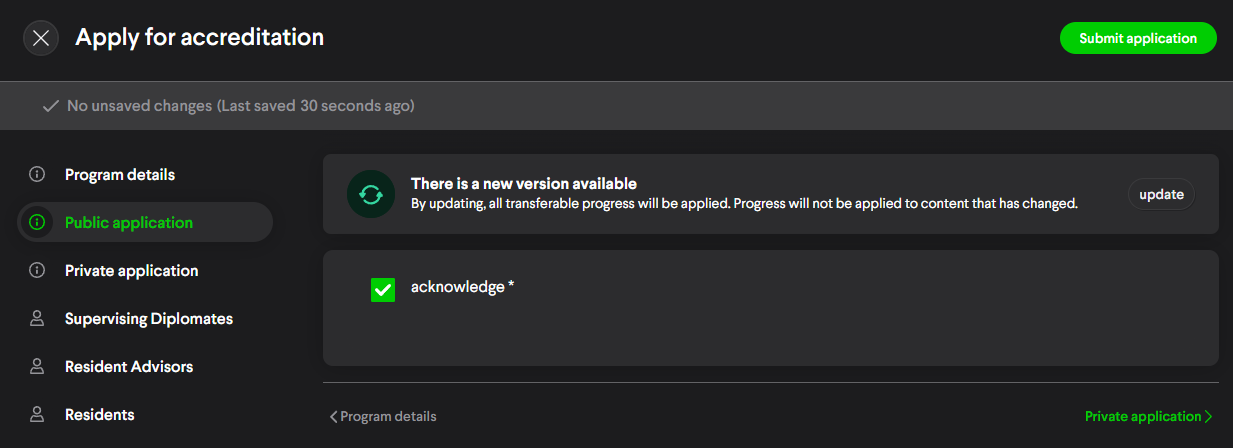
Updating is not a requirement. The PD may choose to update all, some, or none of the sections which received new versions.
Responses to form fields on the existing application will be retained and carried over to the new version if the field was not updated. Only responses to fields which have undergone changes will be discarded between versions. Applications can be upgraded up to the latest accreditation version within a term but not not beyond.
Additional insights: the term Workflow
This section isn't necessary to read for most addon operations but is provided to offer some additional insights into how the system works.
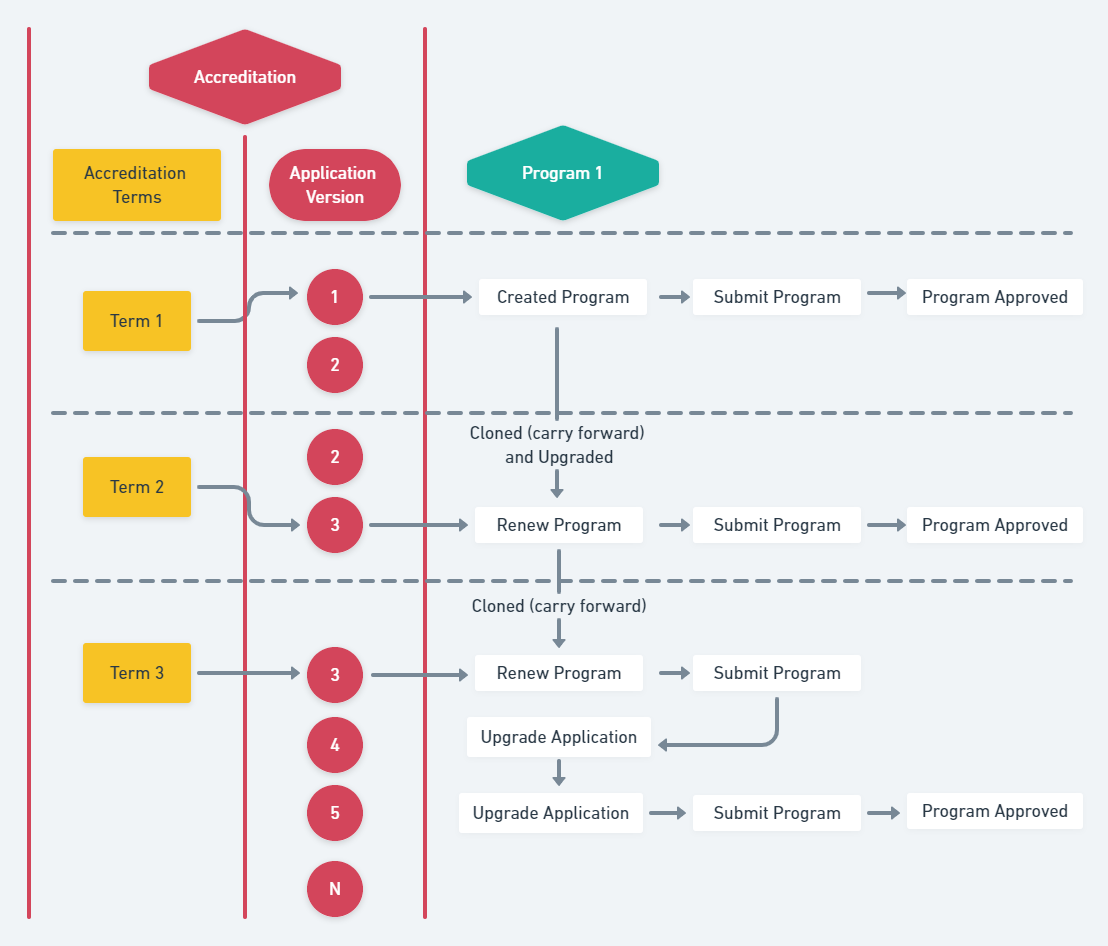
The diagram below illustrates some term application actions for an example accreditation application. Assume that every application tab has undergone changes when upgrading. Some takeaways include:
- Accreditations can have any number of terms
- Terms can have any number of versions
- Upgrading an application can occur before or after an application is submitted. See term 3 version 3 (T3V3) below
- New terms can gain any number of versions before a program app submits a renewal application. In this example, a program app went from T1V1 to V2V3
- Program apps can be upgraded any number of times before they're submitted (see T3V4 & T3V5)
- The program app's maximum version within a term is limited to the maximum version of that term. For example, if an active program is at T2V3 > a new term is made and set as the renewal term (T3V3) > then more versions are created such that T3V4 is now the latest term/version > If the application to term 2 is edited then the applications from version 3 will appear and not the application for version 4
Application Statuses
For each program application to a term here is an overview of the workflow and related statuses.
Application Statuses
- Staging: The program application has been created but not yet submitted for approval.
- Awaiting Approval: The program has been submitted by the program director from staging or has been edited and can be reviewed.
- Pending Follow Up: During the review process changes were requested. The program director will need to make changes to the application before approval.
- Approved: During the review process the program has been approved and now has official accreditation.
- Rejected: During the review process the program has been rejected. This program did not meet requirements for this accreditation.
- Approved Pending: This program has been changed since last approval and will need to be approved again.
- In Renewal: The program is currently in the renewal process awaiting reapproval.
- Withdrawn: The program director has voluntarily withdrawn the program.
- Probation: Prevents the program director from making any further edits to this program until it is reinstated.
- Terminated: This program has involuntarily lost accreditation.
Accreditation status workflow for a term
Review
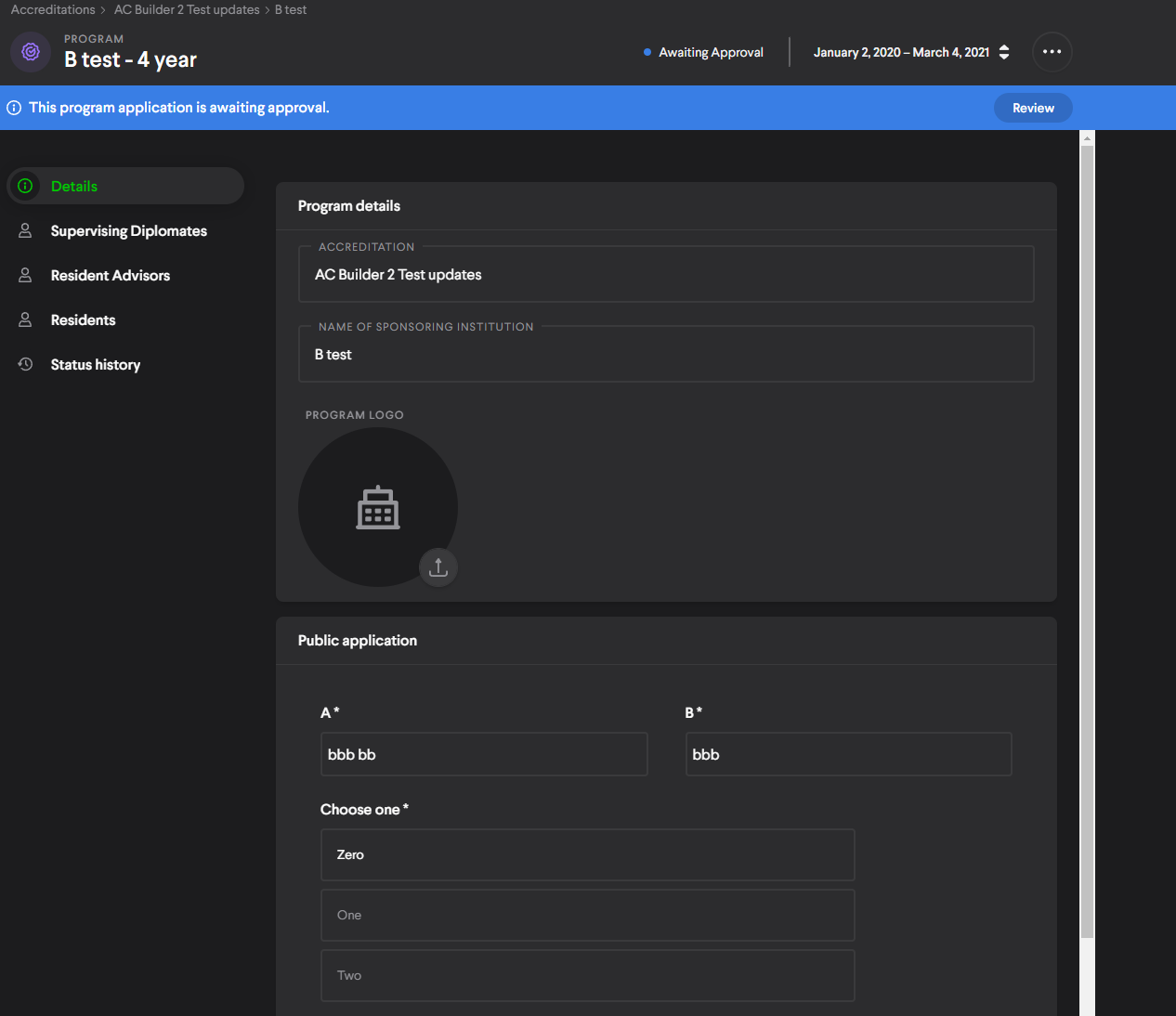
If the program is at the Awaiting Approval status the Review button will appear in the banner. Select it to enter the review form.
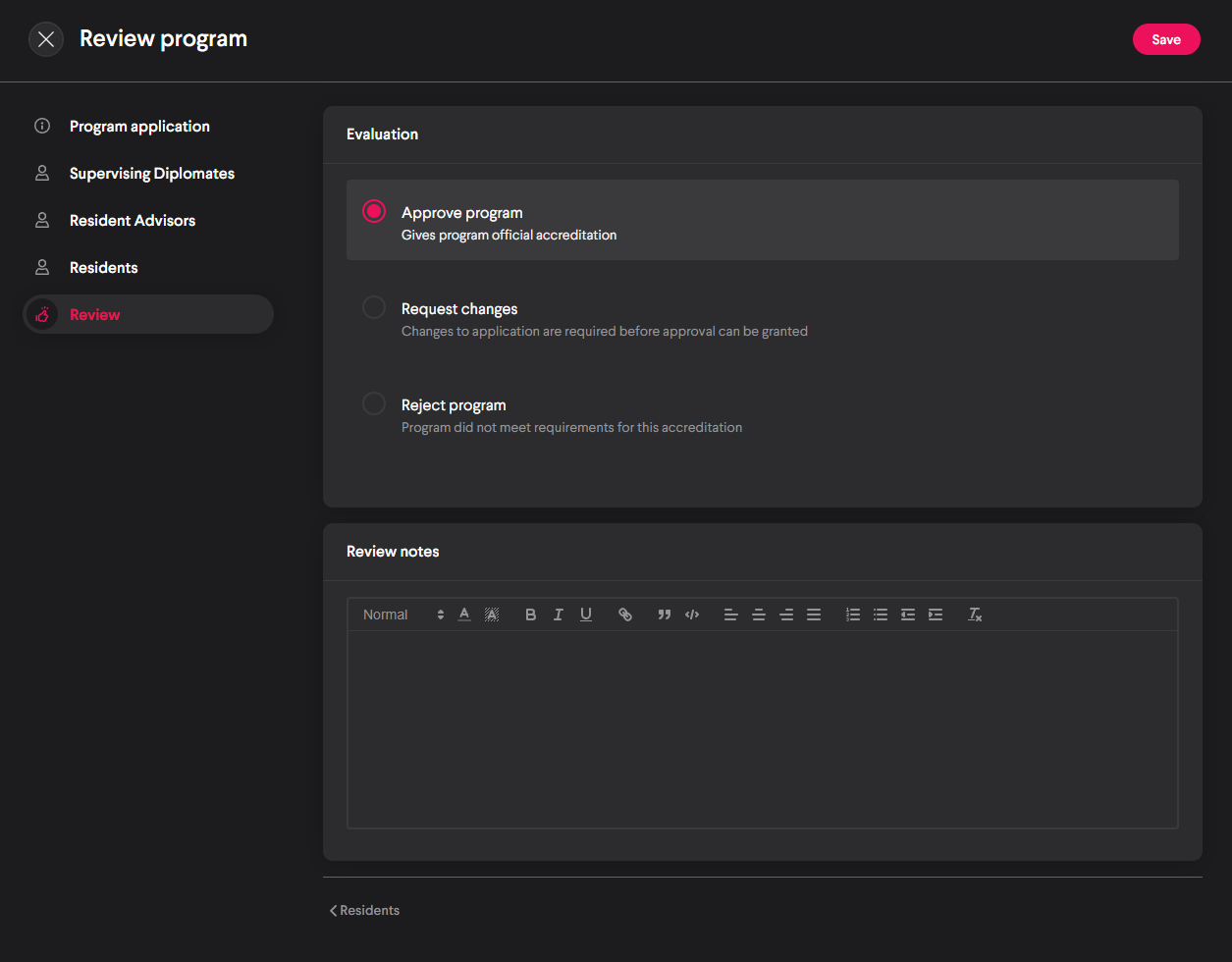
The review form will contain all the information from the detail in addition to a new Review tab. Here you can select the desired review option. When you submit the review form the status of the program will update depending on your selection. The notes you enter during review will be available to the applicants to view in the status history of their application.
Approve Program: Program gains the Approved status
Request changes: The program gains the Pending Follow Up status
Reject program: The program gains the Rejected status
Comments
You can communicate with program directors from within the app by leaving or responding to comments left on application questions. Either you or program directors can place comments on the form. You can do this by selecting the icon to the lower right of each question. Any thread is visible to anyone who can see the application. You can mark threads as resolved when no further discussion is needed. Even if a thread is resolved you can reopen it by leaving an additional comment or by undoing the resolve action.
A summary of unresolved comments is accessible through a dropdown in the application detail. Each unresolved thread is listed. Threads with the newest comments will appear in the top of the list. When all comments have been resolved the comment summary dropdown will disappear.
Commenting is locked if the application has any of the following statuses:
- Withdrawn
- Staged
- Terminated
- Rejected
Manually setting statuses
While you're in the details of a program application within an accreditation you can manually set the status of a program to any status other than Staging. This can be done as needed at any time regardless of the current status or status history of a program.
To set the status select the context menu button while in the detail view of a program application as shown below.
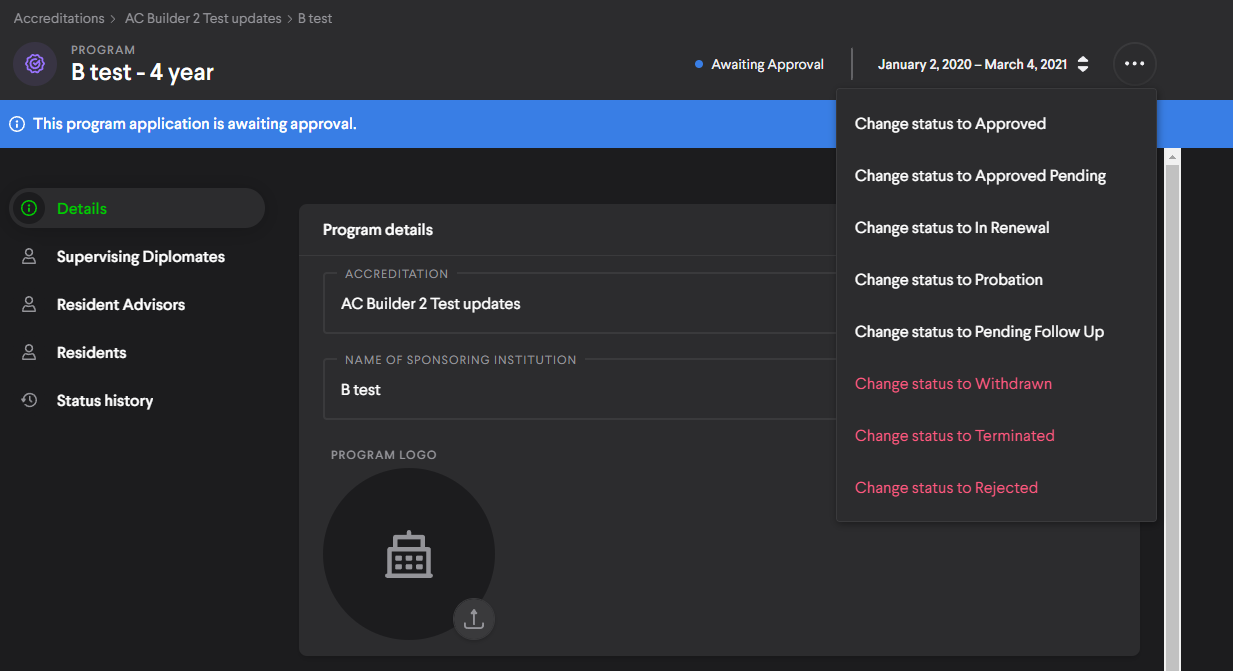
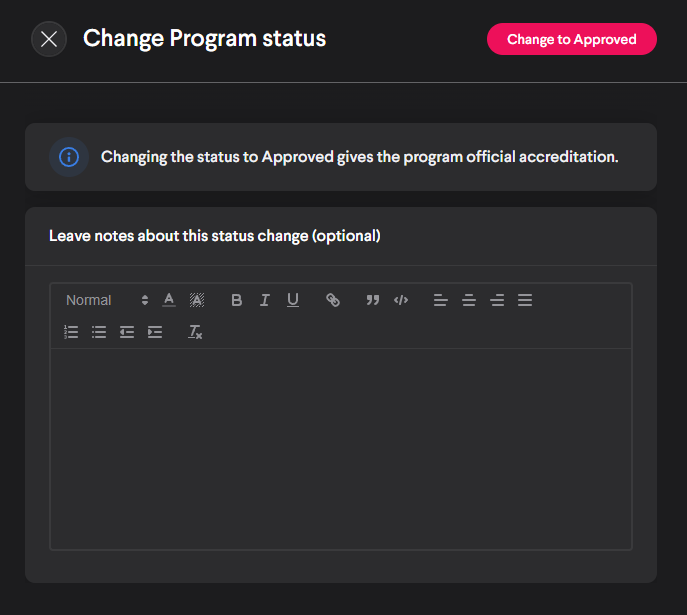
Selecting a status will produce a short form describing the meaning of the status and allowing the entry of notes that appear to admins and program directors in the program's status history.
Program management as a director
Program Creation
You can apply to existing accreditations by navigating to your user profile in the upper right of the screen and then selecting the Accredited programs tab from the account tab list. The resulting table will show the list of all programs that you have submitted for accreditation. To begin creation of an application, select the add button (+). Fill out the program details and select the accreditation to apply for in dropdown. All newly created programs to an accreditation are submitted under the accreditation's active term.
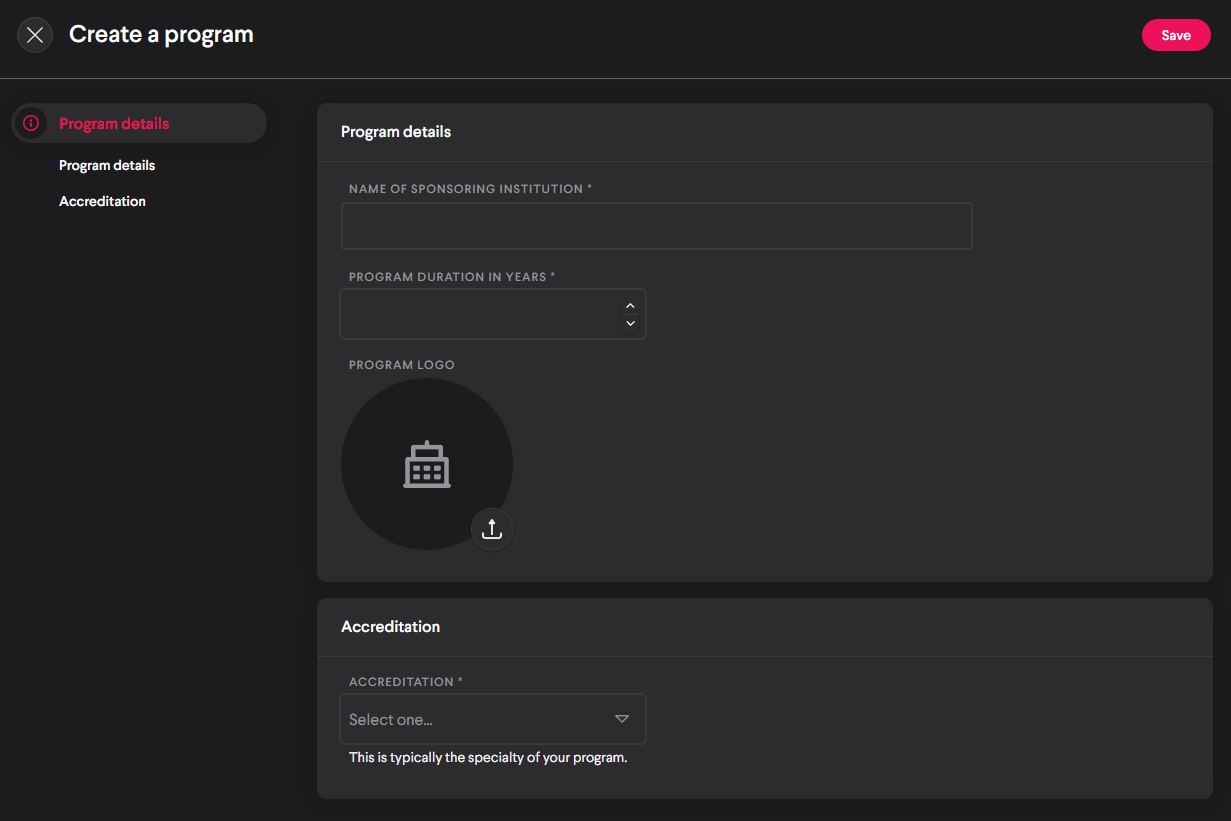
Once you complete the details form you'll get routed to the primary program creation form immediately. Simultaneously, the program will get added to the accreditation's application table on the admin side and show the Staging status. The primary creation form contains the following tabs:
- Program details
- Public application
- Private application
- Supervising Diplomates
- Resident Advisors
- Residents
Progress is saved automatically as you make changes, you don't have to fill it out all in one sitting. Program applications will remain in Staging until the application is complete and submitted. While it is in Staging you can delete your application. Once it is submitted the status will update to Awaiting Approval and you will no longer have the ability to delete it.
Program details
You can review the status and other details relating to your applications from the Accredited programs tab in your user profile. Select a program to view its details. This will show all information relating to the application. Additionally, it contains the Status history tab which describes how your application has progressed over time through the workflow. Selecting an entry will produce details for each status change including any notes that a reviewer or admin may have left.
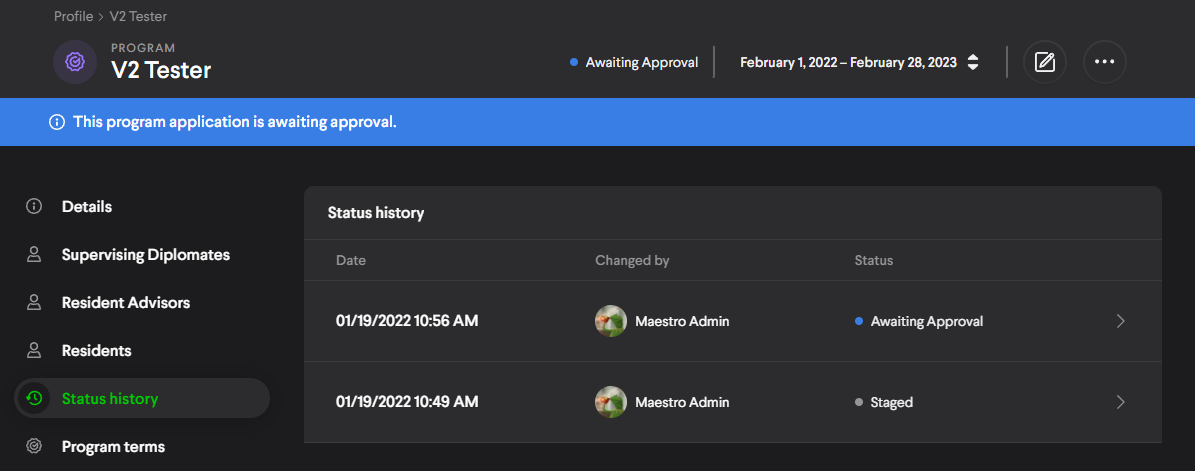
Note that: after a program leaves staging, admins can manually set the program to any status other than staging at any time regardless of the review outcome or the program's status history.
Application review
After your initial submission, the program application will switch to the Awaiting Approval status and be eligible for review. The application will switch to 1 of 3 statuses as a result of the review process:
Approve Program: Program gains the Approved status
Request changes: The program gains the Pending Follow Up status
Reject program: The program gains the Rejected status
If changes are requested to the application, you'll have the opportunity to edit any part of it before sending it back for review. Edits are saved automatically so you won't lose progress. The application will remain at its current status until you're done making changes. When all adjustments have been made, select the Request approval button in the status bar of the application. This will notify reviewers that the application is ready for another review.
Comments
You can communicate with reviewers from within the app by leaving or responding to comments left on application questions. Either you or reviewers can place comments on the form. You can do this by selecting the icon to the lower right of each question. Any thread is visible to anyone who can see the application. You can mark threads as resolved when no further discussion is needed. Even if a thread is resolved you can reopen it by leaving an additional comment.
A summary of unresolved comments is accessible through a dropdown in the application detail. Each unresolved thread is listed. Threads with the newest comments will appear in the top of the list. When all comments have been resolved the comment summary dropdown will disappear.
Commenting is locked if the application has any of the following statuses:
- Withdrawn
- Staged
- Terminated
- Rejected
Editing submitted programs
Submitted programs may receive edits at any time provided that they aren't at the Rejected, Withdrawn, Terminated or Probation statuses. When you edit a program, the status will automatically change to Awaiting Approval so reviewers can review the change.
Program terms and renewal
When applications are created they are associated to the active term of the accreditation. When it comes time to renew an accreditation, an admin will set a new term to the accreditation's 'Renewal term' field. This will cause a banner to appear in the program detail for program directors.

Selecting the banner will create a new application under the renewal term and set to the staging status. All form progress from the most recent prior term will be carried over for convenience but you'll have the opportunity to edit all values.
Program terms
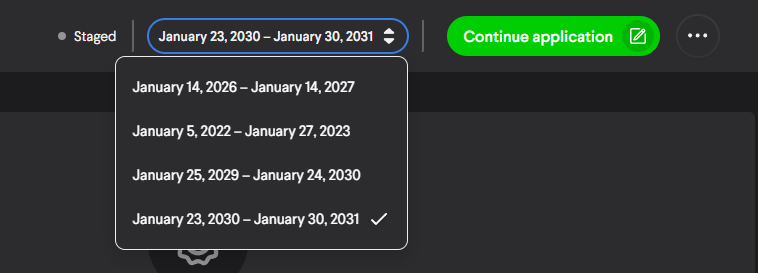
All application info is tied to the term it was submitted under. The term selector is located near the top of an application's detail page. You can switch between any term that exists for a given program using the dropdown, the forms will update accordingly.
The 'Program terms' tab lists all terms of the accreditation that the selected program has applications for. This tab doesn't change when you select different terms from the drop down.
Upgrading to newer accreditation version
If the accreditation an application is under is has a section which is edited by an admin, you'll have the ability to upgrade the application under the current term to the latest version. Subsections of the application may be upgraded independently from one another.
When you upgrade
- All responses from questions which have not changed will be retained and carried over into the new version
- Any questions that change will lose their responses
- All comments in the updated section will be cleared
After you upgrade you can refill any lost responses and fill in any questions which were added.
Resident statuses
Reviewers may edit the statuses for each resident in an application at any time after the application is past staging. Statuses are specific to each resident and are visible to program directors. Optionally, admins may leave notes when making a status change. Changes and any optional notes are recorded in the status history for each resident. This can be accessed by either admins or program directors by selecting the resident from the resident table within the application.
Comments
0 comments
Please sign in to leave a comment.