
Content admins have the ability to override the status of content and set the status to complete. Content both assigned and self-enrolled content can be overriden.
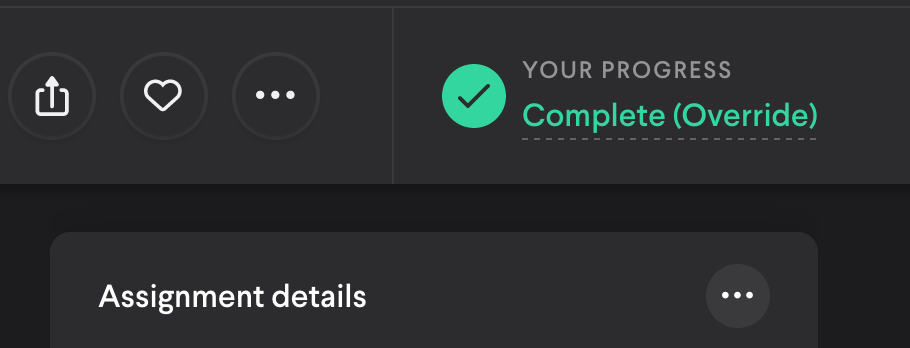
Overrides are recorded in the enrollment timeline on the admin and user side. When you perform an override you'll have the opportunity to leave a comment explaining the reason for the override. This is accessible by hovering over the "(Override)" text in the enrollment detail as both a learner or admin
Performing an override
The following content can be overriden to a complete status: audio, authored content, course, document, image, interactive, PDF, scenario, video, website
To override content, navigate to the enrollment detail of the content. If an override is needed for a content item that is nested in a Lesson or Learning Path then you'll need to navigate into the Lesson or Learning Path from the detail to reach the content item you want to override.
Perform the following steps to execute an override:
1. Find the enrollment in the content detail
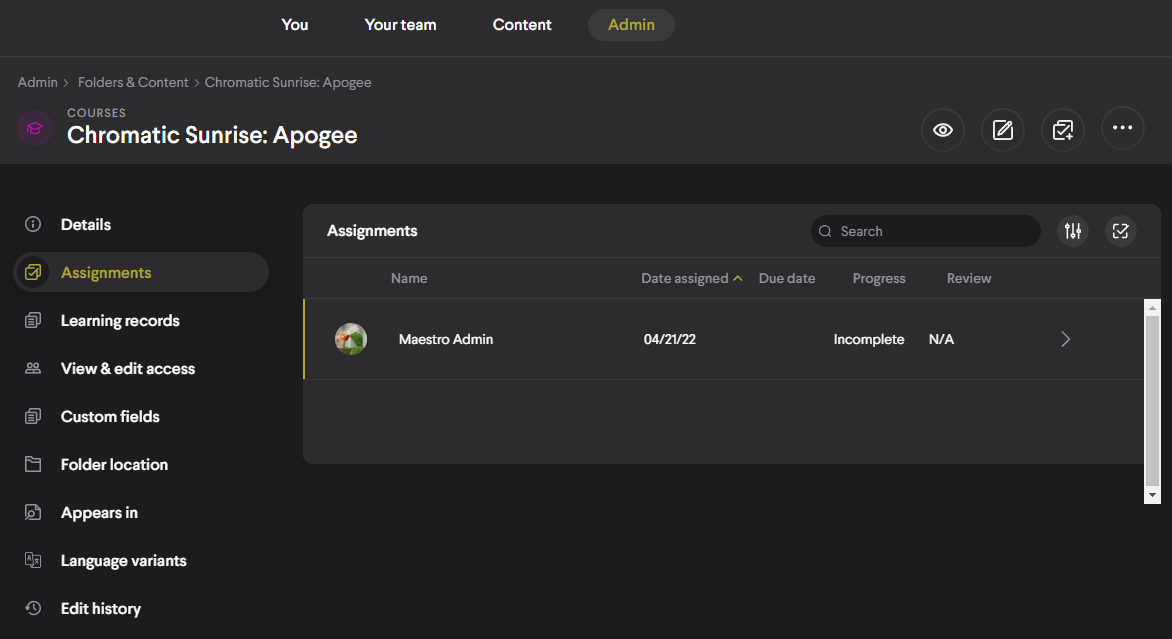
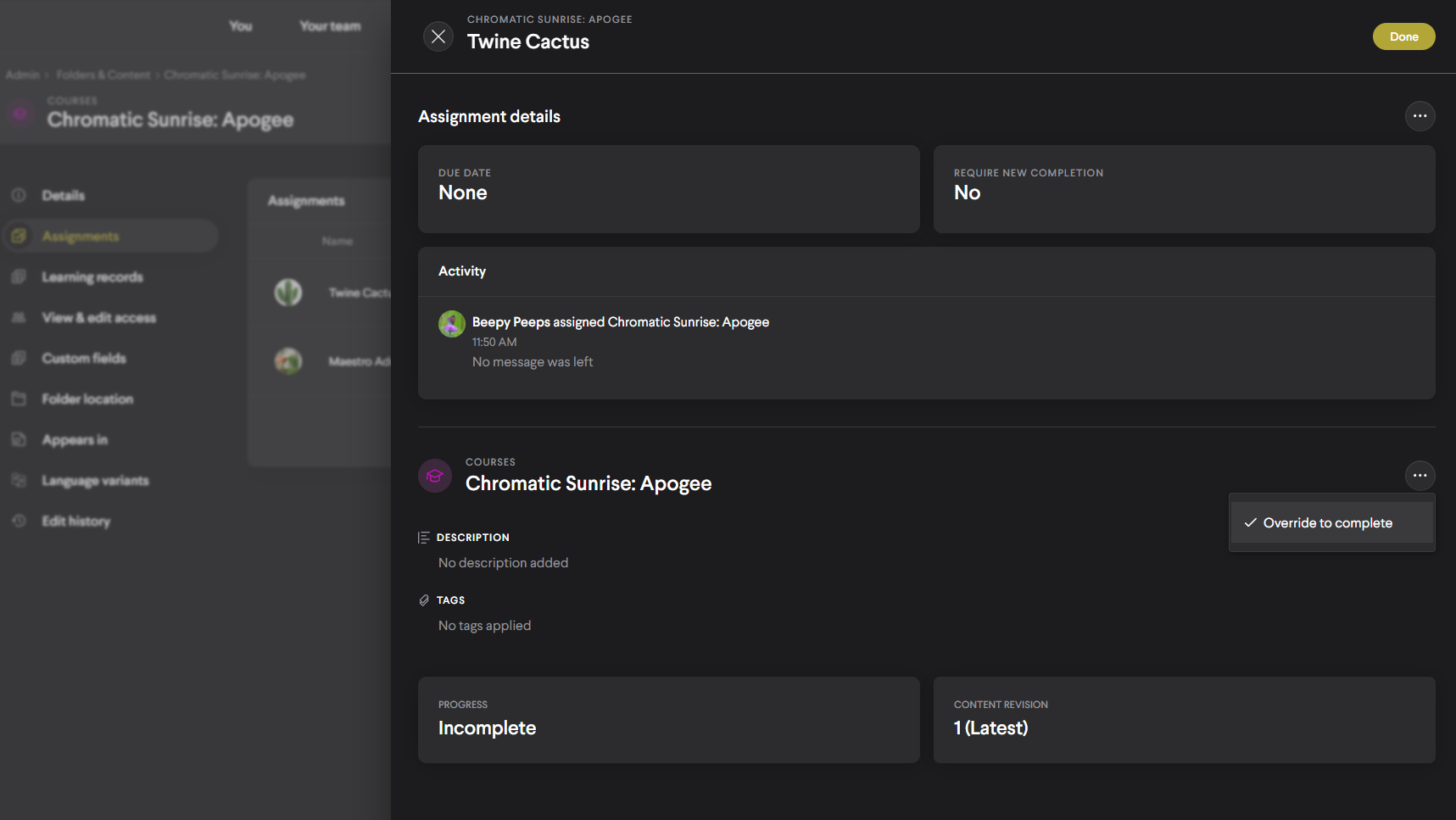
2. Select the "..." button on the right side of the detail and then select the menu option
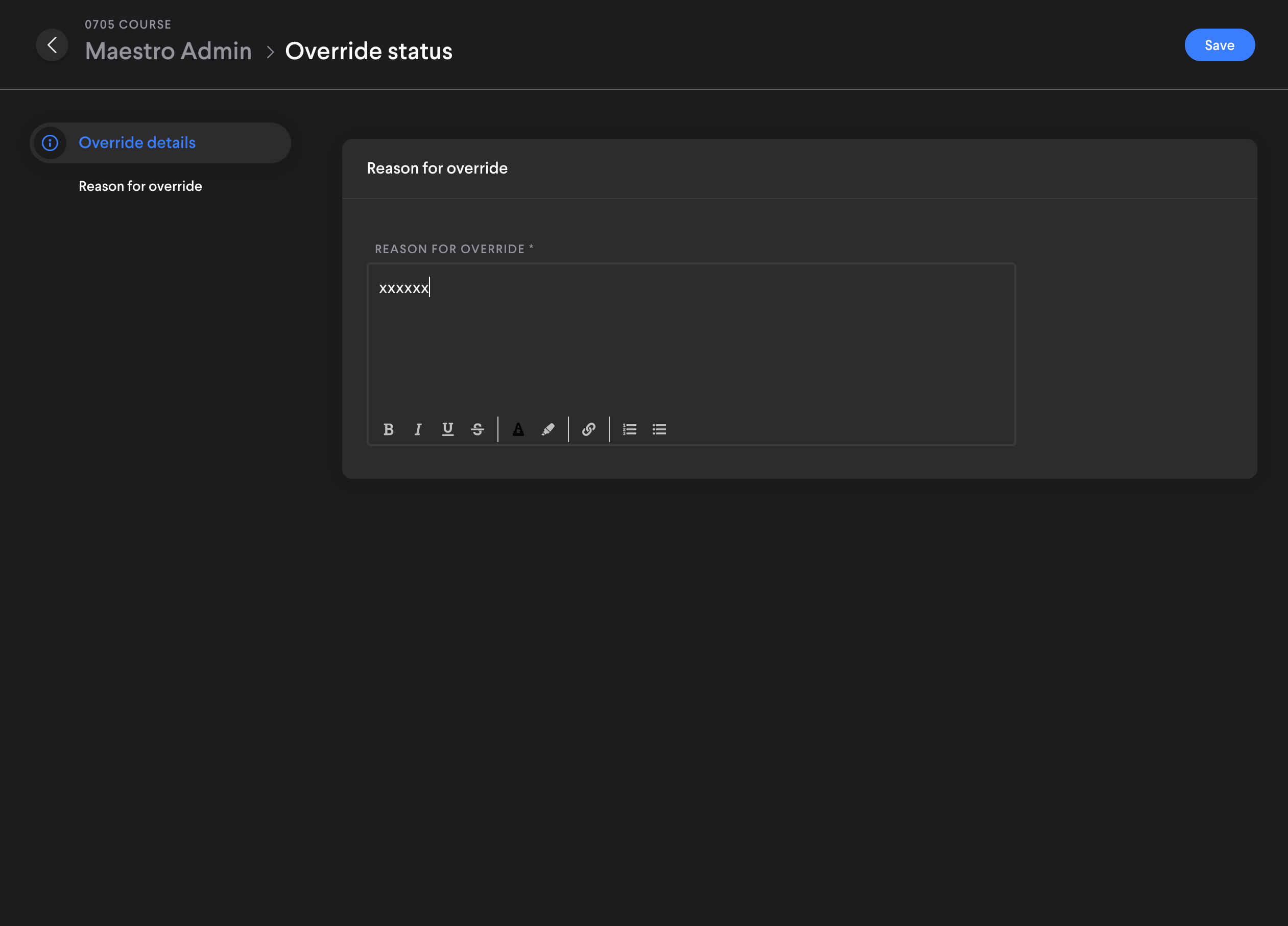
3. Provide a reason for the override
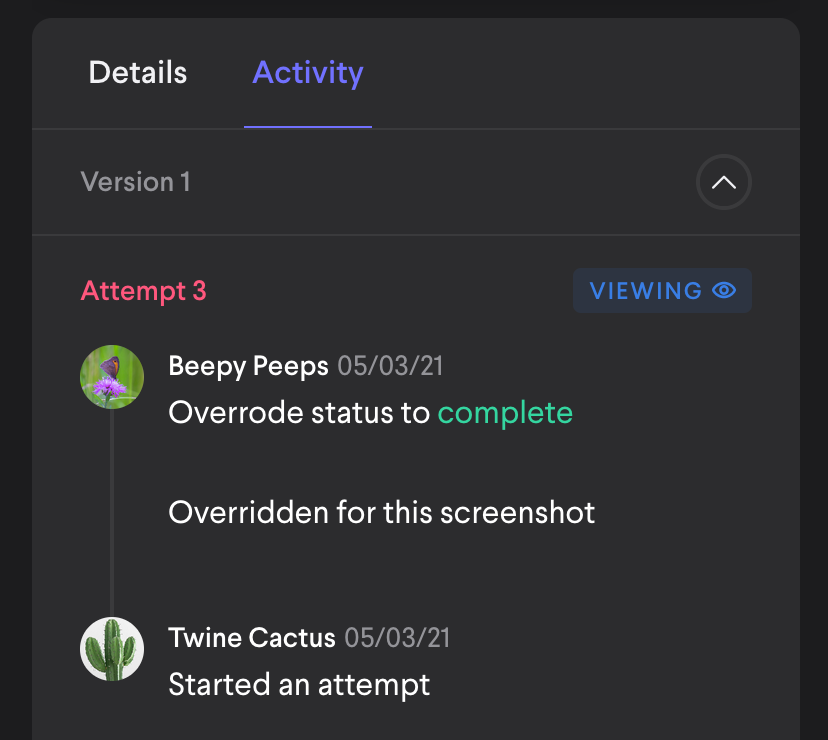
4. The learner will then see the Override status tag in the Activity tab the content viewer. An entry will also appear in the Activity section of the detail where the override reason text can be seen.
Comments
0 comments
Please sign in to leave a comment.