
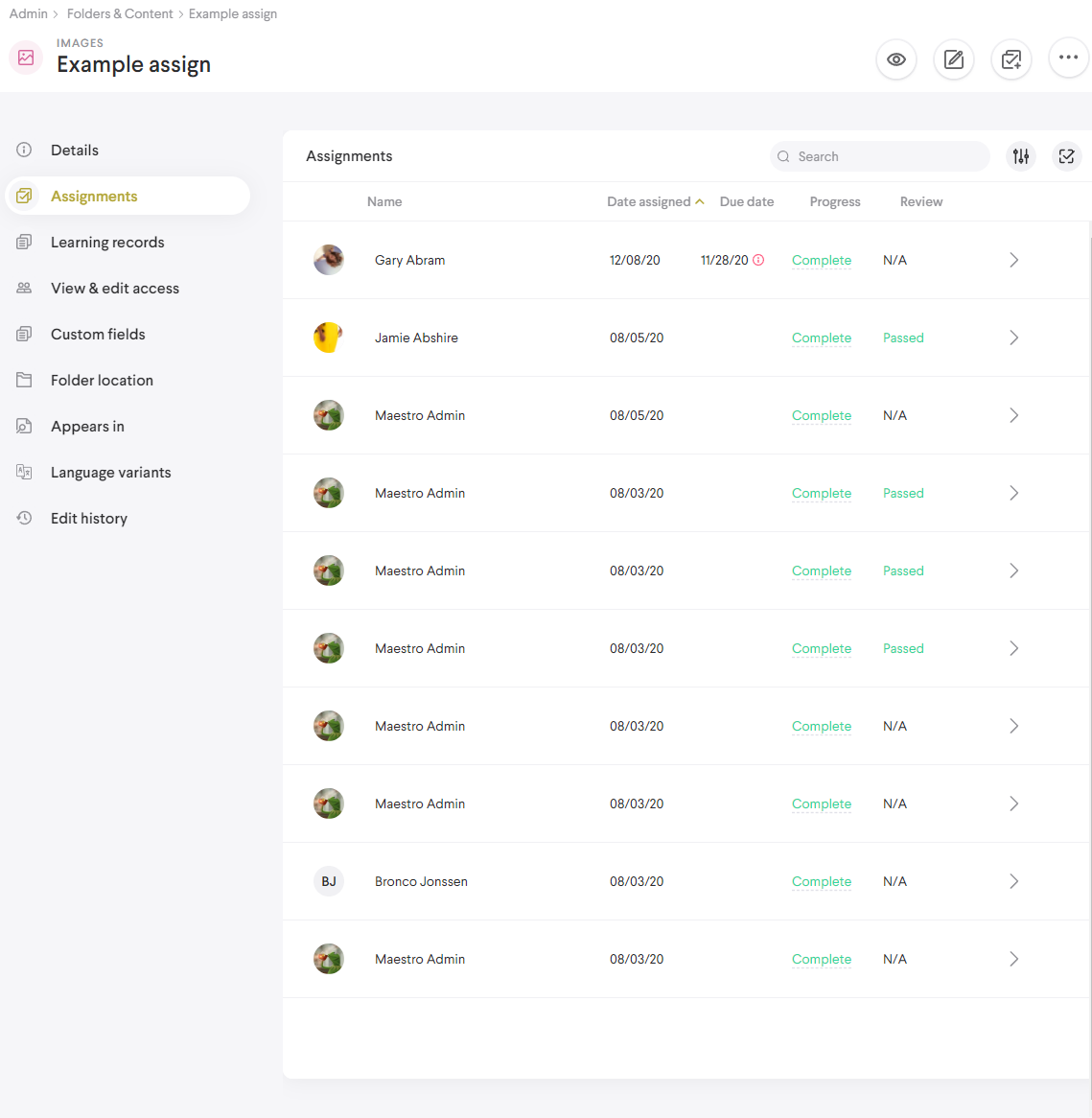
An Assignment is a content item that has been assigned to a person for them to complete. Any content item can be assigned. Records of the assignment are kept on the learner and admin side of the app. These records can be viewed in the app and retrieved in reports.
Assigning content
As an Admin, you'll choose existing content to assign from the admin content table. Once you engage the assign action a modal will appear with a variety of settings. You can assign from a few different places within the app some areas include:
- Admin content table using the in row assign button for a given content item
- Within the content item detail with the button located in the upper right
- While viewing a content item in the content viewer
- From within the detail of a learner in the People tab
- From the coaching screen in the Your team tab if you are a coach
Assignment button icon

Assignment creation screen: When you choose to assign content, you can do any and all of the following:
- Select learners: Any learners that you share groups with can be selected from the list. Multiple learners can be selected.
- Select content: Any content item you have edit access to can be selected. Any number of content items be be added.
- Set a due date: (Optional) You can set the date and time that the assignment is due. Assignment which exceed their due date can still be completed but will show an Overdue tag.
- Set an available date: (Optional) This determines when the learner(s) will gain access to the assignment and be allowed to complete it. Learners will be able to see the upcoming assignment but won't be able to access it until the specified date/time.
- Note: The specified time is converted to UTC upon save. So for example, if an admin makes an assignment available at 5pm EDT it would be available at 4pm CDT for users on central time (referencing the end user's device time.)
- Provide a message: Add a message that all learners can see in the content viewer when they open the assignment.
- Set assignment reminders: If your tenant has admin or coach assignment reminders enabled you'll have the ability to configure a reminder cadence for the assignment using in app notifications and emails.
- Require new completion: This prevents users from applying any previous progress they may have on a content item.
- Require review: This creates an additional workflow where Coaches or Admins can review a completed assignment and provide feedback.
- Assign As: If you need to use an alias and assign as another person, you can do that here.
Once the assign action it complete, an entry is made in the enrollment details of the Learner and the content item. The Learner will receive a notification and gain an entry in their Assignment table. When a Learner you're a coach of has completed an assignment, you will receive a notification that they have done so. Selecting the link will take you to the Learner's enrollment detail for that content item.
Comments
0 comments
Please sign in to leave a comment.