
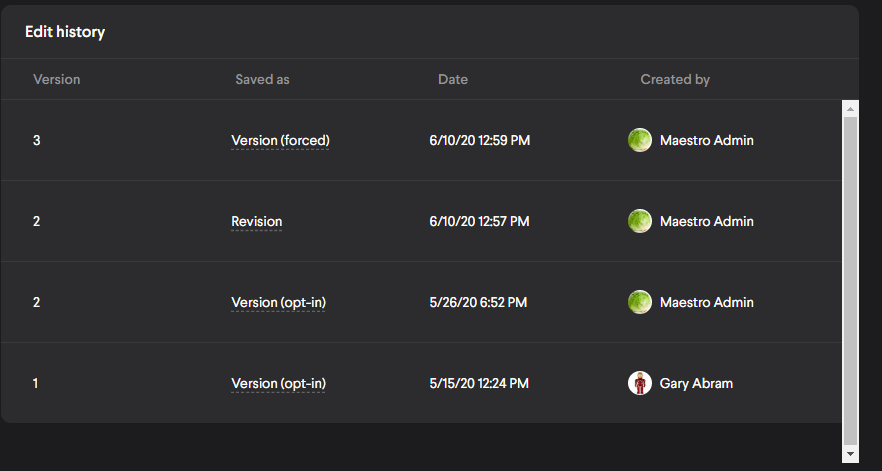
Edits to existing Content Items are tracked in the Edit history tab of the item’s detail view. Depending on the type of change made, it might appear in the edit history as a version or a revision. Changes to nested content items inside the current one will appear as well.
Versions
New content versions are created when any of the following major updates are made:
- A file on a content item is changed
- When the content or organization of a learning path, lesson, scenario, or authored content is changed. This includes order, sections, gating, adding content or blocks, removing content or blocks
- When the URL is updated on a website content item
Revisions
A new revision of a content item is created when any change other than one outlined above is executed. Known as a minor update. This will create an edit history entry but will not update the version.
The edit history table for a content item looks like this:
Force update prompt
When you attempt to save a major update on a content item, you'll see the force update prompt. It looks like this:
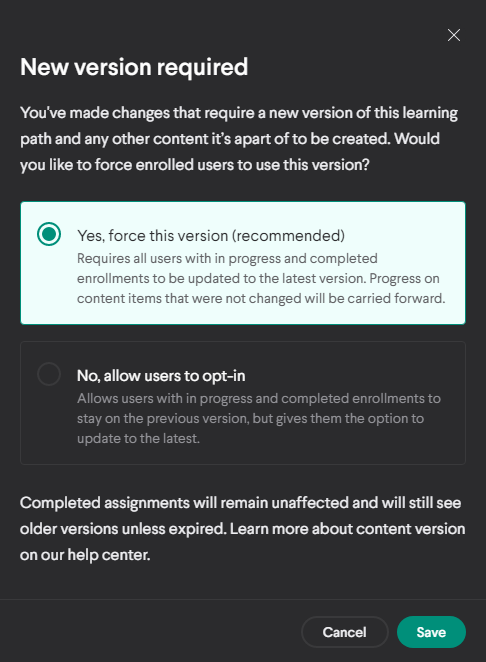
If you select yes, the following changes will be made:
Changes to self-enrollments
- In progress or Completed self-enrollments will be displayed in the Content tab with an Updated tag until the Learner opens and acknowledges the update. Once they acknowledge the update, they will be moved to the latest version and will be unable to access previous versions.
- Learners with an In progress or Completed enrollment containing that content will have a new enrollment created, upon acknowledgement, with its progress reset. Progress on any content contained within the item will not be reset if no changes were made to those items.
Changes to Assignments
- For Assignments that have not been started, the Learner will be automatically moved to the latest version.
- Learners with an In progress Assignment containing that content will see that it has been updated.
- Progress on any content contained within the item will be reset if a change was made to those items.
- Keep in mind that authored content question responses will get reset even if you just rearranged the block order.
- Progress on any content contained within the item will not be reset if no changes were made to those items.
- Progress on any content contained within the item will be reset if a change was made to those items.
- Assignments will be displayed with an Updated tag until the Learner opens and acknowledges the update. Once they acknowledge the update, they will be moved to the latest version and will be unable to access previous versions.
- If a Learner has completed their Assignment, they will not be required to take the new version.
- Completed assigned enrollments will show as Outdated to the Learner.
If you select no, the following changes will be made:
Changes to self-enrollments
- Learners with enrollments that are in progress or completed, that contain the content that's being updated, will remain on the previous version and progress will be retained for all content within the enrollment. They will see the update available label and have the option to create a new enrollment themselves.
- If a Learner updates to the latest version, they will be unable to access previous versions.
Changes to Assignments
- Learners that have In progress assignments that contain the updating content will remain on the previous version, and progress will be retained for all content within the Assignment. They will see the update available label and have the option to create a new enrollment themselves.
- If a Learner updates to the latest version, they will be unable to access previous versions.
- Learners that have completed assignments will see an Outdated label, but will not be required to take any further action.
System updates on content history
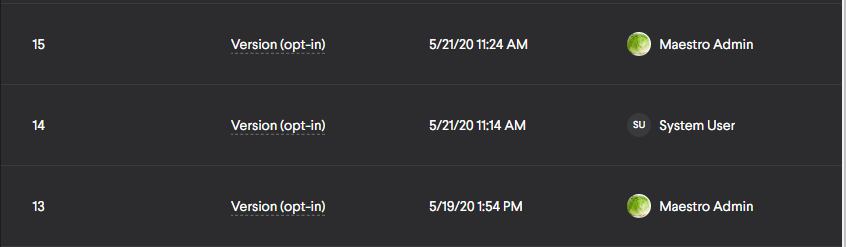
When a content item that is contained within a Lesson or Learning Path is edited in a way that requires the creation of a new version for that content item, it is also required that any lessons or learning paths that contain the updated content item to also gain a new version. In this case, the system will automatically create a new version of the Lesson or Learning Path.
For example: You upload a new PDF and choose to replace the original file. A new version will be created for that PDF. If that PDF is also found within a Lesson, a new version will be created for the Lesson.
Here's an example of an edit history entry made by the system compared to surrounding entries created from Admin edits:
Updating Language Variants
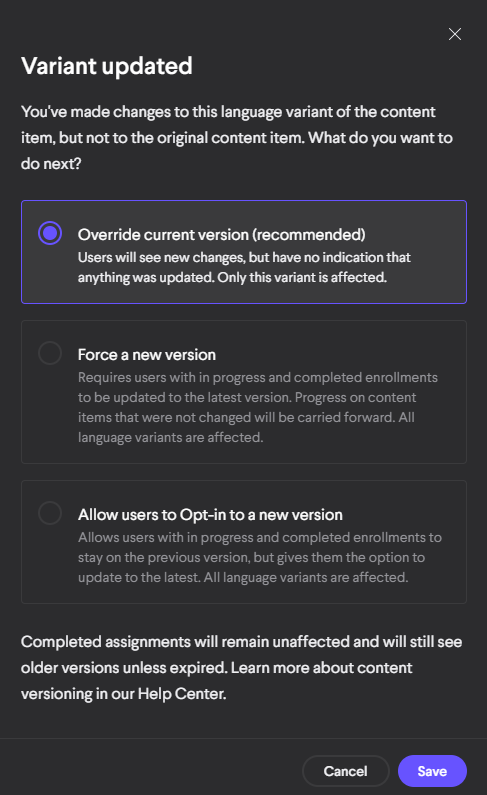
Content item language variants are also subject to the same rules above but with one addition: You'll see an override option at the top. This lets you make major changes such as file swaps without users getting notified of the change. Overriding does create a new content revision but does not create a new content version.
Selection modal after editing a file variant
Comments
0 comments
Please sign in to leave a comment.