
Folders are available to create a hierarchical structure for content. If you have Admin content access, you have the ability to create a folder!
- Note: If "Restrict top-level folder structure" is enabled via Settings, content admins will only be able to create folders nested below the top level.
it's important to understand that the relationship between folders and content is simply an association - the content itself isn't stored within the folder. This means that deleting a folder won't delete the content associated with it, and that a single content item can be linked to multiple folders. To see all the folders associated with a content item, you can look at the folder location table within the item's details view.
Creating a Top Level (Parent) Folder
- From the Admin tab, select Folders & Content, then the Folders subtab.
- Select Create then Create folder.
- The Title is the only required field for saving.
- During creation, you can add a thumbnail. If you choose not to add one, you'll see a default folder icon.
- You are the Owner of your new folder, unless you choose to transfer ownership to another Admin.
- Edit Access: You can add edit access on all folders.
- You will be limited to the groups you're associated with when adding Edit Access groups.
- If no access is added, the folder itself can only seen by the Owner and Super Admins.
- That folder cannot be seen by Learners, but their ability to access the content within it remains if they have view access to the content. Essentially, this means that while they won't see the organization that folders provide, they can still see the content contained in the folders.
Note 1: The Learner's ability to see the folder and it's content is controlled by the access on the content level, not by the folder itself. - Note 2: You can restrict who can see the folder by utilizing Restrict view access. This will only allow users in the groups applied in this tab to see the folder.
Creating a Sub (Child) Folder
Your folder structure can contain up to 5 levels: one top level and four levels of subfolders. The folder creation process is very similar for subfolders. First, you'll need to locate the folder you'd like to add this subfolder to. For example; if you want Folder A to be the parent and Folder AB to be the subfolder, you need to be viewing Folder A and then select add (+).
From here you'll add a Title, and optionally the thumbnail.
For subfolders you'll see an additional tab on the left, titled Edit access (inherited).
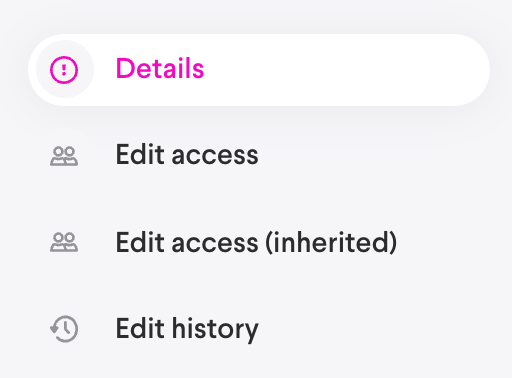
Subfolders will inherit Edit Access from the top Level folder AND groups associated to any other parents it may have. In the example image below, you'll notice that folder Week 1 has inherited groups from 2020 and January. In this example, a new Edit Access group was added to January, which was not inherited. That then gets carried down to it's subfolders.
Note: Inherited Edit access groups cannot be deleted at the subfolder level. To delete them, you'll need to remove them from the top level folder.

Deleting Folders
- Only Super Admins or Owners can delete a folder.
Note: This does not delete the content within from the app, just the folder itself. - To delete a Folder, you'll need to be viewing it from the Admin > Folders table.
- You can hover over the table row and you'll see a context icon (...) to the right.
- Select it, hover over Delete and select that.
What the Learner sees
Learners will only see Folders that contain content they have view access to.
If a Folder structure is 5 levels deep and a Learner only has access to content on level 5, they will see Folders for each level but they will be empty until they reach level 5, which allows the Learner to see the entire folder path for more context.
Comments
0 comments
Please sign in to leave a comment.