
Summary
This add-on introduces the ability for People to sign in as other users, also known as impersonating. When signed in as another user, you'll have full account access as if you were that person. The permission to sign in as another user is limited to whomever super admins give this permission to. Those on the list can impersonate any user in the tenant. Account switching is disabled while impersonating a user.
Admin management
The list of users allowed to impersonate others is managed through the Sign in as addon tab. Select the tab to produce the management table. Select either the Give permission buttons or the "+" button to produce the add user modal.
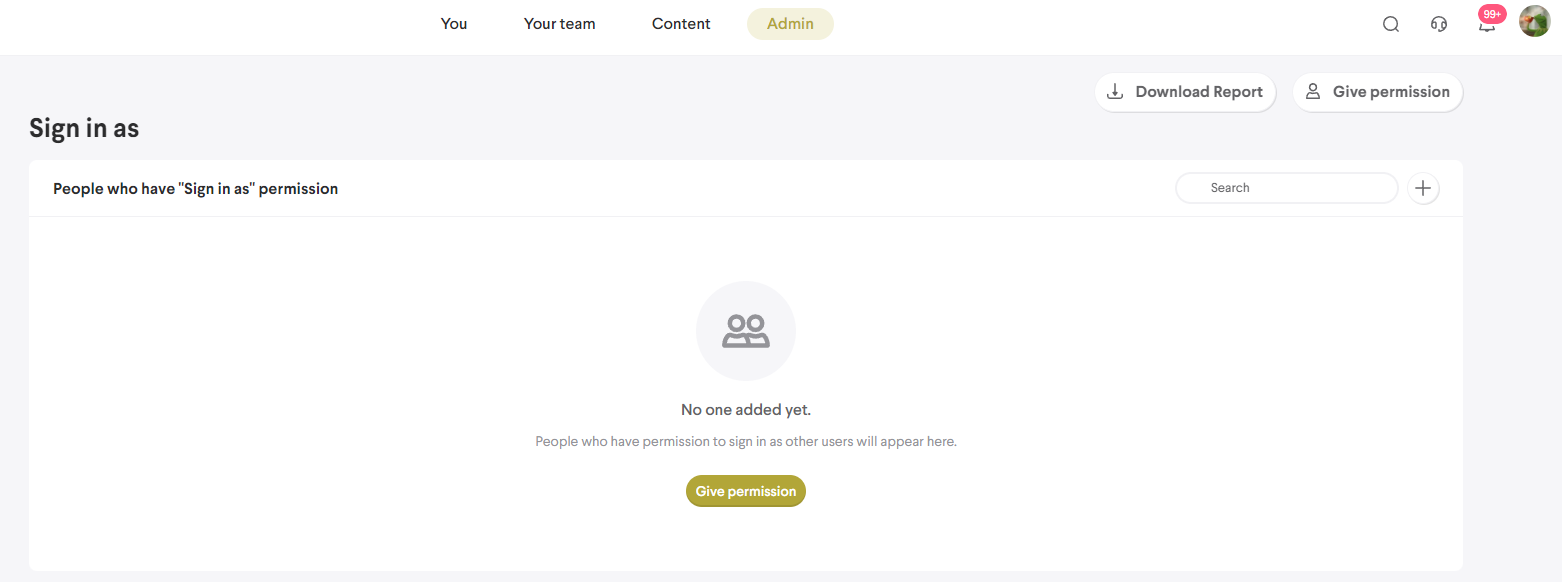
Any user including non super admins can be added. Use discretion when giving users permission to impersonate. This ability essentially grants super admin access to any user as anyone on the list can impersonate any super admin account.
Impersonating users
There are two ways to impersonate users once your account has been added to the admin list.
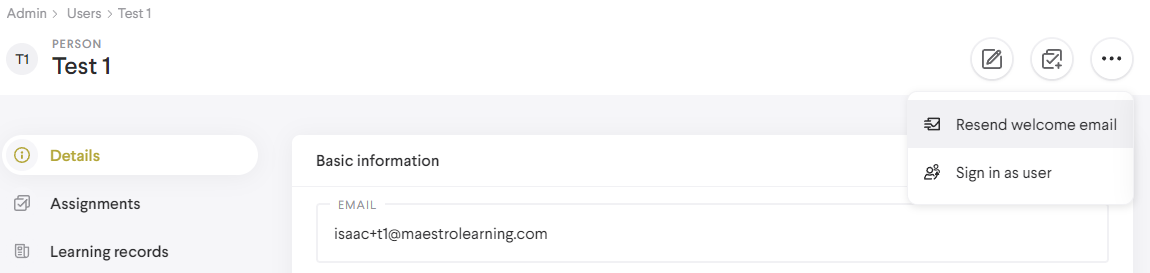
1. User detail
- Select the admin People tab
- Select a user
- Open the context menu
- Select the 'Sign in as user' option
2. From the authentication screen
While logged out and at the authentication, screen enter the following into the username field without quotes:
"sign in [your email] as [spoofed user email]"
Confirm the entry and then enter the password for the account associated with your email.
After completing either method you'll immediately begin impersonating the target user. You'll see that the user thumbnail updates and a banner appears at the top that shows a message, the email of the target, and a 'Stop impersonating' button. This banner will persist while you're impersonating.

While impersonating a user, all content, access, tab visibility, etc. will reflect what the target user would see themselves. All actions performed and content tracking will also reflect that of the target user and not the user impersonating them. Note that account switching is disabled while impersonating a user
To stop impersonating, either select the 'Stop impersonating' button in the banner or sign out normally.
Reporting
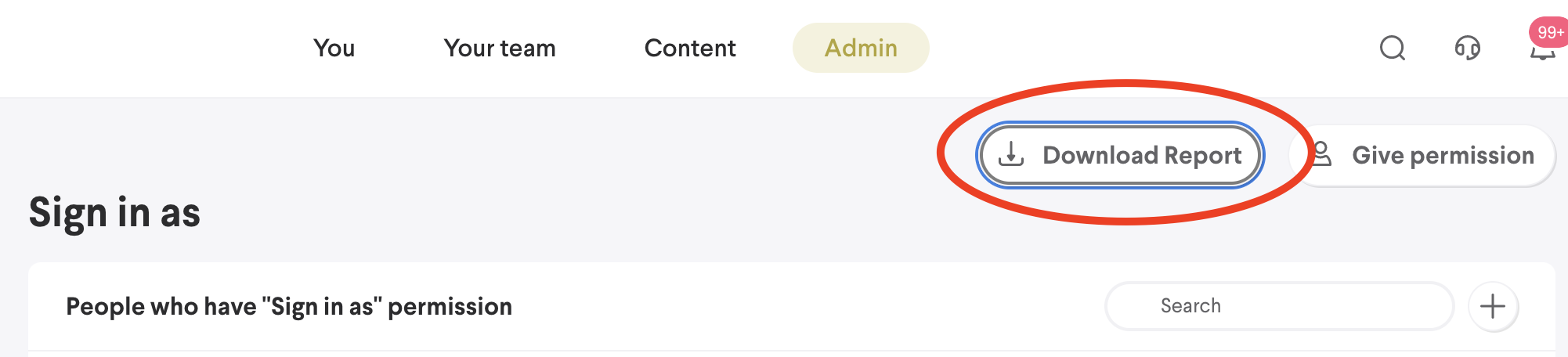
Historical information on user impersonation can be retrieved by selecting the 'Download Report' button in the admin 'Sign in as' tab. Only those with permission to impersonate can download it. The report details who impersonated who, the actions performed, and the dates/times of the events. The actions performed are described through the Path, Method, and Success columns.
Comments
0 comments
Please sign in to leave a comment.