
Admin
This add-on integrates Echospan projects and assessments into Loop, pulling in project competencies, and learner assessments including their scores and comments.
The Echospan admin tab consists of the Projects table and Templates table.
Projects
Initial setup and adding projects
This covers creating a connection to Echospan and importing the desired projects into Loop.
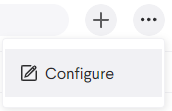
1. To form a connection, select the Echospan add-on tab and then select the Projects sub tab. Open the context menu in the upper right and then select Configure.
2. This will produce the connected client table. Select the add button to access the client connection form. This contains the Client Name, Client ID, and Client Key fields.
Configuration form
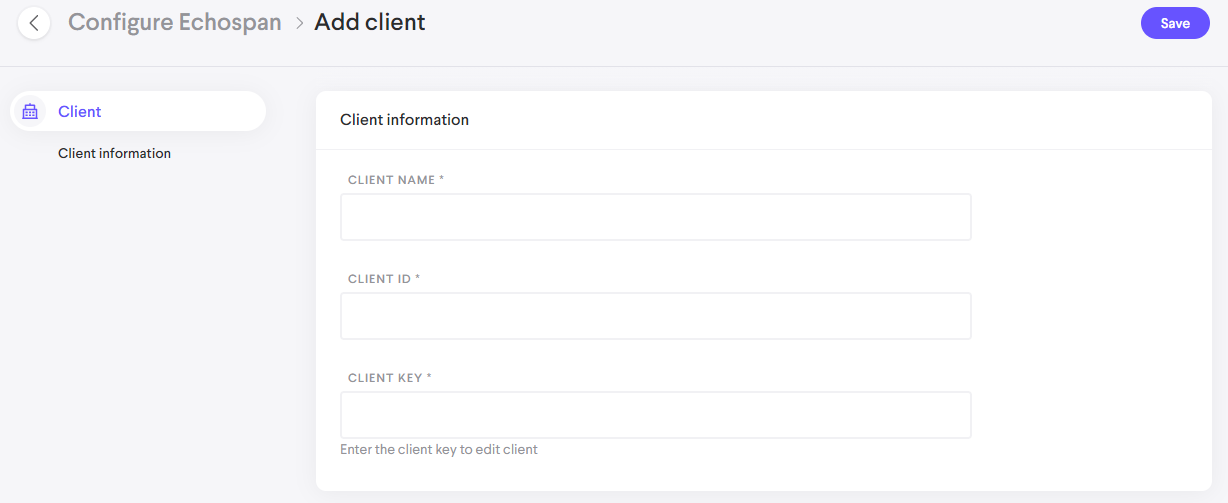
- Client Name: This is the name of the client as it will appear in Loop and can be set to anything.
- Client ID: Client ID from Echospan.
- Client Key: Unique for each Echospan project.
- Note: This field is not saved and must be reentered if you make edits to the project in Loop later.
3. Fill out the form and confirm it. The client will now appear in the connected client table. You can edit or remove connect clients from this table when needed.
4. Close the configuration window and select the add button on the main project table. You should now see the client you added in the selection menu. Make a selection from the menu.
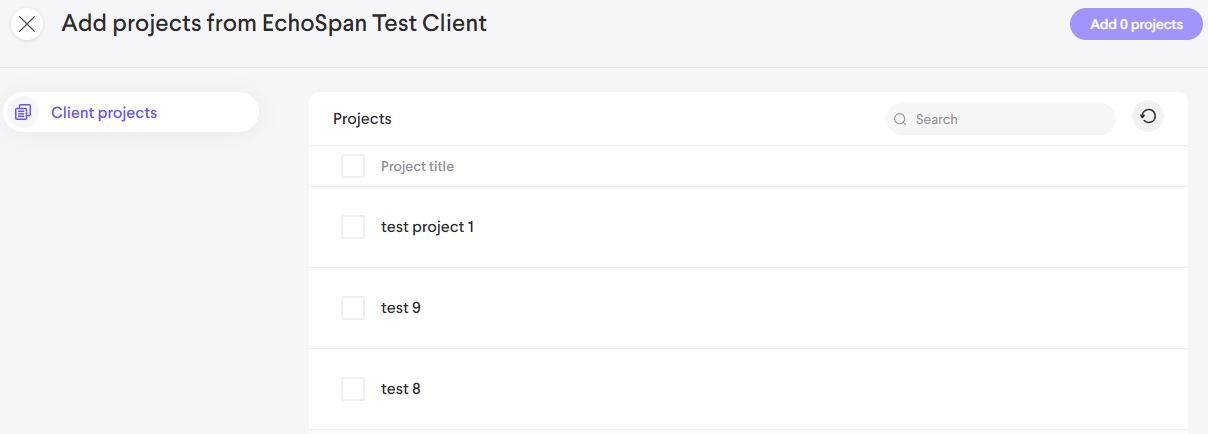
5. This will produce the project selection table showing every project associated to the connected client. Select any number of projects to add and confirm the form. The selected projects will now appear in the main Projects table in the Echospan add-on.
Project screen after selecting a client
Project management and configuration
Overview of project detail
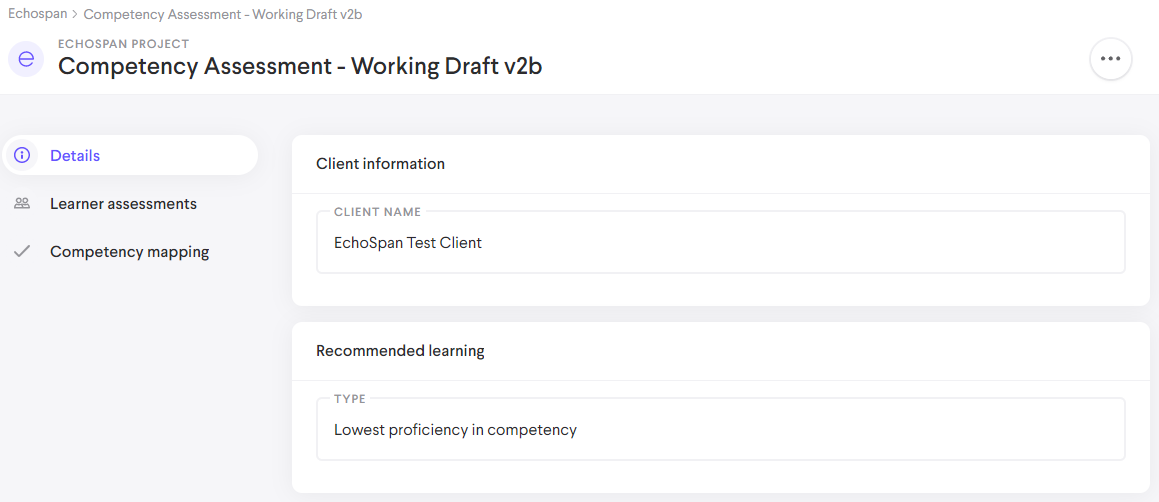
Projects contain all user assessments from the Echospan project and all possible scores for each response so content can be recommended. Select a project to produce the project detail which contains the following.
- Details: Shows the client the project it is associated to and the type of learning recommendation that the project will use. Currently the only setting is 'Lowest proficiency in competency' which means that users will get recommended content which corresponds to their lowest score in a competency.
- Learner Assessments: This lists all users who have completed the competency in Echospan and also exist in Loop. If the add-on doesn't detect a user's email in Loop and in the Echospan project then they will not appear in this list.
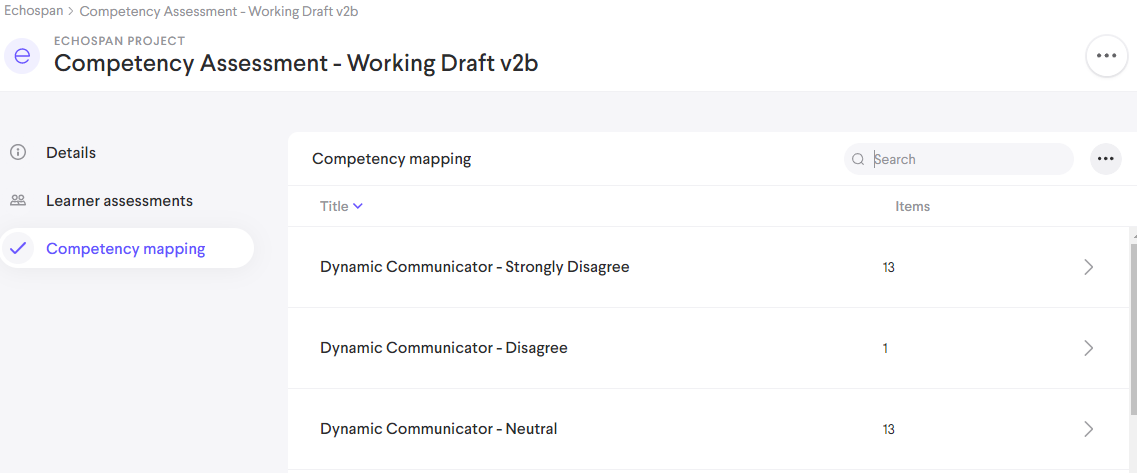
- Competency Mapping: All possible scores for each core competency are shown here. A set of content can be applied to each score which will determine what Loop content gets recommended to a user with that score for a given competency.
Top level view of a project detail
Learner Assessment Detail
From the Learner Assessments table select a learner. You'll see each core competency from the Echospan project displayed on the left. For each core competency there are two tables.
- The Recommended Learning table shows the current Loop content recommendation for the selected learner/core competency pair based on the competency mapping for the project and the learning recommendation type in the project detail. You can make checkbox selections and then hit the 'Assign' button enter the assign workflow for the selected content and learner.
- The Review Items table shows the score that the learner got for each sub competency within the selected core competency.
Learner assessment detail
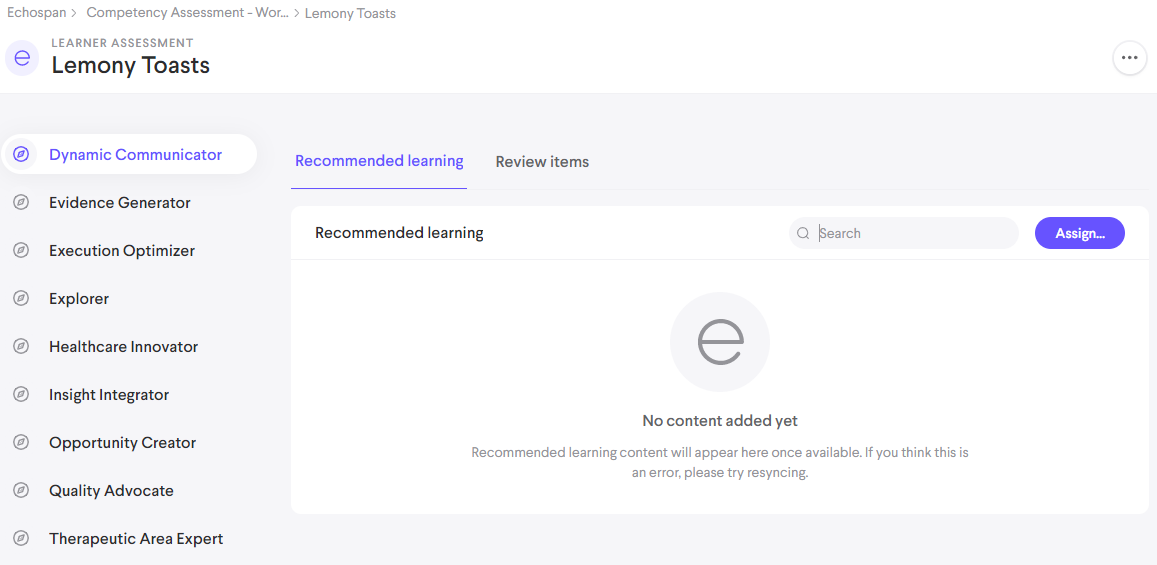
The context menu in the upper right contains the re-sync button. Selecting this will cause the add-on to pull in the latest data from Echospan and update the user's scores with the latest information.
Competency Mapping
This tab contains the competency mapping table showing every possible score for each core competency in the project. Selecting an entry entry lets you set the content which will be recommended for every learner in the project for a given score when that score is prioritized for recommendation. The content recommendation type setting for a project will determine which score gains prioritization.
Learners, non super admins, and coaches will not see recommended content if they do not have group access to that content. Super admins viewing recommended learning in the Admin Echospan tab will only see the content that the user can see.
The context menu in the competency mapping table contains the controls for template application. Explanations for these actions are contained in the next section.
Competency mapping table
Templates
To simplify the setup of competency mapping for a project in the future, you can create competency mapping templates from the Templates sub table in the Echospan add-on. Templates require that at least one existing project has been imported from Echospan.
Creation
To create a template, select the add button in the upper right of the Templates table. In the setup form, set the template name and select a project. When you confirm the form, the mapping setup for the project you selected will be saved into the template and the template will appear in the templates table.
Viewing
Selecting a template from the table will display the competency map that was saved. Templates can be edited and deleted using the context menu options in a template detail.
Application
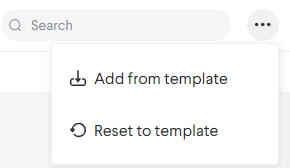
Applying a template can be done by selecting a project from the Projects table and navigating to the Competency mapping tab. The content menu in the upper right of the table area will contain the following options:
- Add from Template: This action will add any content to the mapping setup of a project if a match between the template competencies and the competencies of the selected project is found.
- No recommended content is removed or overridden in the project with this action. Content only gets added to the project map.
- The template and project maps don't have to match exactly. If the selected project has competencies A, B, C and the template has a competency map with A, B, H then only A & B in the project is eligible to receive an update. Competency H will be ignored and will not be applied.
- Reset to Template: This action will clear the competency map of a project entirely and then replace it with the selected template. If a match is found between the template and a project competency then recommended content will get added. If no match is found for a project competency then it will remain cleared and show no recommended content.
Syncing Rules
Client projects will still receive updates from Echospan once they exist in Loop. There are a few things to know about updates.
-Competencies, sub competencies, and scores are never lost on the Loop side. If a competency is removed or edited on the Echospan side, the scores for a given user will still appear in Loop along with the recommended content which was associated with it.
-If sub competencies change in Echospan for a project it will cause a banner to appear in the competency mapping table of that project in Loop with an action to resync with Echospan. Performing the sync will update the sub competencies in the mapping table to reflect the changes in Echospan.
-New users and projects added to an Echospan client will be carried over and become available in Loop. Users still need an account in Loop to appear in the Learner assessment table.
Learners & Coaches
This add-on also affects coaches, user details, and user profiles by adding Echospan tables into those views.
Learners
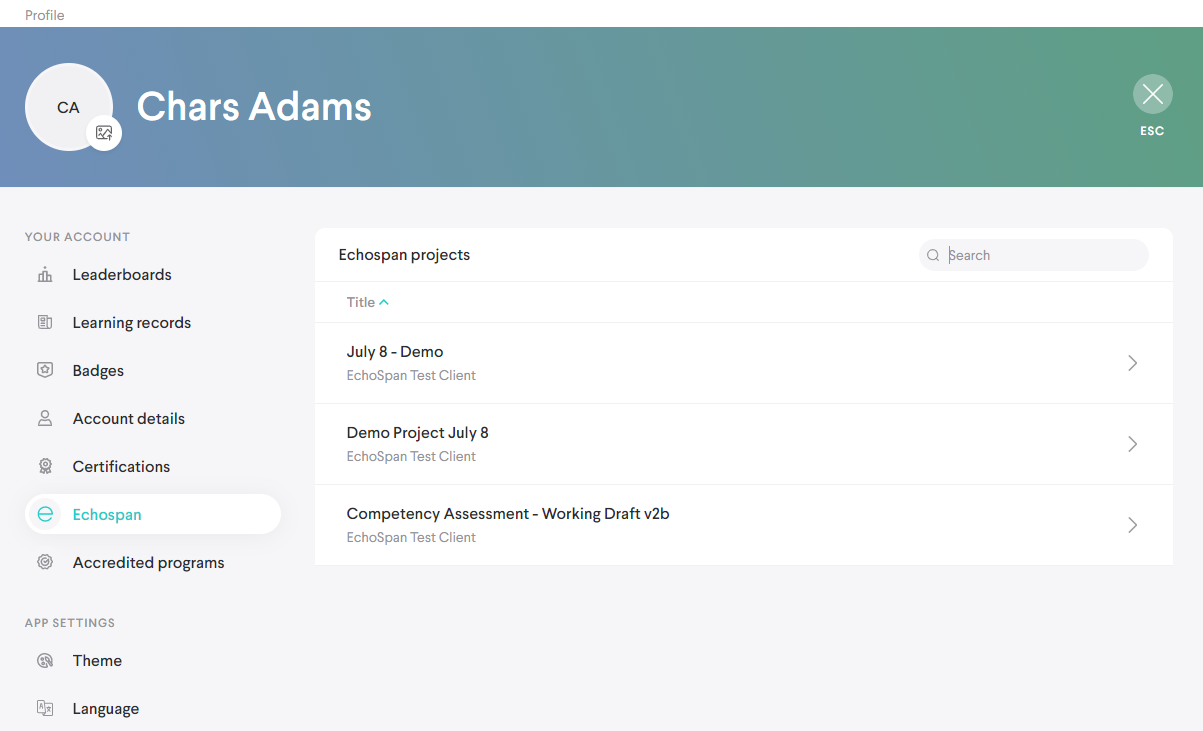
In your user profile you'll see an Echospan tab present. Selecting this will bring you to a table showing you every project you're associated to. You can select individual projects to bring up the detail. This contains all of your recommended learning based on the scores from your Echospan assessments for each core competency.
Core competencies are shown on the left and for each one the sub tabs show your recommended learning and your scores for each sub competency.
You can select content items from this list to open them in the content viewer. You'll only see content here which you have group view access to.
Echospan table in the user profile
Coach/User Detail
As a coach in a learner detail from the Your Team tab or as a People admin in a user detail an Echospan table will appear here. This table shows the projects the related user is associated to. Selecting a project will produce the review items and recommended learning for that user.
You can assign recommended content from the Recommended learning table using the content that appears there. You'll only be able to see content here that you also have group access to.
Comments
0 comments
Please sign in to leave a comment.