
This add-on lets you share content between tenants that your account has access to in a read only state. Any content type can be shared, including lessons and learning paths, including the content within them. The recipient tenant will have limited access to the shared content.
Sharing out
To use this add-on you must be a super admin in the originating tenant and the tenant content is being shared with.
1. Enable the add-on from the Add-ons list
2. Once enabled, select the Cross-tenant sharing tab in the nav panel. This will produce a list of all the tenants your account exists in.
3. Select any tenant you wish to share content to. This will produce a table listing all content currently shared from the current tenant to the one you selected. The table will be empty to start with
4. Select the add button and select content. Once you confirm the form all the content you've selected will be immediately shared to the tenant you designated and added to that tenant's admin content table.
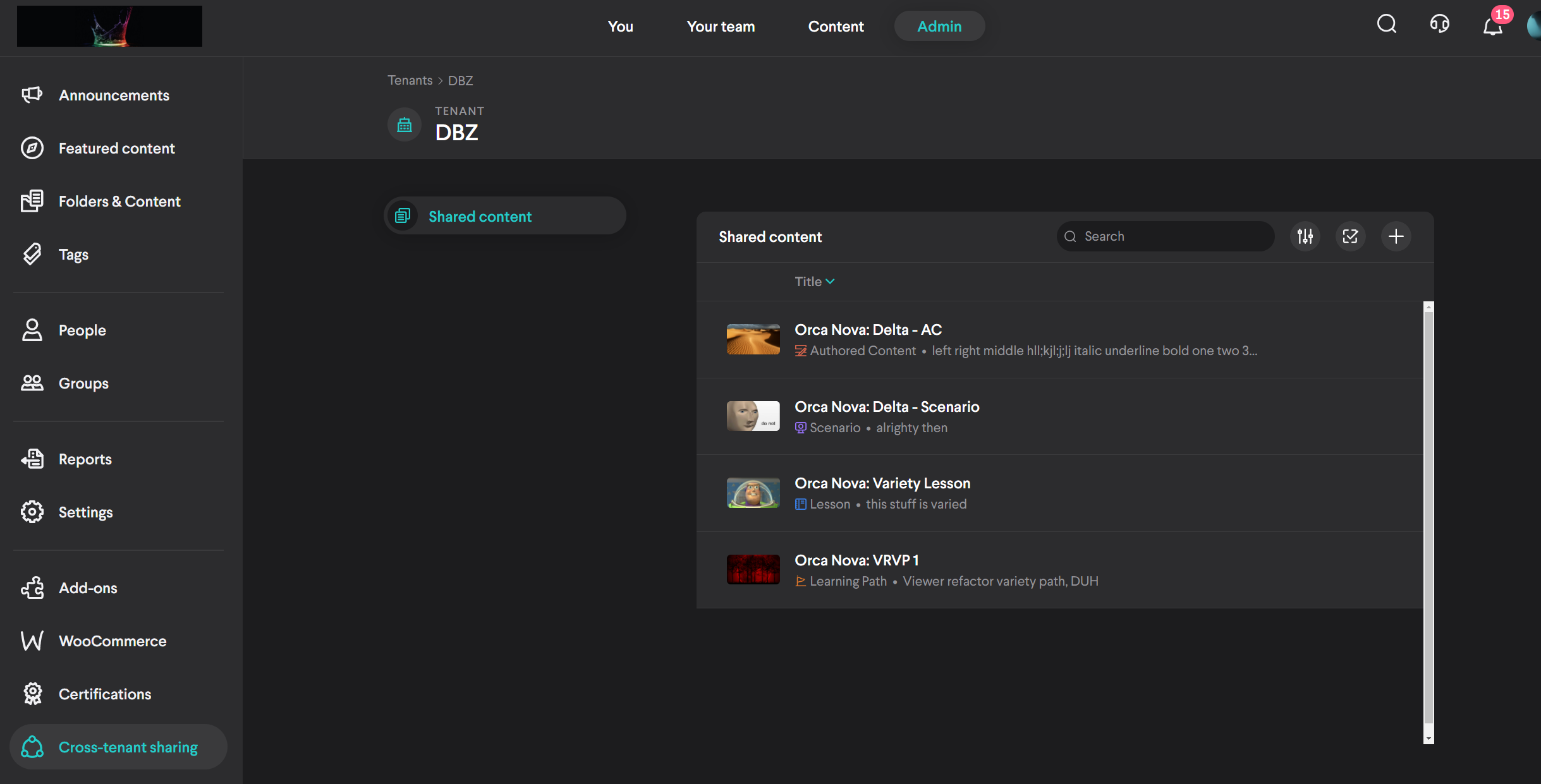
The share table for the tenant "DBZ" with a some content items which have been shared out
Rules and behaviors
There are several rules to keep in mind with this feature.
Transferring: All fields and files (including language variants) of a read only shared content item are transferred over to the recipient tenant Except folder location and groups. Tags are also carried over to the recipient and they'll be searchable in that tenant. These tags will not show up in the admin tag table of the recipient tenant, they'll only exist on the read only shared content item. Folder location and groups must be set by the recipient tenant admins.
Editing: No admins including supers can edit shared content in the recipient tenant. This includes language variant creation, description, files, or sharing permissions.
Updates: All updates that occur in the originating tenant will carry through to all tenants the content has been shared with. Content in the recipient tenants will always be under the latest version in the originating tenant. Additionally, updates to share settings in the originating tenant will reflect in the recipient tenant.
Nested content: Sharing a lesson, learning path, or lesson via read only sharing will give the recipient tenant partial access to the content contained within. The nested content won't appear as individual items in the recipient tenant's admin content table. Admins will only see the nested content in the detail view of the hosting content item and will not be able to view the details of the nested content. Content admins and coaches can also see the nested content in the enrollment details of users.
Shared content in a recipient tenant: A content item shared from tenant A to tenant B for example cannot be shared from B to another tenant such as a tenant C or be shared back to A from B. Sharing control of a given content item will always lie with the originating tenant. Tenants can still share between each other but only with original content.
Deletion and removal: If content is deleted or if the content is no longer shared from the originating tenant it will show as deleted in any recipient tenant. The recipient tenant cannot delete read only shared content from admin table. The read only share access must be revoked from the originating tenant for it to no longer appear in a given recipient tenant.
Using read only shared content
You can assign read only shared content to users if you're a coach or admin in the recipient tenant. You can also place such content in any host content object such as lessons, announcements, collections, content banners, badges, learning paths, scenarios, workflows or leaderboards.
The group accesses and folders locations of read only shared content can be adjusted at any time
To get started quickly
1. Once content has been shared, switch accounts and enter the recipient tenant.
2. In the admin content table select the 'Shared from other tenants' filter in the sharing filter group. Note: This filter is only present if this add-on is enabled.
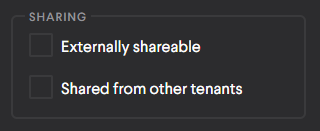
3. This will show all content in the current tenant which has been shared from other one. From here you can adjust the folders and groups as needed from the content detail.
Comments
0 comments
Please sign in to leave a comment.