
The Veeva Vault add-on allows you to import (also known as syncing in the context of this article) content from Veeva Vault into Loop and then use it like any other Loop content item. This is done by setting a series of parameters and then syncing with the vault. This add-on lets you map fields from Veeva to form fields in Loop. It also lets you organize Veeva content in Loop as part of the import process. Syncing can be done manually but it is automatically done daily to keep content up to date with Veeva and rule settings.
Add-on Setup and Connection
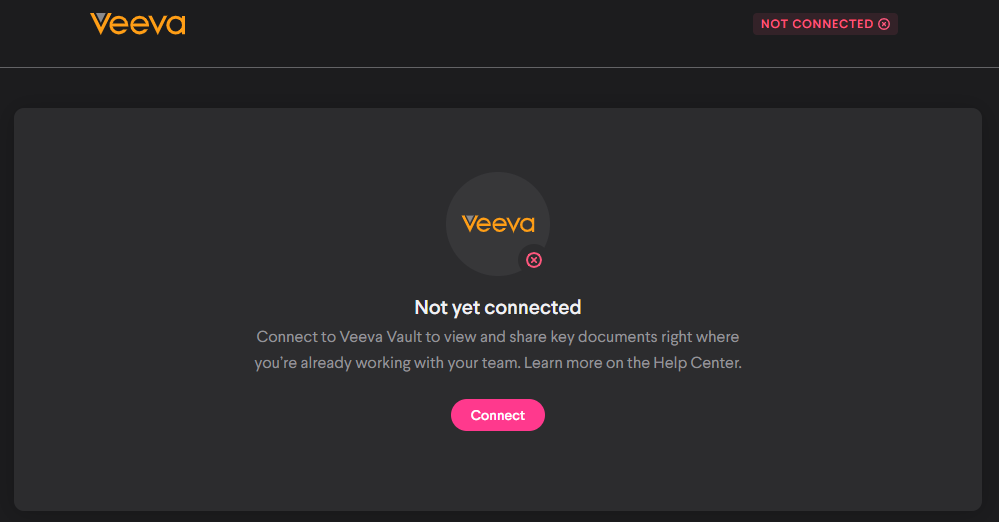
Once the add-on has been enabled via the Add-ons table navigate to the Veeva Vault tab. Before using, the add-on must be connected to a vault. Select the 'Connect' button to produce the appropriate screen.
Veeva Vault tab as it appears before connection
From there, enter the domain of the desired vault and your Veeva Vault user name and password. When finished hit the 'Connect' button in the upper right.
Connection form

Things to keep in mind about external content
- All content is imported as either a PDF or an image Loop content type.
- All imported content is marked with a tag to distinguish it as externally sourced content. The text of the tag is determined during configuration and can be changed at any time.
- For content to get imported, it requires a match with the criteria in the config. It also must not be expired in the connected vault outside of Loop. If you notice a discrepancy between the items getting synced and the item count in Veeva it likely the missing content doesn't meet one of these requirements.
- External content cannot be duplicated in Loop or have language variants.
Importing Content
Importing content does not make it available to users but instead adds it to the available list of content to add to Loop from the top level Veeva Vault table.
Note: Importing content from Veeva Vault uses Loop’s security access
Daily Import: Some clarity of the following documentation may be gained with a preemptive explanation of the daily import function.
External content is kept current by the daily import function which runs daily at 2:00AM GMT-5. When this runs the system will resync with the connected vault and update the currently synced content with any changes that may have occurred to content within the vault. This includes all content in the Veeva Vault main table both added and not added. Any content added to the vault since the last import that also meets the import criteria will be added to the available list of external content in the Veeva Vault main table. It will remap and reapply rules to synced content to ensure they are congruent with the current configuration settings.
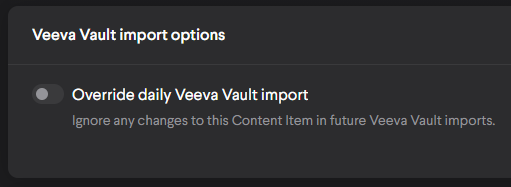
If you wish for any external content to ignore the daily import, navigate to the edit form of the external content item after it is added to Loop. Toggle the 'Override daily Veeva Vault import' setting to on. This will let you retain any content edits which would otherwise be overridden by the daily import.
You can disable the daily import entirely by selecting the 'Disable' option in the context menu from the main table page
Import override setting as seen on the a content edit form
Navigation: To begin, first select the Veeva Vault tab as a super admin. This opens the document table which displays all content that is currently synced from Veeva Vault to Loop. The table will be empty until at least 1 sync action is performed which finds content.
Veeva Vault add-on selection as a super admin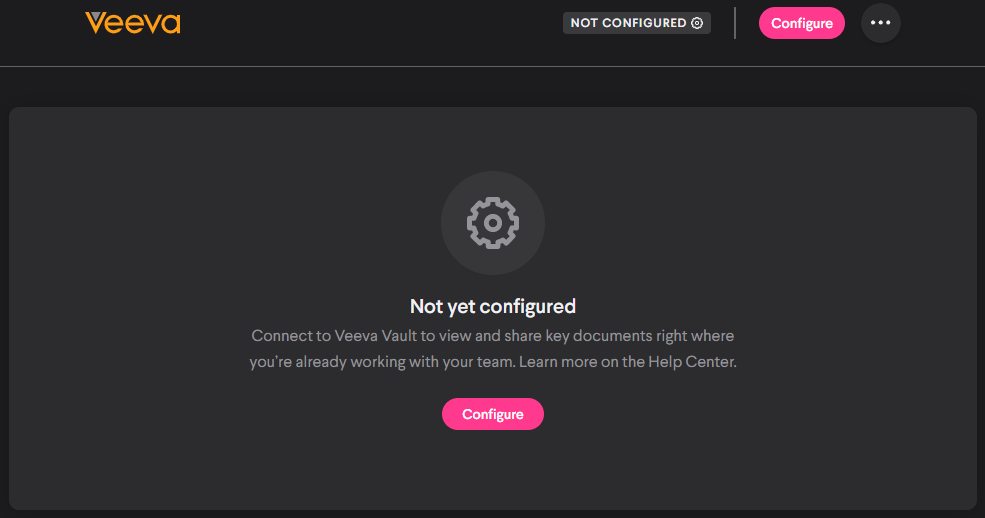
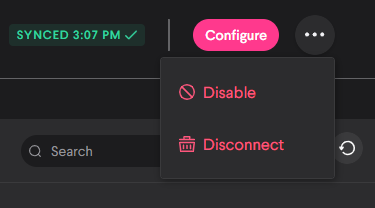
Add-on Management: To manage the status of this add-on, select the context menu next to the configuration button. Disable will prevent the daily import from running. Disconnect will reset all configuration settings and will require you to reconnect the integration.
Add-on management context menu
Configuration: Select the ‘Configure’ button in the upper right portion of the screen to produce the configuration screen. It contains the tabs of Details, Criteria, and Rules. The 'Start Sync' button will perform a sync with the currently set configuration options. Any changes to the Criteria and Rules section won't be reflected in Loop until a sync or import is run either as a manual action or when the daily import job runs.
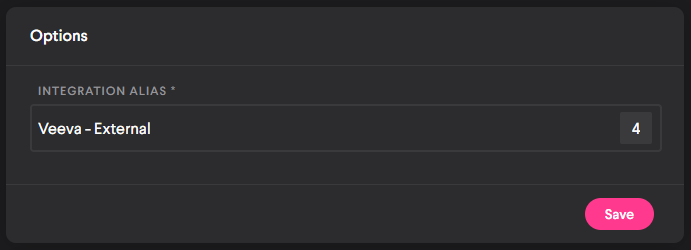
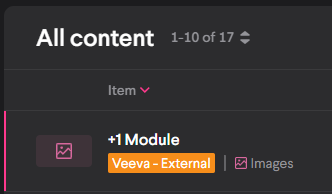
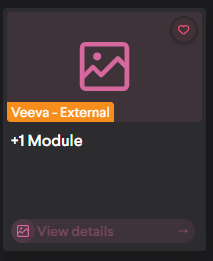
1. Details: Note that any change here will be lost if you do not hit the 'Save' button in each section. The first field is ‘Integration Alias’. This determines the tag which appears near all imported content items in Loop on both the admin and learner side. This field has a maximum character length of 20
Alias field as it appears in the config screen
Alias tag as it will appear in Loop
The second card section is where you can set mapping parameters. Each field here corresponds with a Loop content item field. For each field, select a content property in Veeva Vault. The available list is based on Veeva's property list. This will populate each Loop content item field with the value of the selected property as it appears in Veeva Vault when the import occurs. The list of mappable Loop fields is fixed and cannot be changed. You can map to Title, Description, and Asset Number.
For example, setting the Loop field of 'Title' to 'Source Number' will cause all imported content to display their 'Source Number' in Veeva as their 'Title' in Loop when being looking at the content in Loop.
Mapping section with values
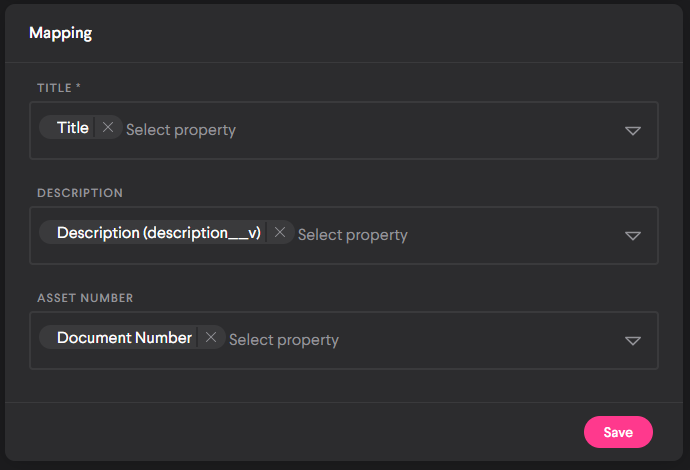
Once you have completed your selections you must hit the 'Save' button for the selections to take effect.
2. Criteria: Select the Criteria tab below the Details field to produce the Criteria table. This is where you will determine what content from Veeva Vault to import. Select the + button to create a new criteria entry. Each criteria has a property and a value. The available list for each is determined by what properties and values are available in Veeva Vault.
For each criteria entry in the table, the system will look for content in Veeva with a given property and value and add it to the list of content items to sync. Each entry in the criteria table has an AND relationship with each other. Meaning that if 2 Property/Value entries are present, only content in Veeva that has both of those properties and values will be imported to Loop.
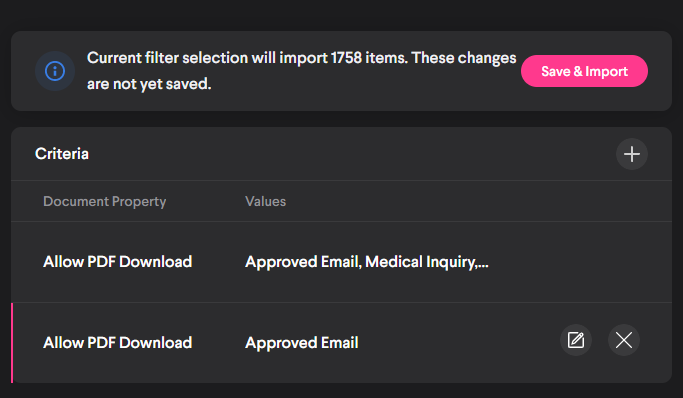
Every time you edit the table a banner will appear. It will show the number of items that will import with the current criteria and it will contain a 'Save & Import' button. The button will save any changes to the criteria table and will perform a sync action
Criteria table after editing but before saving
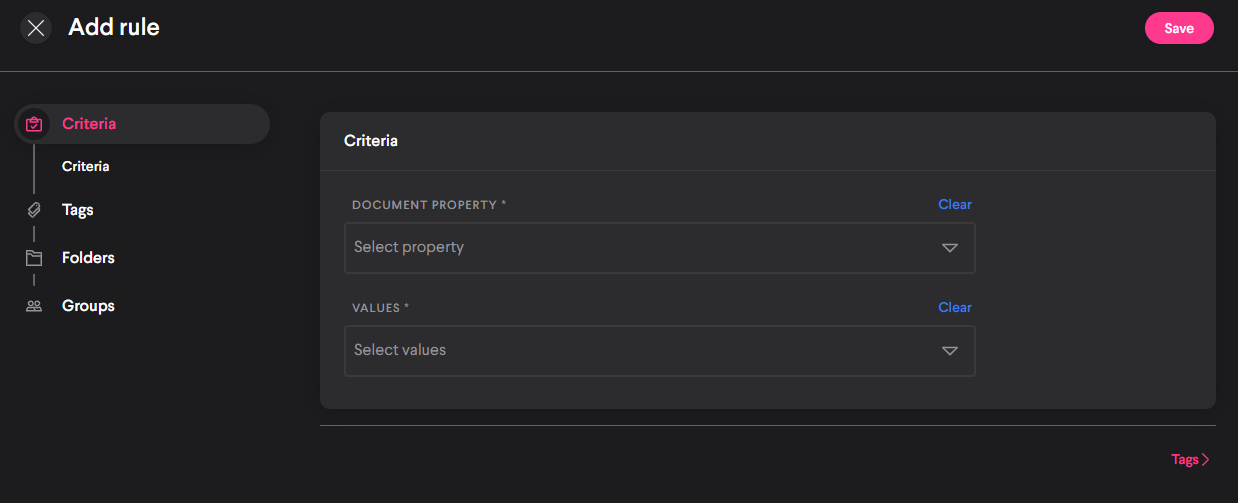
3. Rules: The rules tab contains the rule table. Rules determine what happens in Loop to Veeva content after it is imported and added. You can apply Loop tags, place it folders, and apply groups automatically when an import is run. Each rule can only contain 1 document property and 1 value.
Each entry in the table is independent with one another and are run independently. They're also additive. Meaning if you have multiple entries with the same property/value pair but different rules each rule set is still applied. When existing rules are updated the changes will be reflected when the next import is run.
The rule creation screen
Adding and Removing Content
Adding: Once content has been imported it will show up in the main Veeva Vault table in Loop. For content to show up for admins and learners it must be added. You can add content either by selecting the in row button for each item in the table or by using the bulk select action in the Veeva table with available content to add. The bulk selection button is just to the right of the search bar.
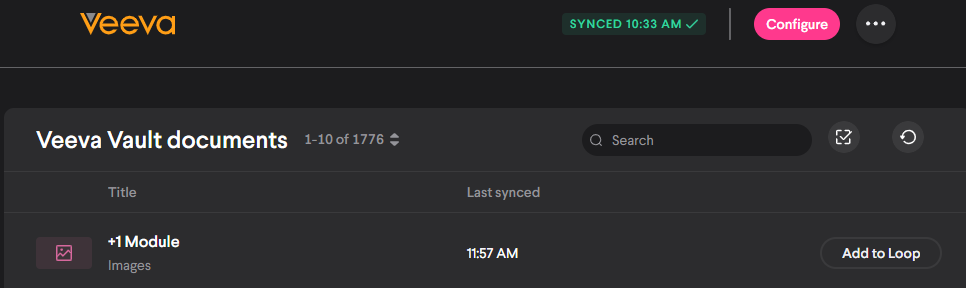
Removing: Added content will display a tag in its row indicating such. To remove content, hover over a row of an added item and select the context menu and then select 'Remove'. This will remove the content item from Loop but it will still remain in the Veeva Vault table if you wish to add it again.
Changing criteria with existing content
It is possible to change criteria settings while still having external content in loop. Doing so can have significant system results with the outcome dependent on if content is added or not added to Loop at the time the sync occurs.
If you change criteria settings and then perform a sync/import action the following occurs
Content which is added to Loop: Any existing content in Loop which doesn't match the new criteria will become expired in Loop. It will still show as added in the Veeva Vault admin table and will still exist in Loop. The reasoning for this is that the daily import sync will no longer automatically run on these content items. Any changes to mapping, rules, or updates in the linked vault will not be reflected on these items.
The expired tag must be manually removed by editing and clearing the expiration date of each affected content item.
If you remove content which is added to Loop but no longer falls under the current criteria settings then the Veeva Vault table entry will still persists and you can still add the content into Loop again after you remove it. However, if you perform another sync while the content is not added then it will be removed from the Veeva Vault table as described below.
Content present in the Veeva Vault table but not added to Loop: Content which is not added to Loop and no longer matches the criteria will no longer appear in the Veeva Vault admin table when a sync runs. To be available again, the criteria will require a retrograde to the previous matching settings.
Changing rule settings with existing external content
-Content which was already added will not fall under the new rule settings until you remove it and add it again. This includes after a sync is performed
-Content added from the Veeva list after editing the rules will fall under the effects of the new rules when you add it to Loop.
-Any content which is added after the sync should fall under the effects or the current rule setup
Comments
0 comments
Please sign in to leave a comment.