
-
Super Admins can set up fun competitions by creating leaderboards that automatically award points to Learners for completing Content Items or manually awarding points for tasks completed outside of the app. Admins, Coaches, and Learners can view leaderboards in a Learner’s profile under Leaderboards.
How to enable leaderboards
- Select the Add-ons tab.
- Select Leaderboard and then select Add to Loop.
- You can now access the Leaderboards tab in the main navigation.
How to create a leaderboard
- In the Leaderboards tab, select the + icon.
- Add a title (required) and description.
- Determine when the leaderboard will be active by picking open at and close at dates.
- Add groups, which allows People to see the leaderboard in their profiles.
How to create a scorable item
- After saving, select the Scorable Items tab.
- Add an item using the + icon or the create button in the form.
- Add a title (required) and description.
- Add a multiplier (required). The multiplier defaults to 1. The multiplier gives you the ability to weight a Content Item or task, making it worth X times as many points.
Scorable content
Learners can receive 0 to 100 points for completing a score-able item. If the item is one that can only be marked as complete or incomplete, they will receive either 0 points (when incomplete) or 100 points (once complete). For all other items, a Learner’s points in the leaderboard will be the same as the score they received on the item itself.
For example:
- When a Learner completes an Authored Content Item, they will receive points in the leaderboard based on the percentage of questions they answered correctly. (Note: Learners won’t be scored on their responses to open-ended style questions.) If they correctly answered 50% of the questions, they will receive 50 points.
- When a Learner completes a SCORM Course, their score will be reflected in the leaderboard. If their SCORM score is 90, their score in the leaderboard will be 90.
- If the multiplier is set to anything other than 1, the Learner’s points will be multiplied by that number.
- So, if the multiplier were set to 3, the Learner who answered 50% of the Authored Content Item questions correctly would receive 150 points, and the Learners who scored 90 on the SCORM Course would receive 270 points.
Manually scorable item
- If you do not add content, you must manually add scores. You can do this two ways: in bulk for all Learners in the group or individually for one Learner at a time.
- Bulk upload scores
- To add scores for all Learners, select the triple dot icon (...) at the top of the table
- You can also download a template for uploading scores.
- To add scores for all Learners, select the triple dot icon (...) at the top of the table
- Individually enter a score
- Select the item from the Score-able items table.
- Select the Learners progress tab.
- Select the triple-dot icon (...) within the Learner's row and choose Manually enter score.
- Enter the point value and select Save.
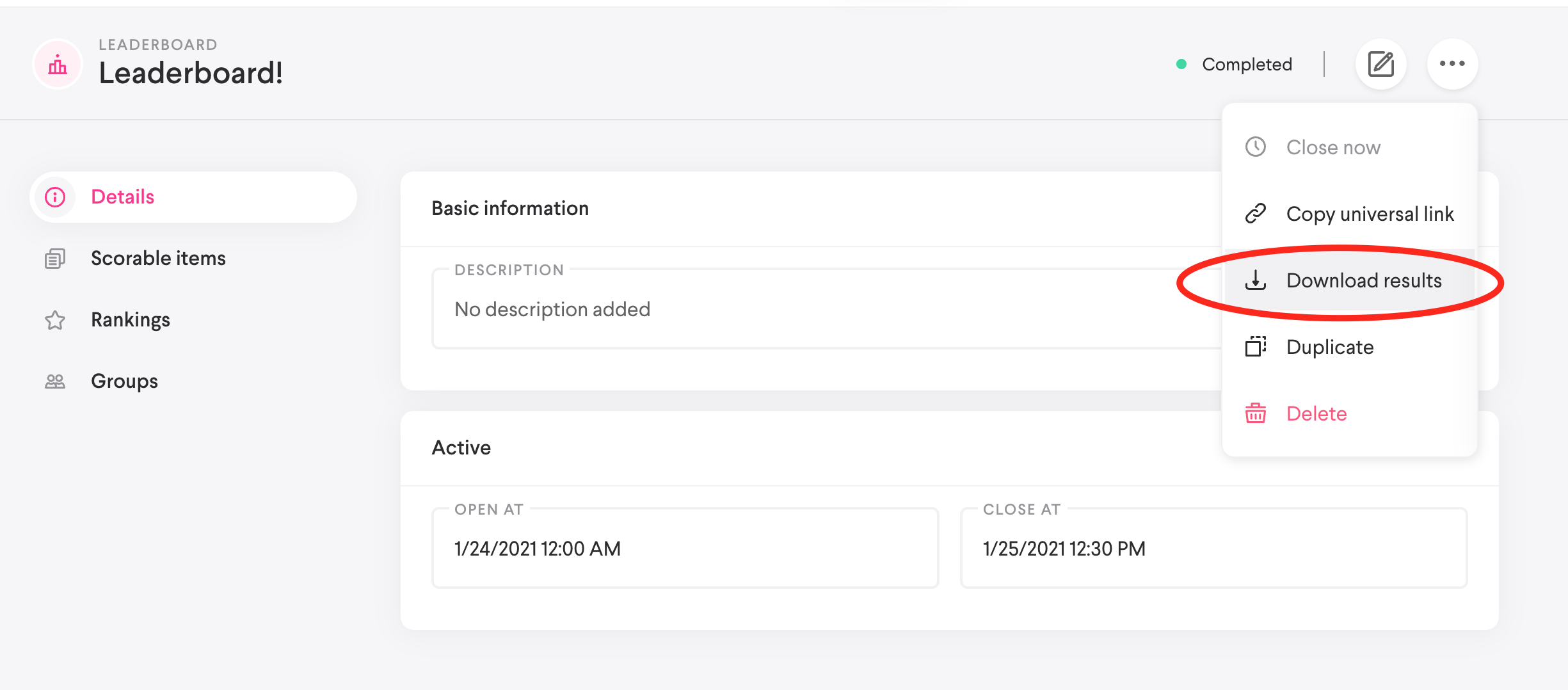
How to download the leaderboard
- From the Leaderboards detail view, select the triple-dot icon (...).
- Select Download results to download a .csv file.
How to view the leaderboard as a Learner
- Select your profile.
- Select Leaderboards.
- You will only see this option if you are associated with a group that has access to a leaderboard.
- Select a leaderboard to open it and see where you stand in the rankings.
- You can access Content Items directly from the leaderboard in order to improve your scores. To do so:
- Select a leaderboard.
- Select the Scorable items tab.
- Select the Content Item you’d like to view and then select View.
Comments
0 comments
Please sign in to leave a comment.