
-
Super Admins can create custom badges and manually award them to Learners. They can also set up badges to be awarded automatically once Learners have completed a designated set of Content Items. Admins, Coaches, and Learners can view the badges a Learner has been awarded in the Learner’s profile under Badges.
How to enable Badges
- Select the Add-ons tab.
- Select Badges and then select Add to Loop.
- You can now access the Badges tab in the main navigation.
How to create a badge
- In the Badges tab, select the + icon.
- Add a title (required) and description.
- Select the icon, icon color, shape, and shape color.
Note: only Super Admins can enable and create Badges.
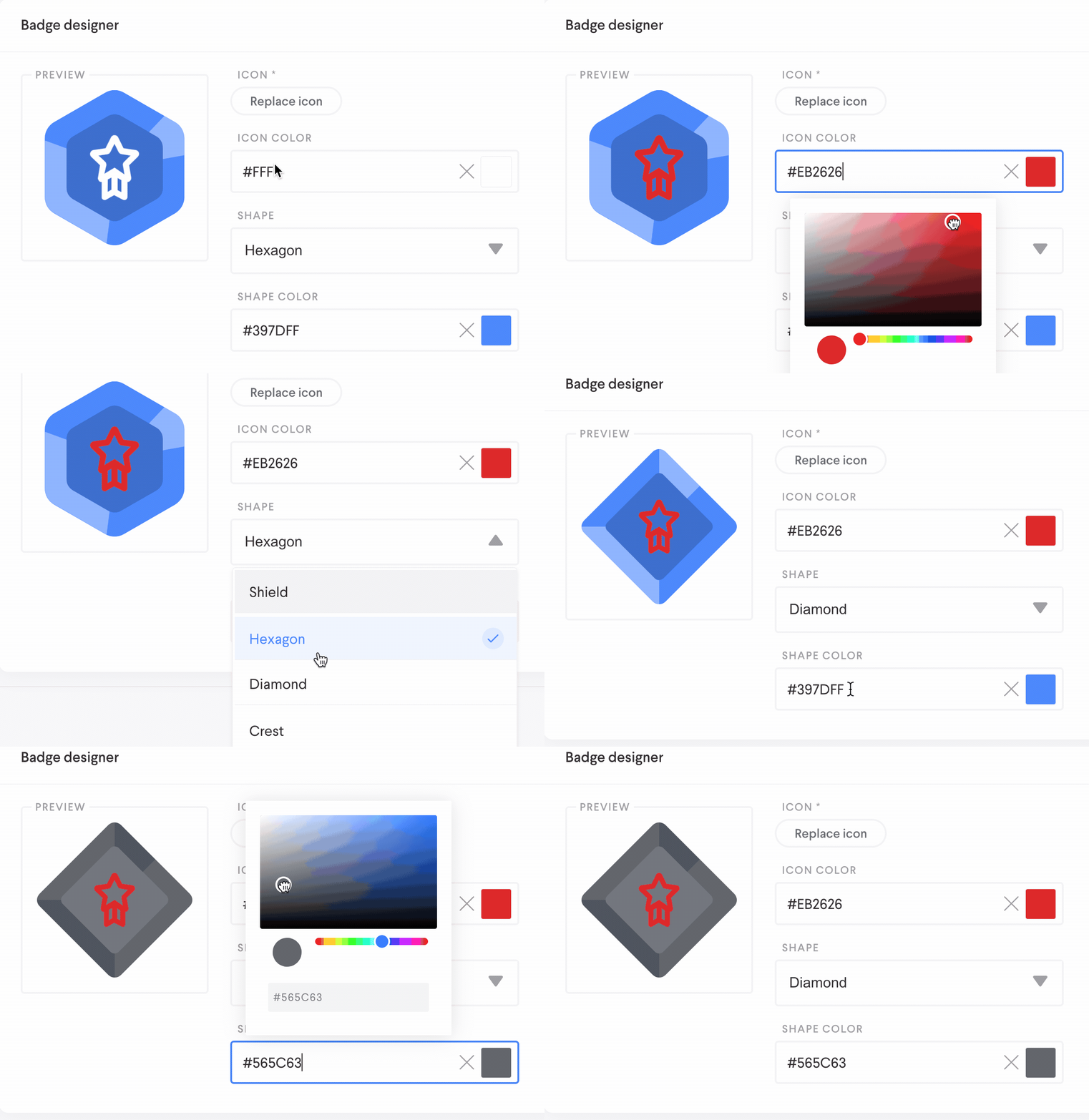
How to award a badge
To manually award a badge to a Learner or multiple Learners;
- Select the Learner progress tab from the badge detail view.
- Select the + icon.
- Select one or more Learners.
- Select Add.
To set up a badge that requires content completion:
- Select Content Completion.
- Choose a Global Configuration: select Group specific to make this badge visible only to Learners in specific groups, or select Global to all Learners to make this badge visible to everyone in the app.
How to view the awarded badge
Learners will receive an email and an in-app notification when they’ve been awarded a badge. Admins, Coaches, and the Learner who was awarded the badge can then view the badge in the Learner’s profile. Selecting the badge provides more details about the badge: the badge description, who awarded the badge, and when it was awarded.
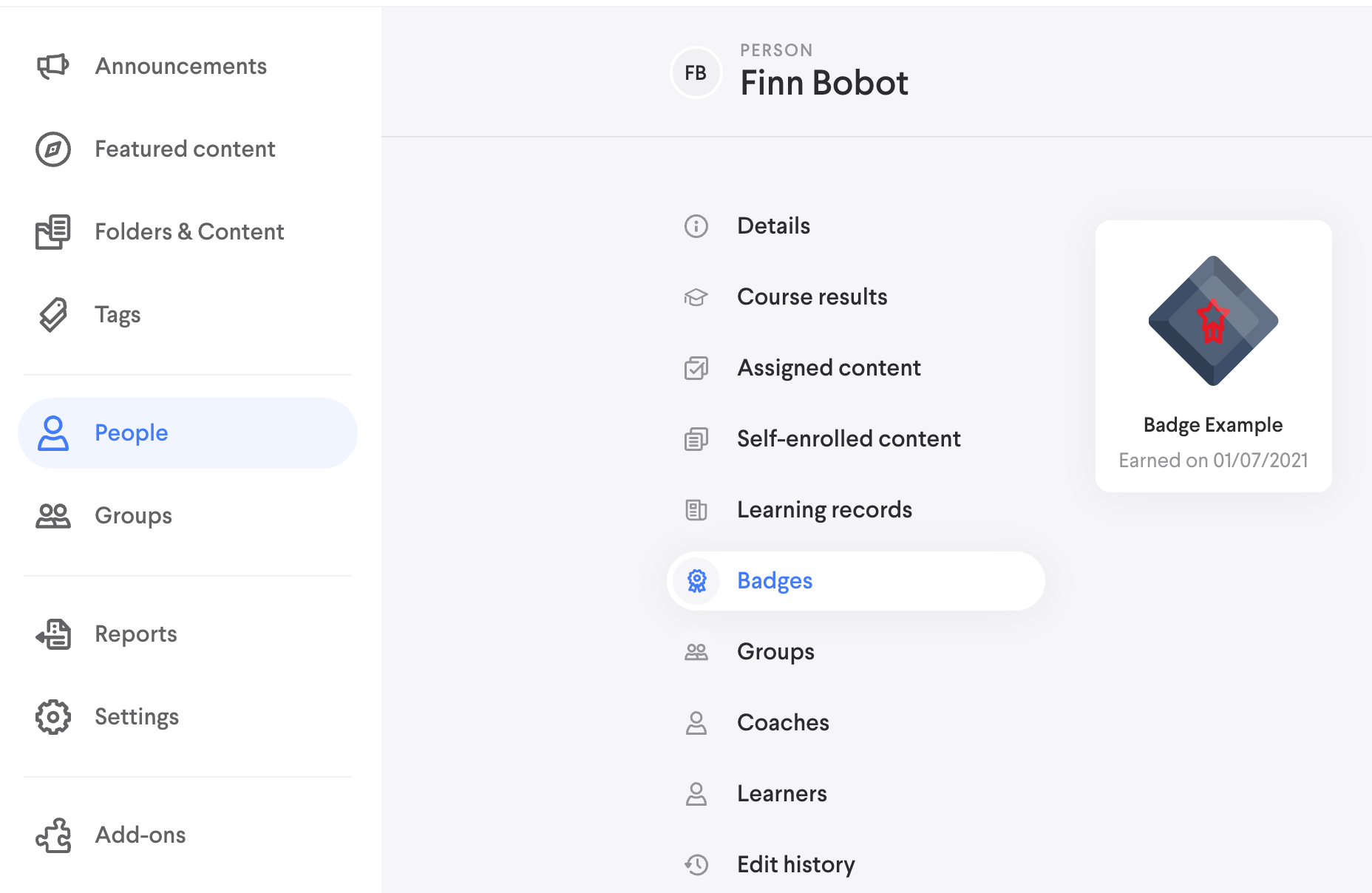
Learners can view badges that require content completion in their profile. They can see the content that must be completed in order to earn the badge as well as their progress toward achieving it. Once a Learners obtains a badge, it will animate and be available in their completed list.
Comments
0 comments
Please sign in to leave a comment.