
Overview
Coaches are users who oversee Learners. Since coaching status isn't based on Admin access, it's possible for both Admins and non-Admins to act as Coaches. Within a user's detail section (found by selecting the People tab), the Learners and Coaches tables display all Coach-Learner associations for that user. Anybody listed in that person's Coaches table is a Coach for that user. And that user is a Coach for any Learners listed in that user's Learners table.
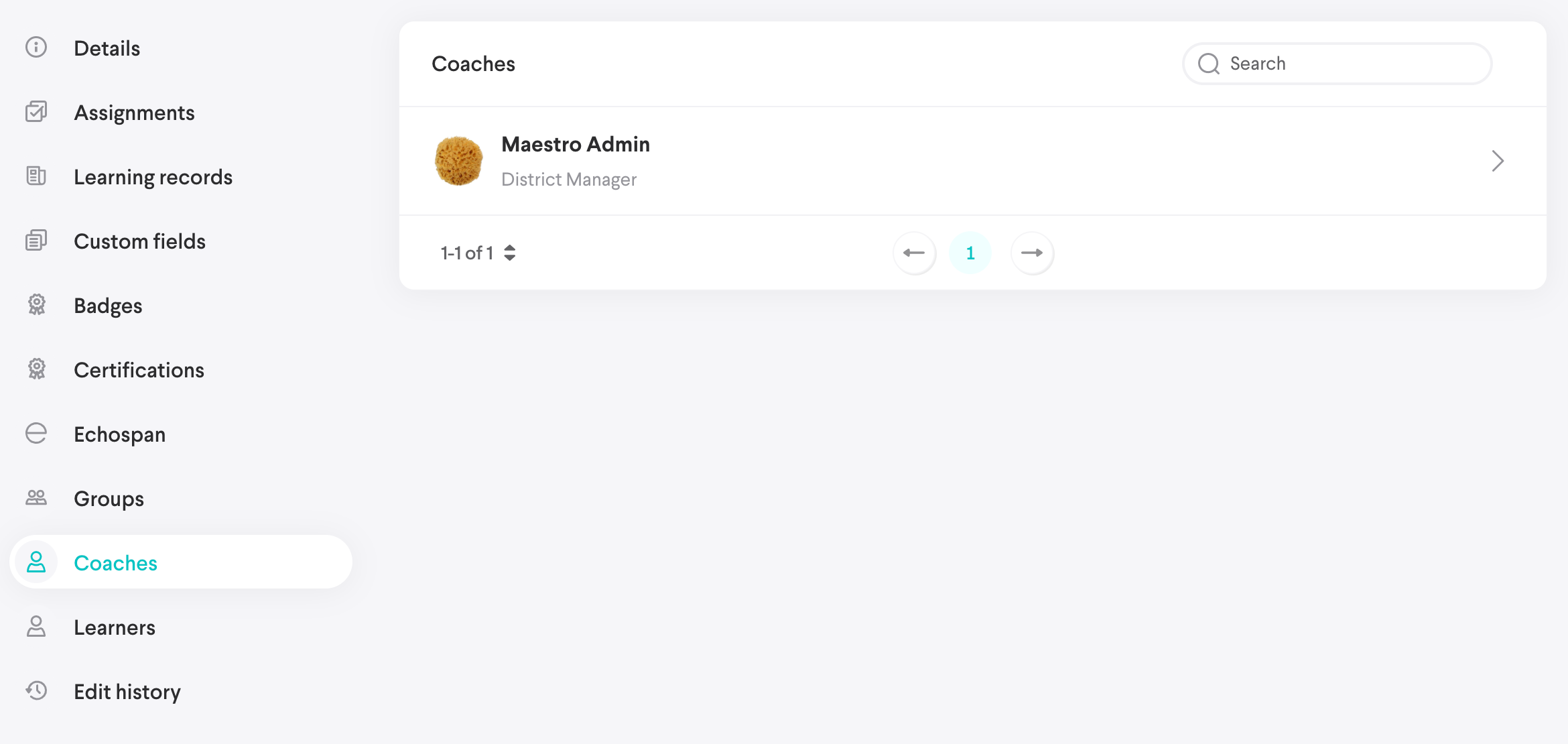
The following are some behaviors of the Coach-Learner associations:
- People Admins and Super Admins have the ability to manage the Coach and Learner tables.
- A People Admin or Super Admin can set any Coach-Learner associations between any users in the Groups that an Admin manages.
- A given user can have any number of associations.
- Any user can be a Coach or a Learner of any other user, regardless of Group.
Coaching in practice
If you have at least one user in your Learners table, you become a Coach and gain access to the Your team tab.
Widgets for coaching
All primary Coach functions are managed here through the use of widgets, which provide quick access to a subset of information. Selecting the View all button within a widget will take you to a list view so you can access all the related information.
The following are the primary widgets that appear when you select the Your team tab:
- Learners: Displays all Learners you're a Coach of
- Needs review: Shows all the Assignments that require review that are assigned to your Learners
- Assigned Content: Displays all Content you have Group access to that's been assigned to your Learners
Widget: Learners
The Learners widget contains all the Learners you're a Coach of. The widget's general display will show up to 10 Learners.

Select the View all button to display all learners.
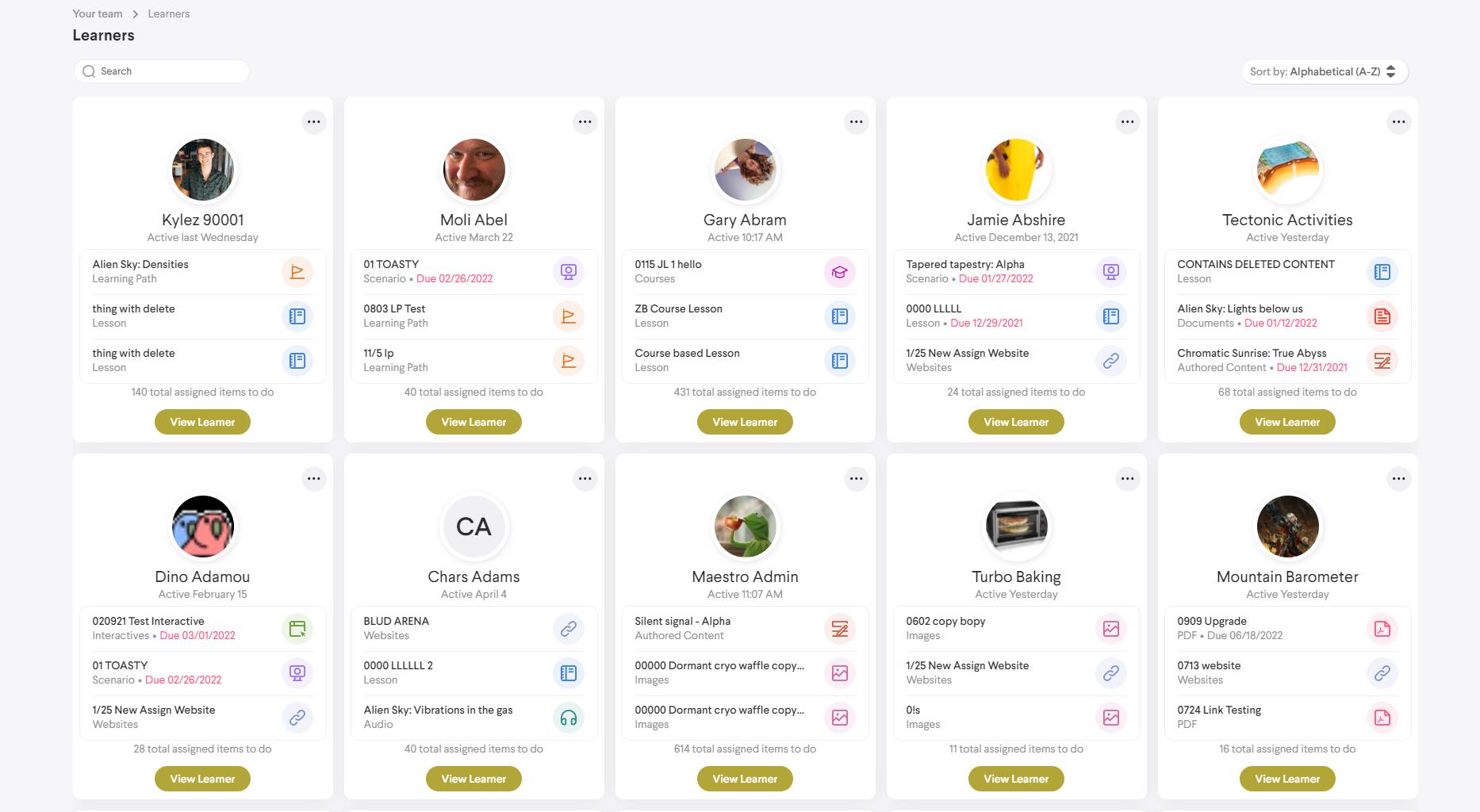
Sort-table controls are in the top right corner of the page. Each Learner card contains the following:
- Name and thumbnail
- The three most recently assigned incomplete Content items the Learner has been assigned or interacted with. If the Learner has no incomplete Assignments, the card area will contain a link to assign them Content. Selecting the Content within a card will produce the Enrollment detail view for that Content item and related person.
- Date of the person's last activity
- Number of items assigned to that Learner
- More button
 , which contains the following:
- Assign function
- Send-email function: Selecting this takes you to your device's email client or app selector. Once a client or app is selected, the blank email will populate with the user's email in the recipient address field.
- View team member button, which takes you to the detail view of that Learner
Selecting "Assign" from the more menu or from the link in the Content area will produce the Assignment modal and allow you to assign Content to the related person.
Learner detail
Selecting the View Learner button on any card will take you to the detail view of that user.
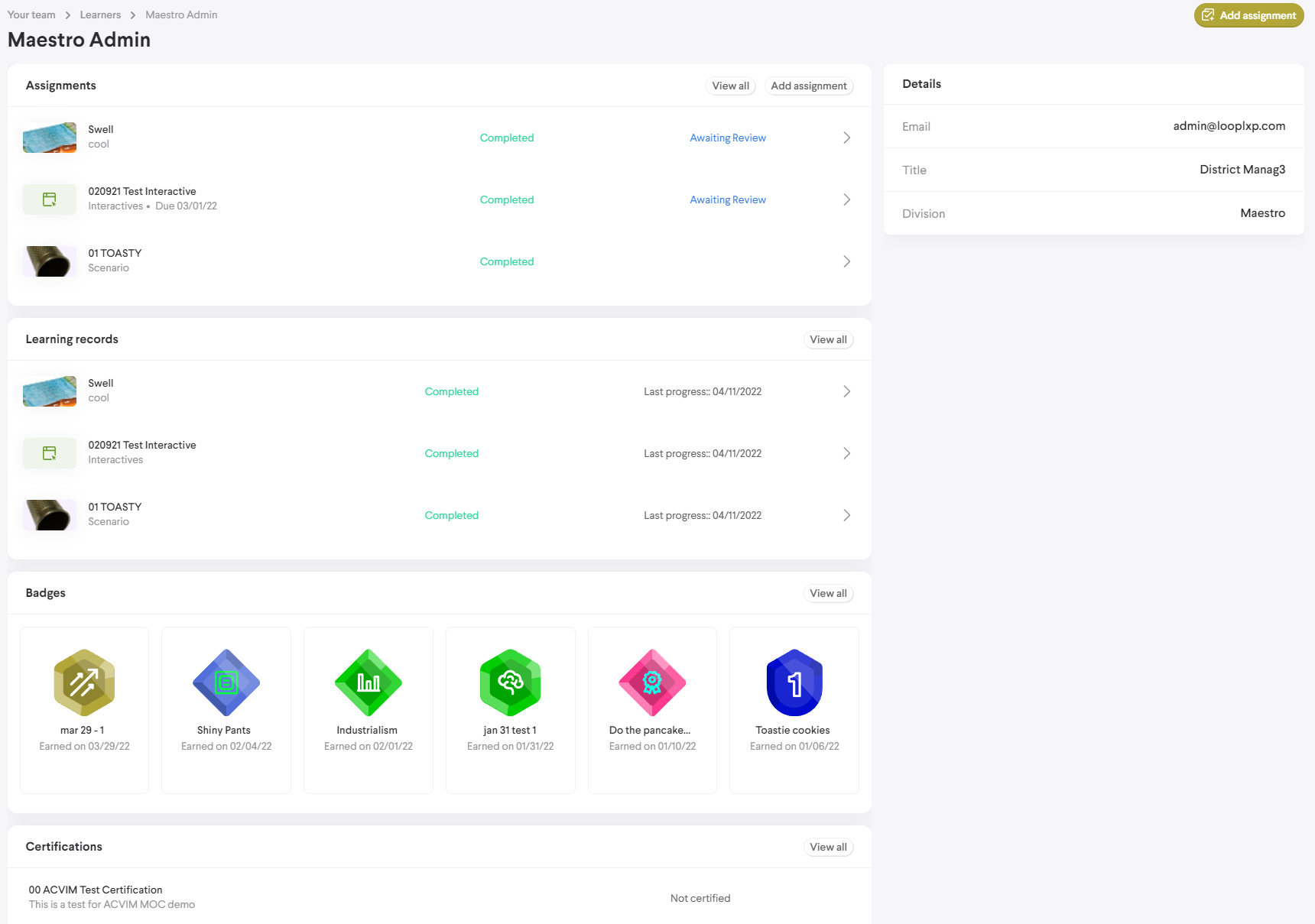
The detail will display some general information on the right side of the page. It'll also contain the following widgets:
- Assignments: Shows all current and past Assignments for that learner
- Learning records: Shows all Content the Learner has Enrollments for, including Assignments and self-Enrollments
Additional widgets are added based on the add-ons your Tenant has enabled. These include the following:
- Badges
- Certifications
- Echospan projects
Widget: Needs review
All Assignments that are from your Learners and marked for review will appear in the Needs review widget.
The review setting is determined during the creation of an Assignment. If an Assignment is marked as requiring review, the Learner's Coach must review it once the Learner completes it. During the review process, the Coach can pass or fail the Assignment, leave feedback notes, or leave video feedback.
When a Learner finishes an Assignment marked for review, it's added to the Coach's Needs review table. The Needs review table shows all finished Assignments that haven't yet been reviewed. This includes anything assigned by other Coaches to your Learners. The review outcome, review feedback, and who's reviewed the Assignment are recorded in the Enrollment timeline, which is viewable in the Enrollment's detail view.
Reviewing Content
Selecting an Assignment from the Needs review table produces the following modal, which shows all Assignment details.
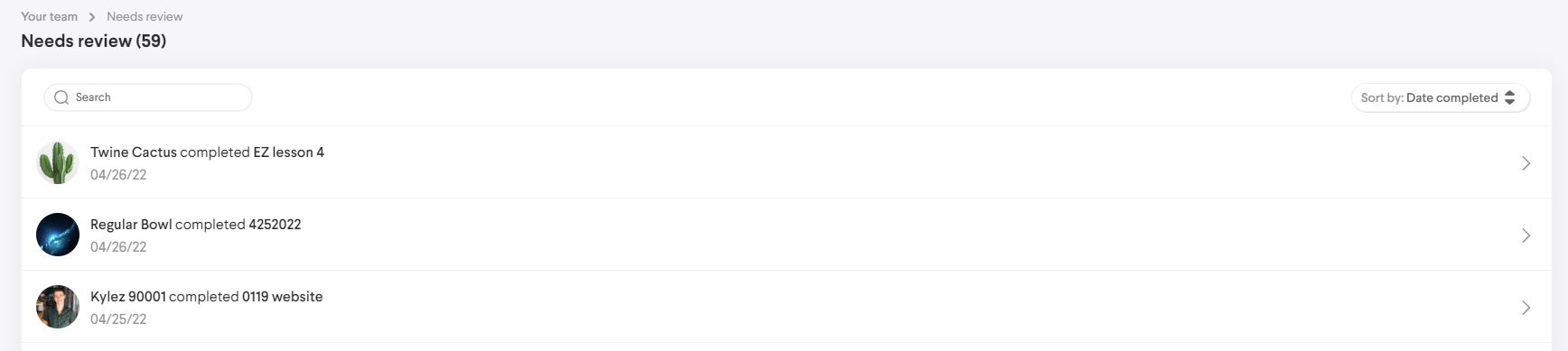
Select an entry to display the Assignment's detail view.
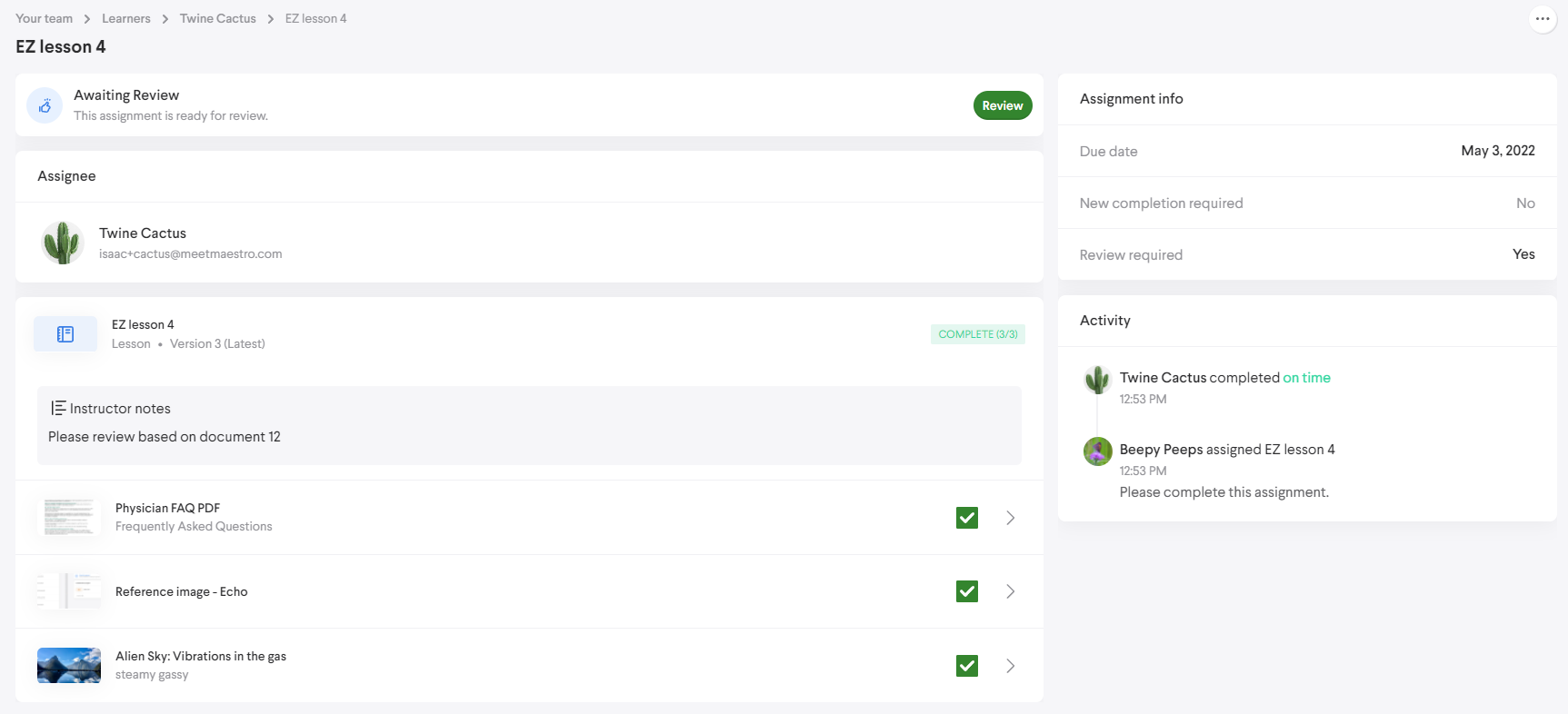
Select the Review button to perform the review. Reviews consist of an evaluation on performance and providing review feedback.
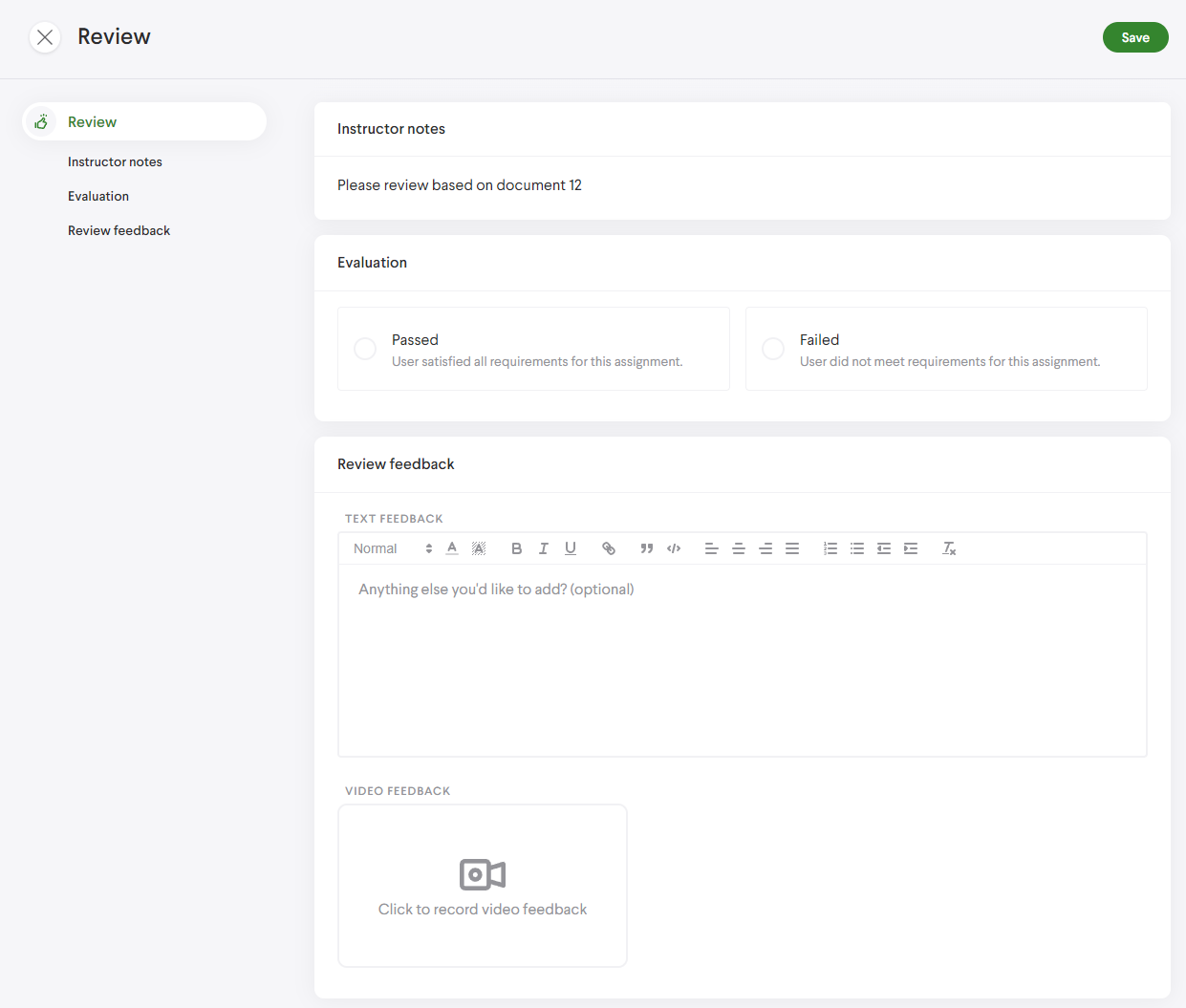
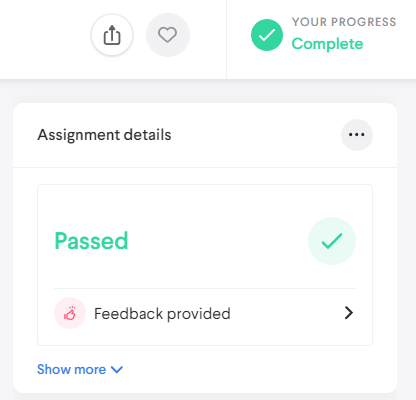
Once the review is saved, a notification of review completion will be sent to the Learner, allowing them to see the results. The details of the review are then retained in the Enrollment details.
The Learner will see the results of the review in the Content viewer:
After review, the entry in the Needs review list will automatically disappear.
Widget: Assigned Content
This widget shows all Content with an Enrollment for any Learners you're a Coach for. It shows all Content, regardless of completion status. Selecting a Content item will show the cumulative Enrollment details and all people who have Enrollments with that Content item. This table can include Content you don't typically have access to.
Cumulative Enrollment details after selecting a Content item:
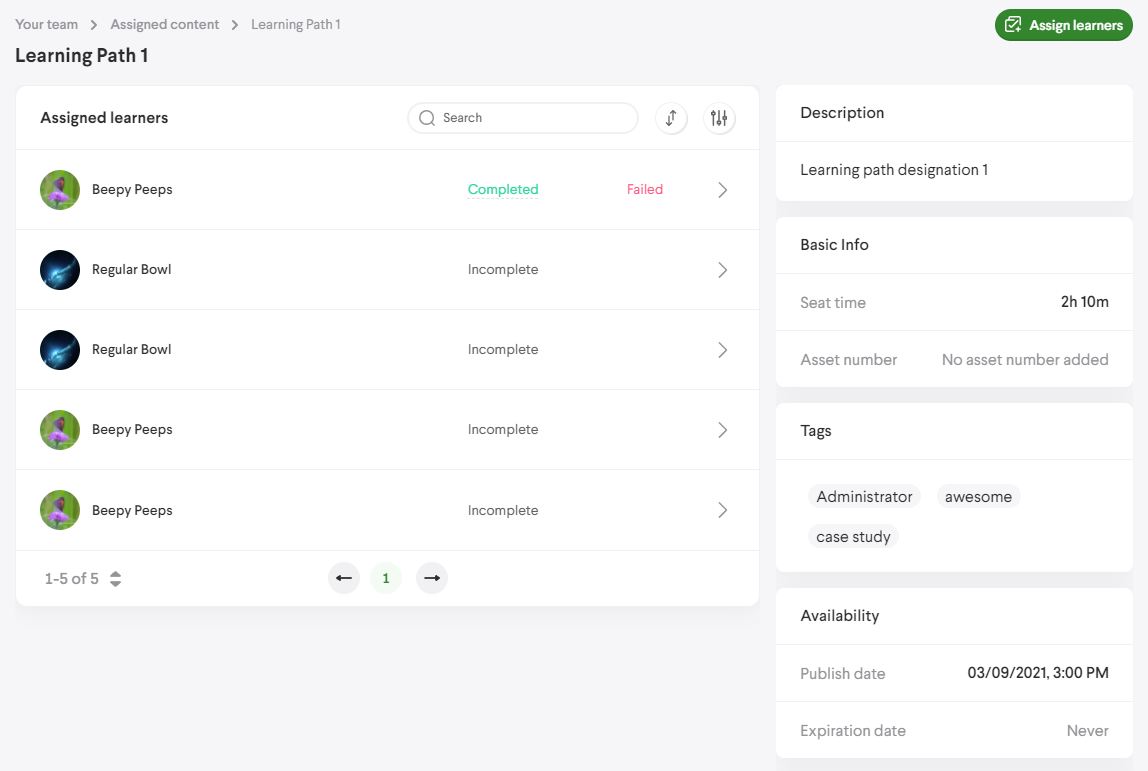
Selecting a user from the table will show additional Enrollment details specific to that person. The following screenshot shows the past Enrollment details of the Content item "Learning Path 1" assigned to the person "Beepy Peeps."
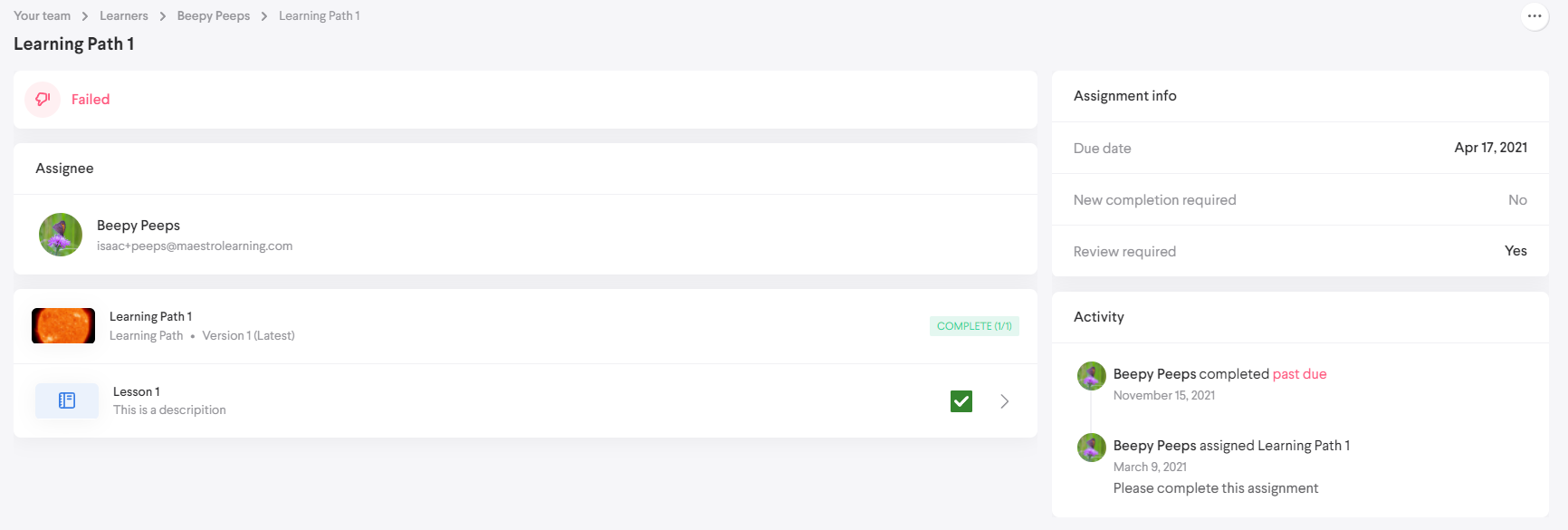
The more button in the top right corner contains a list of actions you can take for the selected Enrollment. See the "Adjusting existing Enrollments" section for more details.
Assigning Content
Assigning Content is one of the main functions of a Coach. You can assign any Content item for which you have view access to any learner you're a coach of. There are several locations where the you can perform the Assignment action as a Coach. (Content Admins have additional assigning locations.) Coaches can take the Assignment action by doing any of the following:
- Within the Content viewer, access from Content browse: Selecting the more button
- In a Learner detail view: Selecting the Add Assignment button
- On the Your team dashboard: Selecting the Create Assignment button
- Within the Assigned Content detail view (after selecting a Content item from the Assigned Content table): Selecting the Assign Learners button
The location you assign from will determine which fields in the Assignment modal are prefilled with information. For example, if you assign from within a Learner detail view, that Learner will be prefilled. The context will also determine which of the prefilled information won't be editable.
Regardless of where a Learner's Assignment modal is accessed from, it'll always contain the same base elements, which include the following:
- Content to assign
- Learners to assign to
- Due date
- "Require review" setting
- Require new completion: This prevents users from applying any previous progress they may have on a Content item.
- Message: This allows you to write a message that learners will see in their Assignment details.
- Assign as: This allows you to assign Content as an alias, such as the one for your organization.
Example of the Assignment modal:
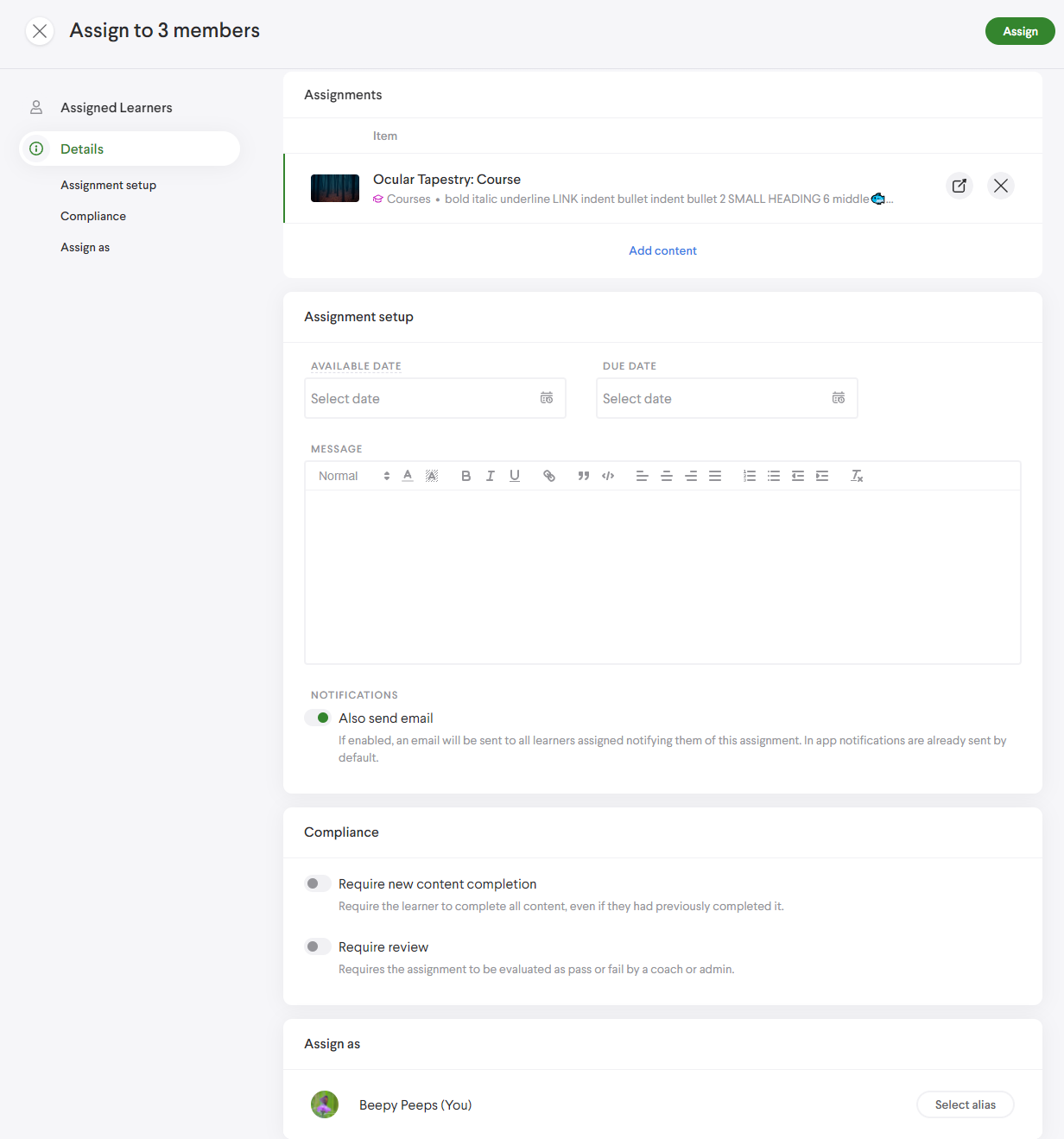
Once the assign action is complete, an entry is made in the Enrollment details for the Learner(s) and the Content item. The Learner(s) will receive a notification and have a related entry in their Assignment table. Additionally, if the Content item had no existing Enrollments for any of your Learners previously, it'll now appear in the Assigned Content table. Once a Learner completes an Assignment, you'll receive a notification that they've done so. Selecting the link will take you to that Learner's Enrollment detail for that Content item.
Adjusting existing Enrollments
After Content has been assigned, Coaches still have a few actions they can take. With an assigned Enrollment selected, select the more button in the top right corner.
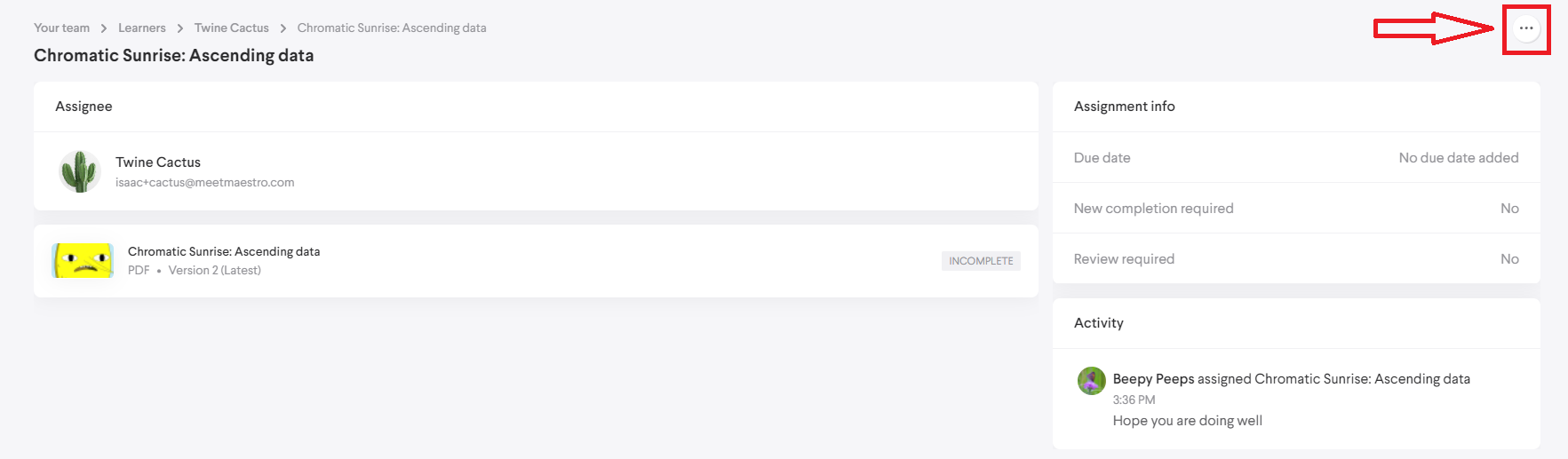
Selecting the more button displays the following actions:
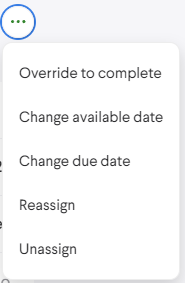
- Override to complete: This lets you perform a content override on the Assignment and force a completion state. See the Content Override article for more information.
- Change available date: This allows you to set the earliest date when the Assignment can be completed by the Learner. You can schedule Assignments out to any time in the future, and the Learner can see the upcoming Assignment in their Assignment list but won't be able to complete it until the set date.
- Change due date: This lets you c hange the date that the Assignment is due. This can be done retroactively, even after the Assignment has been submitted.
- Reassign: Reassigning Content allows you to go through the assignment process again. This will generate a completely new Enrollment. Progress on previous Enrollments will still be retained.
- Unassign: This removes the Assignment from the Learner's Assignment list. The Assignment will no longer appear to Learners, Coaches, and Admins as assigned Content, though it'll still appear in the Learner's learning record. If Content no longer has assigned Enrollments for any of your other Learners, the content will be cleared from your Assigned Content table.
Coach Digest
The coach digest is an optional automated email sent out to coaches that contains a list of assignments with upcoming due dates or assignments that need review. To enable the digest, navigate to Admin > Settings within the assignment notifications section.
An additional option includes the ability to only send the digest email to primary coaches.
Primary Coaches
Primary Coach is an association you can create between a Coach and a number of their Learners. This association can be used to target notifications more accurately. To create an association, navigate to the People table and select a user. Then navigate to the Learners tab and hover over a row in the table. Next select the more buttonand select the "Make Primary" option.
After selection, a tag will appear in the table row, showing that the primary association has been established.
Now only the primary Coach of that Learner and will receive notifications related to that learner.
For example; Helen Simmons has 3 coaches:
- With Primary Coach toggle OFF
- All 3 coaches will receive the digest for Helen Simmons
- With Primary Coach toggle ON
- Only those coaches associated as a primary coach will receive the digest for Helen Simmons
Comments
0 comments
Please sign in to leave a comment.