
Most of the information in Loop appears in a table. Depending on a table's purpose, it might have slightly different or unique controls to help you find what you're looking for. Here's an overview of how to navigate tables in Loop.
Searching and Sorting
Search bar
There's a main search bar on your You page that allows you to search for anything within Loop. Different pages have their own specific search bars as well.
Can't find what you're looking for? Your search is always performed against the leftmost table column, at least. It may also include other data fields in the table, but it may not. Try other related search terms with this in mind.
In-row actions
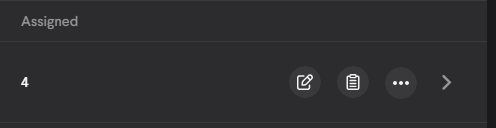
Most tables have rows, and there are control buttons on the right side of each row. Hover over or focus on the row to reveal the buttons. The button control the row that is in focus.
A focused row looks like this, with the control buttons on the right:
Filter
Another way to find what you're looking for is to use a filter to narrow down the options shown in a table.
This is the filter button:

Select the filter button to bring up a filter control if one isn't already shown. When you select an item in the filter, it will be applied immediately.
Note: table filters are EITHER/OR inclusive, not BOTH/AND inclusive. This means that selecting two different filters for example will include items that share one or both of the attributes, not exclusively those attributes. Your filter options depend on the table you're viewing.
Viewed number
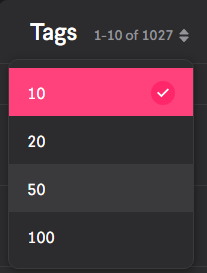
You can only control the viewed number for tables with pages. Select this to control how many items you see per page, and how many pages you can see at once.
The viewed number control looks like this with the drop menu open:
Note: You can only control the viewed number for tables with pages.
Page selection
On a table that has pages, you can select which page you'd like to view by its number. You can also use the arrows on the right and left sides of the page number controls to navigate between pages. If you've used viewed number to view more items per page, you'll see less pages.
Page selection controls look like this:

Note: You can only select a page from tables that have pages.
Column sorting
By default, tables are sorted by the information in the left-most column in ascending order (A-Z or 0-9) with the chevron pointing up.
The chevron looks like this:

If you're able to sort a column, there will be a chevron next to the column header (if you don't see one, try hovering over or focusing on the column header to make one appear).
Select the chevron to sort the information in descending order (Z-A or 9-0). You can toggle the sort order for each column.
Buttons and Menus
Additional action menu
The additional action menu button looks like this:

Select this button to reveal additional actions for the table.
Additive action
The additive action button looks like this:

Selecting the additive action button will create or add something. Sometimes this button opens a drop menu, and sometimes it performs a single action. When you see it, select it to find out!
Go to
The go to button looks like this:

When you select it, it will take you to a new window. For example, selecting this button on a folder listed in the ‘Folder location’ table will open a new browser window and open that folder.
Edit
The edit button looks like this:

This button directs an admin to the edit view of the related item, which will allow them to make changes.
Assign
Assign button

This button directs an Admin to the assign screen where they can assign Learners to a content item.
Remove
Remove button

Want something gone? Use the remove button.
Bulk Action
Bulk action button

When selected, this button allows you to apply a single action to any number of table items. The type of actions available depends on the table.
Directory and Screen Navigation
Screen navigation
This navigation element is called "the breadcrumb," because it's like a breadcrumb trail back to where you came from. Nice, right?

The breadcrumb shows you where you are, and where you came from to get there. In some areas in Loop, you can progress deeper and access nested screens. The navigation breadcrumb at the top will update and show where you currently are in the context of the nested screens. You can select one of the sections in the breadcrumb to immediately navigate to that nested section, but if you do, it will undo any unsaved changes.
Folder Navigation
Drilling down into a folder will also display a breadcrumb. You'll find it in the upper-left of the viewing area. You can select a previous section to jump directly to that section.

Comments
0 comments
Please sign in to leave a comment.